Mount Cloud Buckets, Locally In Containers (ft. S3, GCS & R2)

Chapters8
The host greets viewers and teases upcoming Cloudflare-focused videos, mentioning the new Cloudflare hoodie and hat while inviting viewer interest in merch.
Cloudflare Developers shows how to mount remote buckets (S3, GCS, R2) into a container using Fuse via Tigris FS, demoed with Mountain Party, plus setup tips for credentials and deployment.
Summary
Confidence from Cloudflare Developers introduces Fuse-based remote bucket mounting inside Cloudflare containers, enabling S3, GCS, and R2 to appear as a local file system. The Mountain Party demo, built on Copy Party, streams videos directly from an R2 bucket mounted in the container, proving the approach works in real time. He walks through the real-world setup: selecting the Mountain Party bucket, creating an API token with read/write access, and exporting required AWS-like credentials as environment variables. The tutorial covers Dockerfile tweaks for Alpine, installing the Fuse driver (Tigris FS) and jq, and running a startup script to mount the bucket at a path named after the bucket. Confidence also highlights the Sandbox XDK support, showing this capability isn’t limited to standard containers. Finally, he demonstrates deploying the worker with Wrangler secrets bulk deploy, and confirms the mounted files appear in the container’s /mnt directory for easy access and testing. The takeaway is that containers can stay stateless while you bootstrap tools and libraries directly from a remote bucket at boot time. He links Mountain Party’s repo for readers to replicate the setup.Overall, this video blends hands-on setup with a practical demo to illustrate a powerful pattern for on-demand tooling and data access inside Cloudflare containers.
Key Takeaways
- Fuse driver (Tigris FS) is used inside the container to mount a remote bucket (S3, GCS, or R2) as a local file system.
- You must provide AWS-style credentials (AWS_ACCESS_KEY_ID and AWS_SECRET_ACCESS_KEY) in the container to authorize the mount.
- Mount path is created from the bucket name, and the mount becomes accessible under /mnt in the container.
- The demo streams video files directly from R2 through the mounted file system, proving real-time access works.
- Sandbox XDK support is available for programmatic container creation, alongside standard Cloudflare containers.
- Deployments are automated via Wrangler secrets bulk deploy and a subsequent mpm run deploy, then verify the /mnt content in the running container.
- The Mountain Party repo (github.com/megaconfidence) is provided as a reference implementation.
Who Is This For?
Developers and DevOps engineers using Cloudflare Containers who want persistent tooling and data access inside stateless containers. Especially relevant for those integrating remote buckets (S3/GCS/R2) via Fuse and looking to bootstrap tools at boot time.
Notable Quotes
""We’ve added support for Fuse, which allows you to mount remote buckets from S3, GCS, and also Cloudflare's R2 into a remote container as a remote file system.""
—Intro statement framing the core capability demonstrated.
""you can mount that bucket at the path which is the same as the name of the bucket.""
—Shows how mounted buckets appear in the container filesystem.
""This is how easy it is to set all of this up.""
—Confidence wraps up the demo and reinforces practicality.
""The Mountain Party repo is linked in the description below.""
—Providing a concrete reference for viewers to replicate.
""Sandbox XDK is supported in Sandbox XDK as well as in the containers technology itself.""
—Highlights broader tooling support beyond standard containers.
Questions This Video Answers
- how do you mount an S3 or GCS bucket inside a Cloudflare container using Fuse?
- what is Tigris FS and how do I install it inside a Docker Alpine image?
- how to set up AWS-style credentials for mounting remote buckets in Cloudflare containers?
- can I bootstrap tools from a remote bucket at container startup on Cloudflare?
- what are the steps to deploy a Cloudflare container with a mounted remote bucket using Wrangler?
Full Transcript
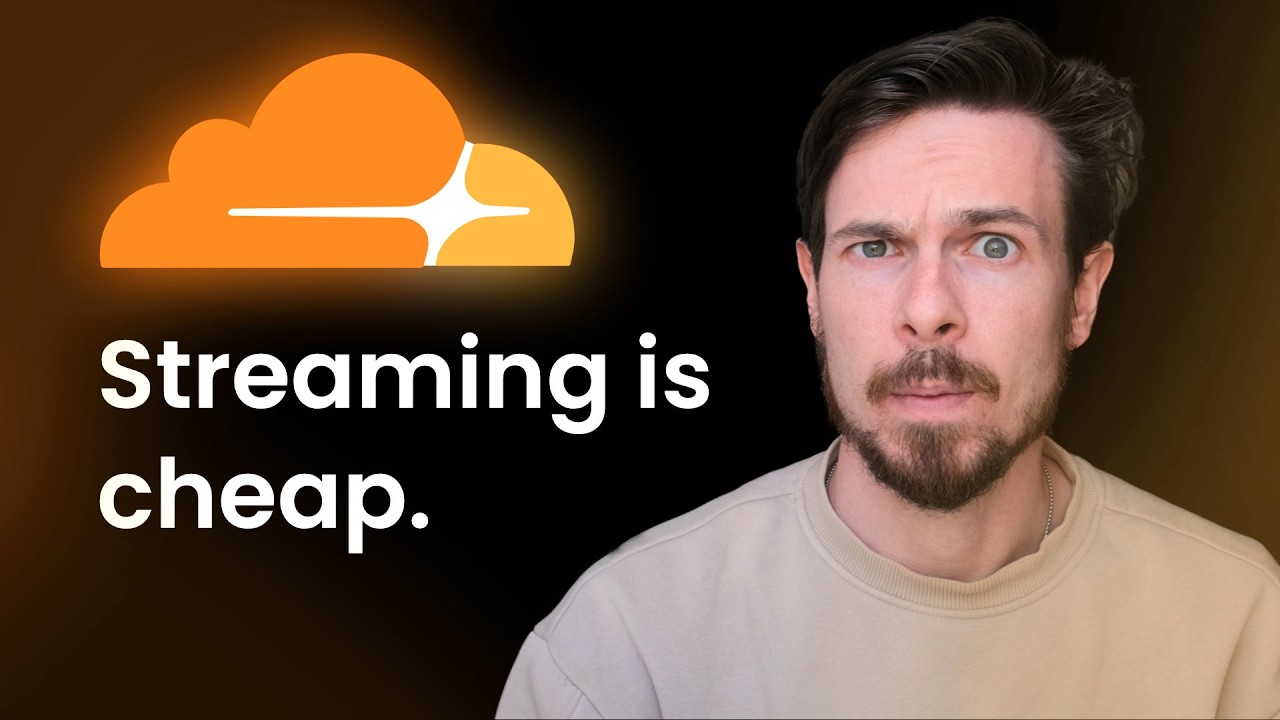
Hey guys, welcome back to the channel. My name is Confidence and I am a developer advocate at Cloudflare. This is my first video for the year, so I'm really excited. And you guys should stay tuned for way more videos as the months roll by. And um also what's new is I am wearing the Cloudware hoodie. I'm rocking this really nice Cloudare hoodie and also the hat you saw me wearing on the thumbnail. I think it's really cool. And if you guys want one of these, let me know in the comments. and I'll see if I can whip something up and get it shipped to you.
All right, so you're all here for the video on mounting remote buckets into your Okafare container. And that is what this video is going to be about because we've added support for Fuse, which allows you to mount remote buckets from S3, GCS, and also Cloudflare's R2 into a remote container um as a remote file system. So, I'll be showing you how to get that set up in this video. And um in fact, to show you how cool that is, I put together this demo to illustrate what you can do with remote file system inside of a container.
So, it's called Mountain Party, like having a party on a mountain party. And uh you can see it loaded up on my screen right here. And it's a really really cool demo. This is based on copy party. I'm just going to go open this up in a new tab. Yeah, Copy Party, which is an awesome uh file server. Lots of stars. Go hit a star right here. Check it out. I think it's really cool. [snorts] Uh Mountain Party is based on that. And I'm running Copy Party inside of a Cloudare container with the remote file system setup done.
Uh before going into this demo, I'm just going to quickly show you what I have when it comes to the setup. So, if you go to my Cloudare dashboard and we head over to storage and databases, R2 object storage and we take a look at the overview. You can see we have a few buckets here. Uh, but the bucket I'm interested in is the um mountain party bucket. This is the bucket I'm going to be using in my container. And also, um, if you head over to containers, where you can find that would be under computer and AI and containers.
You see I have a mounting party container uh which we are using for this demo. So I have this all set up. I have the mount done. And if we go take a look at the mount directory, you can see we have the mounting party folder. And you can see the files we are able to see inside of my CloudFare R2 dashboard is also here inside of my container which is cool. And I can actually use this file. So I have a video here. I'm just going to preview it. I'm streaming this video from my R2 bucket through the container which is which is awesome.
I have another video here. This is a really big video. Um, and the stream works just fine. And of course, we can preview files and we can upload stuff to it. I'm just going to do a quick upload. So, let's go open up my uh file manager. So, let's upload this GIF or GIF depending on who you are. And we just uploaded the GIF into the mounted file system. And I can view this. Works quite well. And if we head back to my R2 dashboard and do a quick refresh, you should see it right here.
So, I think this is a really cool technology because if you're building something like um a coding agent that needs a couple of tools bootstrapped, you could actually write those tools to the remote um file system in your bucket in your cloud bucket like in R2 and then mount those tools into your container on boot. Um that's going to save you the whole hassle of having to bootstrap those tools like download them, get everything set up when the container boots up because containers are meant to be stateless. So you can store things that you would need for later like libraries, packages.
You could even do an MPM install inside of this remote file system. You can do all of that inside of your mounted file system which is a remote bucket in R2 or S3 or GCP and just mount it on boot uh to your container and then you don't have to worry about all of that startup process and bootstrapping everything. So I think this is a really cool uh technology and just a shout out is that if you're using sandbox XDK um which enables you programmatically create uh containers just by writing JavaScript and if you're using the Sandbox XDK it's also supported in Sandbox XDK.
I really love this implementation. You can take a look at it right here in the documentation. I have it linked below. Uh so this feature is also supported in sandbox XDK as well as in the containers uh technology itself. So what I'm going to do now is I'll show you how to set this up so you can go start mounting remote buckets from S3 GCP and R2 or any S3 compatible remote bucket into your own CloudFare container. So let's get into the weeds here. So over here I am in my terminal and I have a container already created in this directory.
But if you like to quickly bootstrap one, you can use the mpm create command and use the container starter template. Um I already have one so I can skip that. And I'm just going to open this up in my editor. And uh if you take a look at the container I have here, it's a really really simple container. It's a Hono application that routes all requests into my container. And just for other setup things, I have a few environment variables here because this is the information we need to mount the remote bucket, which in this case is R2.
We're using R2 for this inside of the uh Cloudflare container. So you need to grab your um account ID and also your bucket name. And also you want to go grab your AWS key ID and the secret um secret access key ID. I'm just going to quickly show you where to grab this from your dashboard. So, if we head back to the browser and you go to your R2 storage overview, you can go click on the API tokens, go click on manage, and you want to create an API token. Uh, so you can call this anything you want.
I'm just going to leave this as default. And you want to give this the permission to read and write objects into the bucket you are interested in. You could set an expiry for this if you want to and I'm just going to leave everything as as default and that's fine. So I will click on the create button and this is going to give you all of the details you need. So this is the value for your AWS access key ID which is this environment variable we are passing in and also the um access the secret access key which is this stuff over here is the value of the AWS secret access key and of course your bucket name is going to be the name of the bucket you want to mount to the container which could be any of the buckets you have on your account and of course your account ID is going to be the ID on the URL over here.
That's your account ID. Or you could also grab that from down here. So, what you want to do is take all of this information and go create an EMV file. I already have one created. So, I can take a look at my EMV file. And I have all of that information in my EMV file. What's required is the AWS access key ID. That environment variable has to be as is. and also the AWS secret access key. That's because the fuse driver or the fuse driver we'll be using uh requires these environment variables to be present in the container.
The bucket name and the account ID is going to be optional depending on what kind of setup you are trying to build here. So we can go take a look at my docker file. By the way, don't worry about this secrets. I'm going to have them deleted after this video. Uh so let's move on to what my Docker file looks like. All right. So it's a container. We have a Docker file. I'm going to be using an Alpine base. And what I'm doing here is installing the dependencies for uh FUS or Fuse. And we also need JQ because the driver the actual Fuse driver we'll be using to mounting the remote file system into the bucket requires jq.
And that driver is Tigris FS which you could uh get um installed inside of the container by running that installation script. And the last thing we're doing here is we are passing a startup script and we are executing that startup script. So let's go look at what's going on inside of the startup script. So startup.sh and this is the startup script. Um at this point the environment variables we defined and passed into the container is available inside of the context of this script. So we can start making use of them. For example, we want to mount that bucket at the path which is the same as the name of the bucket.
So we create a variable for mount path. We also create a local variable for the R2 endpoint. So if you're using something like an S3, this is going to be your S3 bucket or your GCS endpoint. And more importantly, we actually have to run the mount command. So we make that directory. We create a directory for the folder we're mounting. And then we run tigris fs which is the driver that uses fuse to mount the remote bucket inside of the container. And uh this needs to have those two environment variables I talked about earlier. That's your um AWS access key ID and your AWS um secret access key.
It needs to have access to those variables in the uh context of the script. And last thing we're doing here was just printing the content of the script. And we're running a simple Python HTTP server so we can see uh the contents of the container. So I'm just going to quit this. And um if this is your first time running the script, you want to go ahead to deploy your secrets from the ENV file. So I can run MPX Wrangler um secrets bulk deploy, which is going to deploy all of the secrets in my ENV file.
Um I do not have a worker created. So it should prompt me to create a new worker called remote bucket which is the name of this uh worker and also of the container we're trying to get deployed. So it has that deployed. Now we can run the mpm run deploy command and that's going to create the actual worker and then also deploy the container uh to my cloudare account. And that has been deployed. And we have a URL. I could just go to my dashboard right now and head to containers. And this is still being deployed.
So you can see we have the remote bucket, my container. It's still provisioning. So we'll give this um a couple more seconds to get my bucket deployed. Oh, and it's ready. That was quite fast. So I can head back here and click on this link. And that should take us to the container which has Python running and the remote file system mounted. So this is going to be in Mnt and we should see mounting party because that's the um that's the bucket we mounted into this container. And you can see all of the files we have mounted from our R2 bucket are here.
And of course we can go take a look at at them. So we have that um screenshot we can take a look at. And also the the GIF or GIF is also here. We can take a look at it. So cool. This is how easy it is to set all of this up. I'm going to be leaving a link to the repository for Mountain Party. It's in my GitHub profile. So that's github.com/megaconfidence. Don't forget to smash the follow button, but it's going to be in the repositories tab. And uh this is the link to the repository for it.
Um, so I'm going to be leaving a link to Mountain Party so you could take a look at the startup script and also the Docker file if um because I think it's going to be a good reference for when you go build this out. So I'll have it linked in the description below and I'll leave this here for you to go check out. Awesome. That's the end of this video. Um, I hope you found this interesting and fun and I want you guys to let me know what you'll be doing with remote bucket access inside of your CloudFare containers.
Uh, let me know what you're building and I will see you in the next video. Take care. Bye.
More from Cloudflare Developers
Related Videos
![AWS Solution Architect Full Course 2026 [FREE] | AWS Solution Architect Tutorial 2026 | Simplilearn thumbnail](https://rewiz.app/images?url=https://i.ytimg.com/vi/J9R_huR5lDc/maxresdefault.jpg)
AWS Solution Architect Full Course 2026 [FREE] | AWS Solution Architect Tutorial 2026 | Simplilearn
 Simplilearn
 03:36:35

![AWS Solution Architect Full Course 2026 [FREE] | AWS Solution Architect Tutorial 2026 | Simplilearn thumbnail](https://rewiz.app/images?url=https://i.ytimg.com/vi/vpXzo5ZN8Vo/maxresdefault.jpg)
AWS Solution Architect Full Course 2026 [FREE] | AWS Solution Architect Tutorial 2026 | Simplilearn
Simplilearn 10:14:51

![AWS Solution Architect Full Course 2026 [FREE] | AWS Solution Architect Tutorial 2026 | Simplilearn thumbnail](https://rewiz.app/images?url=https://i.ytimg.com/vi/d51_SrBqFUI/maxresdefault.jpg)
AWS Solution Architect Full Course 2026 [FREE] | AWS Solution Architect Tutorial 2026 | Simplilearn
Simplilearn 10:13:49
![AWS Solution Architect Full Course 2026 [FREE] | AWS Solution Architect Training 2026 | Simplilearn thumbnail](https://rewiz.app/images?url=https://i.ytimg.com/vi/rHjGmAm_0eE/maxresdefault.jpg)
AWS Solution Architect Full Course 2026 [FREE] | AWS Solution Architect Training 2026 | Simplilearn
Simplilearn 03:37:21
Get daily recaps from
Cloudflare Developers
AI-powered summaries delivered to your inbox. Save hours every week while staying fully informed.