React Native Crash Course 2026 - Build a Complete Mobile App

Chapters39
Brad Traversy explains that this crash course focuses on React Native with Expo to build a real macro-tracking mobile app, providing steps, code samples, and resources to follow along on your own machine.
Traversy Media’s React Native Crash Course (2026) shows how to build a complete Macro Zone app with Expo, routing, storage, and native features end-to-end.
Summary
Brad Traversy delivers a thorough, hands-on walkthrough of building a full mobile app with React Native and Expo. He explains what React Native is, why a single codebase matters, and how the Expo ecosystem simplifies setup and deployment. The Macro Zone project is built from scratch, using Expo's web and native capabilities, and leverages Expo Router for navigation, AsyncStorage for persistence, and a host of Expo APIs (Share, Clipboard, Haptics, Notifications) to create a polished, cross‑platform experience. You’ll see how to scaffold with npx create-expo-app SDK 55, run the app on web and iOS simulators, and test features like a macro-tracking dashboard, meal forms, and a real-time list of meals. Traversy also covers cloud builds with EAS, pushing to Android APKs, and the end-to-end flow from local development to a production-ready APK. The video pairs practical code walkthroughs with architectural notes about the React Native/new architecture (JSI, Fabric, Turbo Modules) and how Expo abstracts native setup challenges. It’s a pragmatic, start-to-finish guide aimed at getting learners productive fast while demystifying core Expo concepts. Don’t miss the inline explanations of tabs, layouts, global styles, and component composition that you can reuse in your own projects.
Key Takeaways
- Expo SDK 55 introduced a native tabs API and a refreshed source folder structure, which Brad uses to organize the Macro Zone app.
- AsyncStorage is used to persist meals with a simple key ('meals'), storing JSON strings and parsing them back into objects.
- EAS CLI enables cloud builds and distribution; Brad demonstrates building an Android APK via EAS with a production/preview profile.
- Haptics feedback is added for both adding and deleting meals, giving users tactile confirmation of actions via Expo's haptics package.
- Share API (React Native) and Expo Clipboard are wired to share a daily summary and copy a formatted macro text, respectively.
- Expo Go lets you test on a device, while simulators (iOS/Android) and web view the same codebase across platforms.
- Tabs-based navigation is implemented with an underscore-layout approach inside the Expo Router, grouping screens under a Tabs layout.
Who Is This For?
Essential viewing for React Native developers who want a concrete, end-to-end project using Expo. Great for beginners who want to learn mobile UI, state, storage, and device APIs without getting lost in native setup complexity.
Notable Quotes
"The goal of this crash course is to learn the concepts quickly while building an actual project."
—Brad frames the course objective and pace.
"Expo is a framework built on top of React Native that provides a set of tools and services that makes it much easier to build and deploy React Native applications."
—Brad explains what Expo adds to React Native development.
"You can almost think of Expo as like a Nex.js for React Native."
—A metaphor Brad uses to describe Expo's role.
"Expo Go is an app you can download on iOS or Android."
—Testing workflow introduced for learners.
"JSI the JavaScript interface is how basically we communicate our JavaScript to the native side."
—High-level architecture blurb for new architecture.
Questions This Video Answers
- How do I start a React Native project with Expo SDK 55 and why use Expo over the plain React Native CLI?
- What is Expo Router and how do I create tabs and nested screens in a React Native app?
- How can I persist data in a React Native app using AsyncStorage and sync UI with stored data?
- What are the steps to build and publish an Android APK with Expo's EAS?
- How can I implement copy-to-clipboard, share, haptics, and push notifications in a React Native app?
React NativeExpoExpo RouterExpo GoReact Native WebHermesJSIFabricTurbo ModulesAsyncStorage","EAS Build","Share API","Clipboard","Haptics","Notifications","Android APK","iOS Simulator"
Full Transcript
Hey guys. So, it seems like every channel now is filled with videos about AI, including this one. I'm not taking myself out of that. And it seems like everyone has forgotten about the people that actually need to learn how to code. Well, we got you back at Traversy Media. We're going to still be creating crash courses uh on popular technologies so that you can learn the fundamentals before you even touch AI. And in this crash course, we'll be learning how to create mobile applications with React Native. So you'll learn about its features, how to get set up, and we're going to build a real macrotracking app from scratch using Expo, which is a a popular framework for building React Native applications.
And I'm going to have all the resources in the description, including the diagrams that we use, the source code for the project, as well as an in-depth guide, all the steps to take to to get to the finished product, including all the code samples. So you'll be able to follow along uh on your own machine. So if you're ready to learn React Native along with the Expo framework, then let's get started. All right, so we're going to start with a quick overview to understand what React Native is and how it works. And if you want to skip this part, you want to jump right into the project, that's fine.
You can use the timestamps and and get right into it. So the goal of this crash course is to learn the concepts quickly while building an actual project. And by the end, you should have a solid understanding of how React Native works, how the Expo framework works, and you should be well on your way to creating mobile apps with these modern tools. Now, this sheet here I have I'll have as a download in the description if you want it, but I just want to just cover some some basics. So, what is React Native? How does it work?
So, React Native is essentially a framework for building native mobile applications using JavaScript and React. and it allows developers to create apps for iOS and Android using a single codebase. Now there are other uh kind of web technologies that will let you build mobile apps using JavaScript, HTML, CSS. Um but a lot of them are essentially just web apps running in a wrapper. So they don't have that that kind of performance of a real native app where React Native lets you build truly native mobile apps. Um, not to say that there's not a use case for some of these other technologies, but having the ability to to build real native apps, uh, gives you a real advantage.
Now, React Native's biggest advantage, and you kind of have a lot of different benefits from this one advantage, is having a single codebase. So, traditionally, if you were to build a mobile app, you have two major platforms to think about. That's Android and iOS. And traditionally if you wanted in it to run on Android you would use a language like Java or Cotlin. And if you wanted iOS you would use a language like Swift or Objective C. Well React Native lets you build for both using one single codebase and that's JavaScript. Okay, which to me is an easier language to learn and use anyway.
Um and then of course if you're already a web developer and you know React then it's it's a no-brainer really. So by having a single codebase, you have a lot of other advantages. So of course cost-effective development. If you're paying someone to create a mobile app for you, you're not paying for for two separate platforms, two separate projects. And if you're building it yourself, obviously it's going to be easier to have one code base. Code reusability because much of your application logic and UI can be shared across platforms. you have easy collaboration because one team can manage u you know a shared code base and they have they all have a common skill set which in this case would be JavaScript and and React.
You have native like performance because React Native renders with real native components rather than just web views. You have less maintenance um because updates and bug fixes usually only need to be made once. And then complexity obviously um you avoid managing two separate code bases which makes it a lot less complex. So all of this these advantages basically come from this one advantage of having a single codebase. Now I also want to get into how React Native works and it's important to understand that the React framework that we use when we build web apps is no different than the one we use when we build mobile apps with React Native.
React is just the the core library, right? Right? So it's responsible for the component model, state, hooks, all of that. It doesn't actually know anything about rendering to a screen on its own. Now with a web app, we use uh an additional library called React DOM. And this will render HTML tags in the browser, right? So divs, paragraphs, etc. Well, when we use React Native, we use that instead of ReactDOM. And that will render UI components, native UI components such as view, text, Pressible, and these will render too real iOS native components if you're if it's being viewed on iOS and real native Android views.
All right, so just remember that it's the same exact core library. React is is technically a library even though everyone calls it a framework. Now, I do want to talk about how it works under the hood just a little bit. I mean, this stuff isn't really like super important to know when you're just getting started, but I think that I I think it's a good idea just to have a general overview of of how it works. So, basically, you can kind of think of it as having two sides, right? We have the JavaScript side, which is your code, your source code that you write, your components, your state, your logic.
It runs in the Hermes engine. That's the JavaScript engine that um that React Native uses with the new architecture, which I'll talk about in a second. And then you have your native side which is the actual UI elements. These are real native platform components written in other languages like Swift and Cotlin. And it's important to know that you don't write or manage any of that that native code, right? So you don't need to know any of that stuff. Now I'll give you a very highlevel overview of how this works. And this is called the new architecture because prior to I think it was 2025 or or 2020 late 2024 um React Native switched it used to use a bridge to communicate with the the native elements and it would use JSON messages with that bridge but now it actually uses something called JSI or the JavaScript interface and that's how React uh interacts with the the native side, right?
So on the React Native layer on the native side, we have fabric which is the the rendering engine. So this takes care of the actual rendering. And then for functionality like dealing with the camera and you know storage and things like that, we have something called Turbo Modules. So that's the native API functionality. But yeah, so just just know that JSI the JavaScript interface is how basically we communicate our JavaScript to the native side. And this is actually a a C++ interface. Uh now just to give you uh kind of a rundown of how it works, the process React runs in the JavaScript runtime, right?
So basically here and then React Native processes and prepares for the native UI. JSI the JavaScript interface is used to cross that boundary right into native and then fabric handles the UI and Turbo modules handles the APIs. So that's just a very you know kind of messy high-level overview and again it's not really that important for you to know right now. I just want to give you kind of a general idea. Now when it comes to building React Native apps there's two main approaches. You can use something called the React CLI, but that can be a bit timeconuming and complex, especially for beginners.
So, what I use and what I suggest is Expo, which is a framework built on top of React Native that provides a set of tools and services that makes it much easier to to build and deploy React Native applications. And it abstracts away a lot of the complexity of setting up uh native development environments and and provides a lot of features out of the box. You can almost think of Expo as like a a Nex.js for React Native. Now, as far as features and what it offers, so you have a a complete development environment and it's crossplatform.
You can you can run uh or or build for iOS, Android, even the web because it comes bundled with React Native web. Um now, if you want to test on a simulator, an iOS or or Android simulator, there are some other things you need to set up and I'll talk about that in a minute. Then you have a rich set of APIs you can use. So for things like camera access, location services, push notifications, there's all kinds of Expo APIs for that. The Expo router is a file-based navigation system, and this works similar to how Nex.js works where you have a specific folder that you put files in if you want them to pertain to specific routes.
And then there's also a client app called Expo Go that you can download on iOS or Android. And basically when you run your application using Expo, it'll show you a QR code that you can scan and it'll it'll come up on your physical device through Expo Go. So it's a good way to test on a physical device. And then there's also a whole suite called Expo application services. And this allows you to basically build for iOS and Android in the cloud. So it makes the the everything just a lot easier. Um it even has cloud-based overtheair updates and also makes it easy to submit to the app stores as well.
Now when it comes to developing, testing, and building, there are there are some rules that you need to follow. So, for instance, if you're on Windows or Linux, you can't run an iOS simulator because in order to do that, you need to be on a Mac OS with Xcode. Okay? So, if you want to use a a virtual iPhone, the iOS simulator, you need to be on a Mac with Xcode. Now, for Android, you can run the Android emulator through Android Studio, whether you're on Mac, Windows, or Linux. Okay? So, that's crossplatform. And then um you can obviously you can run your your application in a browser because like I said expo does include react react native web but if it if your application is using native APIs like the camera or uh I don't know storage or GPS or something then a lot of that's not going to not going to work within the browser.
All right. So, and again, if you're using Expo, you can use EAS Build, which will build in the cloud for iOS and and Android. You can also use Expo Go, which will allow you to kind of test on your physical device without having to do anything except scan a QR code. All right, so yeah, that's pretty much it. I just wanted to kind of go over some of this stuff to give you an idea of what React Native is and how it works. So, now we're going to jump in and we're going to set up an application and build our macro zone app.
All right, guys. So, we're going to jump in and create our project. Now, for those of you that have watched my tutorials, you know that I like to to build start to finish. I don't have highly edited videos where I just throw a bunch of stuff at you. I format them in a way where you can sit down and you can follow along. All right. So in the the description you'll have a link to this repo which is called macrozone and it has the final code but in addition to that it has this steps MD file and this is basically an outline of the entire video the entire project with all the commands we're going to run all the the code samples so you can copy and paste and follow along.
You don't have to type everything out. I'll be copying and pasting some of this stuff, but I'll explain exactly what it does so you won't be lost and you'll understand the code. So, this is a screenshot of what we'll be building. It's called Macro Zone, and it's basically a nutrition tracking application. It's made to track basically daily where you add your calories or you add a meal with the calories, the protein, the carbs, and the fat. So, you'll have tabs down here. You have add meal which will be the form and then all meals will list out all the meals.
On the dashboard obviously you have your macros and you have your goal and then recent meals at the bottom and then towards the end we're going to use some of the expo APIs like the share API. So this button here will allow you to share through other apps on the device. And then copy summary uses the expo clipboard API where you can co just click that and you'll get a nice you know text formatted if you want to paste it in a text or in a text file or something. And then meal reminders will use push notifications.
So it's a good project to to start learning with and and build and it's useful. So let's go to the first one here. And the very first thing you should do is create an account at expo.dev dev because that's going to allow you to use the Expo application services where you can build for iOS and Android in the cloud. It helps you deploy, it helps you submit to app stores. So all around it's just a good way to manage all your React Native projects. It's completely free. So, you know, not trying to sell you anything.
So, we're going to go to expo.dev. Log in. I have a couple accounts. I'm going to use this Google account here, which is my demo account. And then up at the top right there's a new project button. We're going to click that and just give it a name. I'm going to call it macro zone. And then what it's going to do is give you these four commands here. So the first one is to install the EAS CLI which is a command line tool basically to manage your your Expo application services account and all all your apps that you create within expo.dev.
And you're installing it globally so you can access the EAS command from anywhere. And the next one is to create the project. And we're using create expo app uh npx. And then in the macro zone folder or whatever you call it, we're going to run the EAS init command with this ID. Not this one, but whatever is on your screen obviously. And what that does is it'll connect your project to this project in expo dev. And and then you can use the services. All right. And then in my sheet here or in the steps, that's my first command as well is the to install the EAS CLI globally.
So let's do that. I'm going to jump into my terminal and I'm on a Mac, so I'm going to just add pseudo in front of it. All right. And then while that's installing, I just want to take a look at the next command, which is create expo app. That'll generate your React Native and Expo project. Uh however I'm using or I want to use the latest SDK which at this point is 55. So there is a flag that I want to add which is at latest and then-template default at SDK55 and SDK55 has some new features.
It has uh uses the native tabs API refresh design uh new source folder structure. So that's the command I have here. Right. So, I'm going to copy that. And then let's jump back over here. And of course, you want to navigate to wherever you want to create this. I have a a directory called code that I want to create this in. I'm going to paste that in and run it. And just give it a name. So, macro zone. And that'll generate a brand new React Native project with Expo and and all its dependencies. Okay. So, once that's done, we can cd into macro zone.
And then this is where we want to add the init command. So I'm going to just grab that. Make sure you use your ID. And let's see, we're going to jump back over here and paste that in. Okay. So it says project successfully linked. So this project macro zone on this machine is now connected to that expo. project that I just created. So now I'm just going to open up VS Code. Of course, you can use, you know, whatever uh text editor or IDE that you want to use. And let's close the AI chat up.
All right. And then we have all of our files and folders for our React Native application. Let's look at package.json real quick. And I just want to show you that we have React 19. Okay, this is the same React whether you're using whether you're building a SPA or uh you're using Nex.js or React Native. Same same library. And then it also includes since we used Expo, it also includes React DOM and React Native web. And what that allows us to do is actually create a web app with React Native. Now, if you're using native APIs like the camera and things like that, that's obviously not going to work in the browser, but just rendering your components and stuff that will work fine in the browser.
And then there's just some other Expo uh packages like the router, which is similar to the Nex.js router. If you look in the source folder, there's an app folder just like Nex.js and um there's there's this index and explore. So basically these are two different routes, two different screens which are just React components, but all this dummy data or this dummy content, we we're going to wipe that away. There's actually a command to start fresh. Um and then there's also a layout in that app folder. All right. And then let's see. And then there's just some other things like the splash screen if you want to change that little logo that's displayed, status bar, some navigation uh packages, and then up here under scripts, we have the start script, which runs Expo Start.
Okay, that's what you're going to use. And when you run that, you can open in in several different platforms. You can open on the web. You can open your project on an iOS simulator if you have if you're using a Mac with Xcode. You can open in Android if you have Android Studio. Um there'll be a QR code if you want to use Expo Go, which is an app you can download on your physical device. And then you can also run these separately like npm run Android, iOS, those will run the simulators or web. So we're going to go ahead and run the start.
So, let's say npm start. All right. And you'll see that it actually shows a QR code and you can scan this if you have Expo Go installed on your on your device. Now, there is uh a caveat. So, if we look at SDK 55, if you're using this, you can use Expo Go, let's see, on an Android device with SDK 55. If you're on iOS, you'll use the Test Flight. Okay? There's an app you can search for in the app store called Test Flight. That's if you want to try it on your physical device before actually, you know, building it out.
Uh, however, what I'm going to do is just use my iOS simulator, right? So, uh, actually, let me show you the web version first. You can see it says web localhost 8081. If I open that up, then it gives me the web version. And you can see the homepage which is that index and then the explore page. All right. So, and and I'll just keep this open and we can periodically check the, you know, check what it looks like in the browser. So, like I said, I want to use my iOS simulator. So, if I hit the question mark, it's going to show me a bunch of other things I can press here.
Like A will open Android in Android Studio. I will open the iOS simulator. W will open the web. I can reload with R. Debugger toggle menu. So, I'm gonna hit I and I'm gonna hit R just to reload. Make sure that that's fresh. And there we go. So, now it's showing in in my iOS emulator. Again, you have to be on a Mac with Xcode installed. And notice I have tabs down here, home and explore, just like I do on the web version. But the web version looks a little different, right? It has a navigation bar at the top.
That's because in your code you can specify I want to show you know this component on web on on the web I want to show this component on mobile devices and you can even choose if you want to show something on Android or iOS and I'll show you that in in uh in a few minutes. Okay. So um you you'll probably see a gear icon here. So I'm just going to hit uh I think it's command D opens the dev tools. Now I have this tools button off. Yours is probably on by default and you're going to see this.
So that just opens the dev tools. And again, you can use command D. So I like to just keep that off. And from here, you can reload. You can use the source code explorer. You can actually go and see your code through the the device. Toggle performance monitor. You have an element in inspector like you do in a regular browser. Fast refresh. We're going to keep that on. But yeah, that's the dev tools. And I I don't like to show the the icon. Now, just to show you on Android, if I hit A, you do have and I do have Android Studio installed, but you have to open it up first.
Okay, so if you're on Windows, you can use this as well as Mac or Linux. And uh actually, I wanted to show you this screen here. Okay, so if you have Android Studio installed, what you're going to do is go to more actions and then virtual device manager. And you want to create a new device with this plus sign. As you can see, I have a Pixel 9 Pro. So, I'm going to go ahead and press play. It's going to open the they call it an emulator. And I'm just going to reload this as well.
And now I'm running it on Android. So, I could use this to test if I wanted to. I prefer to use the iOS simulator. So, I'm going to close it, but I did want to show you guys how to how to set that up. All right, cool. So, let's see. I just want to make this a little smaller so we can see both. Okay. And then um let's see. I think the next thing I want to do is reset the project, right? Because I don't want to have all this this sample stuff here. So in the package.json, you can see there's a reset project script that we can run.
So, I'm going to just go ahead and stop this and let's run npm run reset- project. Okay, it's going to ask me if I want to move the existing files to a slash example directory. So, if you want to save it, I'm going to say no because I just want to do away with it. All right, and then you'll see that a bunch of files just got removed. And if I come over to my simulator and refresh, uh let's see. Oh, I didn't We got to run npm start again. Okay. And then I'll just hit I and it should just open up on my simulator.
All right. So this is what we'll see once we reset the project. It simply says edit the source app index.tsx file to edit this screen which if we look in source app index tsx and let's see I'll just take this text here and we'll just say my app. Save that. And you can see that it auto refreshes and we just have basically an empty uh an empty project. Now I want to go over some of these components. So as you can see we have this text and view and that's what's being rendered in the JSX.
Just like a regular React app, you have just a functional component. you're you have JSX, but instead of H1s and paragraphs and HTML tags, you have these native components coming from React Native. And if you go to reactNative.dev and then development and components, you can read more about these these components and see all the ones that are available. So if we look at view, it says it's the most fundamental component for building a UI. So a view is just a container, right? And in that container you can have flexbox styling um some touch handling accessibility controls.
So basically every page you create or every screen will be wrapped in a view and then components within that will be wrapped in a view as well. Now in addition to a regular view you also have scroll view because with a regular view if you go out of the container it basically gets cut off. With scroll view, you can actually scroll, you know, with your finger and and scroll down. Like for instance, if we look at our thumbnail here or a screenshot, um on the all meals page, we'll have a bunch of these meals and you might have, you know, 50 of them and you don't want it to get cut off.
You want to be able to to scroll up and down, right? So, in that case, you'd use a scroll view. So, we'll probably use a scroll view on the homepage and on the all meals where the the ad meal will just be a simple form. So, we won't need that. And then, let's see. Text is another one you're going to use a lot. And you can think of that kind of as like a a a div or a paragraph tag. Basically, just just you wrap text, right? So, if you if we look at our project here, we just have my app wrapped in text.
We don't want to just have my app with nothing around it. And let's see what else. So, we have like modal, we have image. So, if you want to show an image, there's an image component. There's a button component. Um, there's a few things if you want to have buttons or or pressable items. There's something called pressable where you can actually have these different states like on press in, on press out, on long press. And there's also where is it? Uh, touchable opacity where if you click it, it just has that kind of mobile feel where it it just fades out a little bit.
Um, but pressable is is being used more these days. So, let's see what else. Um, yeah, that's pretty much it for like the the base components you're going to use. Now, I want to just go over let's actually look at the the steps real quick. So, we've done all this stuff. Live reloading dev tools icon checking the platform. So, you might have times where you want to show certain things depending on the platform. So, what I'm going to do is actually just copy this number nine and just replace this. Don't worry about the styling and stuff.
We'll get to that. But if we go ahead and uh actually, yeah, we also want to bring in text and view. But let's save that. And then let's take a look here. I'm just going to refresh this. So, it says welcome to macro zone and then running on iOS. So this platforms will tell you, you know, what it's running. If I was in the Android emulator, it would say running on Android. So you can always check that. Um, and and I'll update this snippet to have the the imports of text and view. I might have to change a couple of these things.
Now, you can also check the device information using the Expo device package. So, if I were to copy this and notice uh the I changed the name of the the function. It was index. What I'll usually do is is call it whatever it is and then screen. If it's like an about page, I'd call it about screen. So, let's paste this in now and take a look. And you can see running on iOS. So, that's the platform OS. And then we have simulator OS is the model name on the device. The device brand is Apple.
The OS version is 2631. Okay. So, you can get all kinds of information about the specific device if you need to. Now, styling. Let's talk about that real quick. So, I'm going to jump back in here and uh actually, we'll just grab this. Okay. So, let's refresh this. So, as you can see, this is inline styling, right? And this should look familiar if you're familiar with React. So we have a style attribute here. We have it set to double curly braces since it's inline styling. And we just can add styles like flex justify content align items.
If I wanted to do like let's say background uh background color set that to let's say like red then I get a red background. So you can do it this way and basically it's just CSS but instead of like background dash color it's going to be camelc case. So keep that in mind. Now I don't typically use inline styling very much because it just gets messy. I mean if you have you know 20 different components and you're adding this kind of styling to all of them it just gets really messy. So what you can do is you can use the stylesheet API where we bring this in.
Let's copy this one. Okay, so basically we bring in stylesheet from React Native and what we can do is create a variable set that to stylesheet.create, right? So this create method and then we can pass in an object with styles such as container and these are just JavaScript objects. So container we have flex a background color the padding padding top padding horizontal um then we have a title style and a date style. And if we look up here, you can see instead of setting it to inline with double brackets, double curly braces, we just have styles, which is the name of the variable container, title, and date.
And then that pertains to those styles. So if we save that and then take a look, you can see now we have those styles implemented where we have that background, color, and so on. Now, you're probably going to have styles that are repeated across pages. Like for instance, we'll have this container in other pages. You can have global styles, but I'll show you how to do that in a second. Um, right now what I want to do is show you how to change this header right here because you can see it just says index. So that's going to be in the layout.
Now in the layout, we're importing stack and that's part of the expo router. So when you when you're looking at a mobile app, you can think of it as like a stack of cards, but it's a stack of screens. And whatever you want to show, that screen is going to go on top of the stack. And just to display it, all we have to do is return stack. And there's some options we can pass in here. Like if we want to um if we want to change that header, we can say screen options, which is an object.
And then we can do header uh header title. Oops. Header title. And set that to whatever we want. I would probably set it to like the name of the app on the homepage. Oops. I do here. There we go. Um, sorry that had to be double double uh curly braces. So, header title macro zone. And now you can see that that shows macro zone at the top. Now, you can also remove the header and that's what I I want to do on the homepage. I do want to have a header on the inner pages because we can have a back button right here.
But for the homepage, I don't want to show it. So, what I'm going to do is instead of header title, we can say header shown and we can set that to false. And then that will completely get rid of it. Now, for the global styles that I was talking about, what I'll usually do is in the source folder, I'll create a new folder called styles. And then in that, I'll have a file called global.ts. And that will be my global styling. And if we look at the the guide here, the steps number 15, I'm going to grab that and paste that in.
So here we're bringing in the stylesheet API just like we did in within the index page. And then I also just am exporting an object of colors so that we can bring in colors to any any component any page we want and we can do colors.background and we can get you know this color here. That way if we have to change something if we have to change a color we only do it in one place. And then down here we're exporting our global styles which as you can see just uses the stylesheet create just like we did in the in the page.
And we have a container title section title empty and header. So these would be my global styles that I want. So I'll save that and then go back to my index page and let's at the top here let's import let's import global styles. And since I have a container and a title in the global styles, I can get rid of it here. Right? So I'll get rid of that. And then here instead of styles, it's going to be uh global styles. And then here as well. Okay. So it's just uh not the date because that that isn't global.
That's only in this component or this page. So I don't want it to be global. So I don't want Yeah. So, we got global styles container, global styles title, and then styles date. And if we take a look, it should look the same. I'll go ahead and refresh. And it looks the same. But now, you know, if we want to change um the background color, for instance, since the container uses colors background, we could just change it here to, you know, red. And then that's that. And anywhere that this is used, obviously, it will change.
So now we can close up global and layout. And what I want to do next is take this date here which is just hardcoded and I want I want to create a home header component. So what we'll do is in source we'll create a new folder called components just like you would with a regular react app and we'll create a file called home header. TSX and then we can get that code here and what is it? number 16. I'm sorry, that's not it. Uh 17. So, home header with date. So, I'm going to copy this and we'll go ahead and paste that in.
We'll go over it. So, very simple. We're just we're bringing in colors, which is that object of colors from our global file. Actually, should probably move this up top. And then also global styles. So, we can do this. I don't know why I put two different lines there. Okay. And I I'll fix that in the in your version. And then we're just getting the current date using two local date string. And then we're inserting it here. And we have some global styles header. And we have styles. Since this date style isn't being used anywhere else, I kept it in the component rather than putting it in the globals.
All right. Now, we just need to bring that into the index so that we can use it. So let's import home header. And right here where we have the text and the date, we'll get rid of that and we'll add the home header. And then we can get rid of styles al together because now this date style is within that that home header component. So we don't need to bring in stylesheet in the index page. So let's save that. Oops. Let's uh open up. Okay. So now it says Wednesday, April 8th. So it's no longer hardcoded.
It's using that header component with the actual date. Now I want to create start to talk about routing and screens because right now we just have this single uh this single index and I talked about the stack right so we have a stack of screens which right now only has one screen on the stack. So I want to create a new page here. Let's see. I just want to check this real quick. So we're going to create the meal list screen which is going to be just app. So, it's going to be in the app folder since it'll be a route screen and it's going to be called meals tsx.
So, in app, let's create a file called meals.tsx. And then we're just going to grab this for now, which is simply a scroll view. Remember, I said we you want to have that a scroll view if you want to be able to scroll. I also want to be able to scroll on the homepage or home screen. So let's actually bring in scroll view here as well. And let's replace this with scroll view. Okay. Now the meals page very simple. We just have a scroll view with using the global container using the global title. It says all meals in the title.
And that's all we have for now. So to make this a route, what we want to do is go to our layout and instead of having just a self-closing stack tag here, we're going to uh we're going to have an ending stack. And then in that we're going to have a stack.creen with a name of index and a stack.creen with the name of meals. Okay? So you're going to match this to the name of the file. So, if I save that, it should still work. Now, we don't have a way to actually get to the um the stack screen.
So, or I'm sorry, the the meal screen in the stack. So, what we'll do is grab, let's see, so this is what I just showed you. And to navigate, uh ultimately, we're going to have tabs. I'm going to show you how to create tabs at the bottom, but you can also just have you can use this link from Expo Router. So, what I'm going to do is copy this number 21 and in the index page. I'm just going to paste that in. And if we go ahead and save that and we take a look now, there's this link.
It says go to meals. If I click it, brings me to the all to the meals page. Right? I have no way to get back unless I refresh. But that's how we can link to pages. We bring in link and then down here pass it in with an href going to slashmeals that should match whatever you have here, right? Which should match the file name. So that's basic routing. Uh and we just have some inline styles. I'm not going to keep this link. Uh we just wanted to show you how to do that. Okay. And then we want to in the mail screen, I want to have a way to get back.
So I want to have a header with a back button. So, I'm going to copy this number 22 and we're going to go to layout. Okay. And just check out what's changed, which is right here. We're setting the header style to the setting the background color and header tint color. Right? So, I'm no longer hiding it here. What I'm doing is hiding it on just the index page. Okay? So on individual stack screens you can pass in options and header shown false for index but for for the meals page you can see I have options title meals.
So you can do it at this level if you want to you know hide the header for all um all screens but you can also pass in individual options to customize the header on each page. So now just refresh this. You see I have no header on the homepage. But if I go to meals, now I have a header along with a back button. Now notice that the back button says index. You probably don't want it to say that. So what you can do is on the index stack.creen here, we can pass in in addition to header shown in options, we can pass in title.
And I don't want macro zone because I don't that that will be kind of weird. So, let's just say home. So, if we go ahead and save that and then refresh, go to meals. Now, the button says home. You could have it say back or or whatever you want. Okay. So, now that we've done that, there's one more page we need to add, and that's the add meal page, right? So, what I want you guys to do if if you want as a little challenge is to create that screen on your own. just ba basically replicate what we just did with the meals tsx and add an add- meals tsx add it to the stack and add the the header navigation and then just you know come back.
So for us to do that we're going to first create the file. So in the app folder let's say add-meal.tsx and then what I'll do is just copy actually I'll just grab it from our steps here. So the add meal screen number 23, we're going to grab that and paste that in. Okay. And then to add it to the stack and to our routes, what we're going to do is in the layout, we'll just basically we can just copy this down. And let's set that to the title is going to be add meal and the name is going to be add dash meal.
Okay. And then just to test it out, if we go back to our index and change the route here, instead of meals, let's say add meal. And we'll change the text as well. And then we'll try it out. Let's do a refresh here. We don't I don't have to refresh with most of this. I just like to, but it says go to admail. And now you can see we're on the admail page. So that's how we can create routes and we can link to them using link. Although that's really not what we're going to do in this because we want to have tabs.
So back in our our steps here, let's come down. Uh we just did that. So now we're going to look at tabs, right? And the way that we can do this is to create a folder, right? We're going to create a basically a group. So in the app folder, we're going to create a parentheses tabs folder because we don't want a an actual route that goes slashtabs. So the parenthesis makes it just a group so we can group these files together, right? And then we're going to move all the the three pages into that tabs folder.
So let's do that now. So in app create a new folder. It's going to be parentheses tabs. And then we're going to move all three files, not the layout, but all three files into tabs. I'm just going to close this up for now. And let's see. Um, yeah, we'll just keep that as is for now. So now we have parenthesis tabs with our three pages and then an underscore layout outside of the tabs. Now that's if we check it out and we refresh, we still see the the index page, right? But up here, you can see it's in the tabs folder.
So we want to actually create a tab layout. So in the tabs folder, let's copy this. This is number 26. And it's going to have its own layout because we need to basically create these tabs in that layout. So in tabs, we're going to create a new file underscore layout.tsx. Okay. So there's two underscore layouts now. There's one that's sits in the app folder, and there's one that's inside the tabs folder. This is the one that's in the tabs folder. All right. So, I'm going to paste this in and we'll just go over it real quick.
So, we're just bringing in our global colors. We're bringing in tabs from Expo router. Okay, that's where we're getting these tabs. And then some uh icons from Expo vector icons. And then I called this function tab layout, right? The other one is our root layout. That's called root layout. So, this is the tabs layout. And what we're returning here is a tabs tag, right? Just like we did with kind of like how the stack works, right? We have stack and then stack.screen. Here we have tabs and tabs.creen. And I'm just adding um a couple options here to the the parent tabs component which which is header shown false tab bar style where you can add certain styles.
We add the background and the the the border color as the colors. the active tint color, the inactive tint color, right? So, that'll just be the icon uh color and text secondary. And then for each screen or each tab, we have this tabs.creen with the name. The name is going to pertain to the file name and then a title. And then here we have tabbar icon which takes in a function. And in that function, we can pass in the color and size and just set that to the icons color and size. Okay, so we have our home, we have our add meal, and we have our meals.
So that's the the tabs layout. So we'll save that, right? And if I come back over here and I refresh, you can see down here, we now have these tabs. If I click add meal, shows me the add meal page. If I click all meals, shows me the the all meals page. Now, back in the steps here, we want to update the root layout. So, in the root layout, instead of show instead of having multiple stacks screens, we just have a single one that has a name of the name of that folder, which is parenthesis tabs.
So, back in the root layout, we can clear all this up and just add that. Right? So we have no header shown on the stack and we have one stack screen that's equal to that tabs folder. All right. So come back over here and now we have same thing. It just shows this but we don't we don't have the header anymore because the stack isn't showing a header. And I I don't want the header because we have we now have these these tabs, right? We don't need a back button. So yeah, let's move on and let's start to create the rest of this app.
So you should understand now how to create screens, how to navigate to to different screens. So now we want to create the macro card component which is the you know there's four cards at the top with the calories, the protein and all that. So what we're going to do is copy number 28 and we're going to create a new file in components called macro card. So let's do that. So components, new file, and macrocard.tsx. We'll paste this in and then we'll take a quick look at it. So we're just simply bringing in our stylesheet API text and view.
Now this is going to take in some props. We're using TypeScript. So we just have our type uh props type here of macro card props. It's going to take in a label, a value, a goal, and a color, right? So the label would obviously be like protein. Uh value would be however however many grams of protein you have with your meals combined. The goal will be whatever goal is set. So you'll have like you know 1,200 out of 2,000. 2,000 would be the goal. And then the color cuz each one has a different border color.
And then we're passing those props in here. And then we're simply returning a view with some styles. Okay. And these are all local styles because this is the only place we're using them. So we're not they're not global. And then we're just displaying text components with the label value and the goal. So very simple. Got some styles at the bottom. All right. So that's the macro card. Now we want to have a macro grid component for the cards to go in. Right? So if I go back up and show you the screenshot real quick. So we just created each of these as a macro card.
Right? So there's four displayed here. The macro grid component is going to be the whole thing which will contain all the all the cards. So back down to I think it was 28 29. So macro grid. I'm going to grab that. And I know some of you guys don't like copying and pasting, but it would literally make this video like four times as longer if I had to type everything out. And nowadays, I mean, once you learn the the basics here, you're going to be using AI a lot. It's just how it is now. So, it's it's not as important to type things out.
It's just important to understand the concepts. So, in components, let's create, let's say, macro grid.tsx and paste that in. I'll go over this real quick. And I'm not pasting it in and just, you know, saying see you later. I'm showing you exactly what's going on. So here we're just bringing in our stylesheet API in the view component. We're bringing in the macro card component we just created. This component is going to render a view with some local styles. And then we have four macro cards where right now we're just passing in hard-coded values, calories, value, goal, and color.
Okay. So we're going to save that. And then the next thing we're going to do is add the macro grid to the home screen. So we can actually copy this whole thing here. Although I didn't use scroll view. So we'll just I'll just have to replace that and then go to um index. So now it's in app tabs index. And let's go ahead and just replace And let's see why isn't home header being found. Oh, that's another thing that uh needs to be changed. Now we're two levels deep, right? We're in app tabs. So, this is going to be dot dot slash twice.
And then I just want to make the view. And I'll change this in your version of the the the steps. So, this is now going to be scroll view. Okay. So, now that we've done that, we take a look. And there we go. So, we have each one of these is a macro card. The macro grid contains all of them. And obviously the macro grid is embedded in the home screen. All right, cool. So now that we've done that, we're going to move on to the mail item component, which is going to be go back up here real quick.
This is going to be each of these, right? So one of these is a mail item component. And we're on number Let me know if you guys like this format. So, this allows copying and pasting obviously allows me to do more in a video and instead of you guys being confused on what's being pasted in, let me know if you like this format where I just literally lay out each number for you to to to use for the code. Uh, let's see, where are we? Add macro grid to home screen mail item component. So, now we're going to copy this number 31.
And in components, we're going to create a mail item folder. So components, let's say mail item.tsx and we'll paste that in. Go over it real quick. Although right now it's all just UI stuff, very simple. So we got our text view stylesheet. We got our props and we're just rendering a view with some text. Okay. And we're showing each calories, protein, carbs, and we get some local styles. And this uh this container is different than the global one. So that's why uh that's why I'm not bringing the global container in. So we'll go ahead and save that.
And then the next thing we want to do is the recent meals component. That's going to contain all the meal items. So let's grab that. And we're going to create components recent meals, right? So components, new file, recent meals.tsx, and then paste that in. So now we're bringing in the meal item that we just created and we're just simply rendering uh a view. We have our section title and then three hard-coded meal items where we're passing in these values. Okay, so let's save that. Now we want to add the recent mails to the home screen.
So we'll go ahead and grab that. Go back to our index and we'll just paste this in. So now it's showing not only the macro grid but also recent meals. And if we take a look, there we go. Now, obviously this is all hard-coded data. We're going to use something called async storage, which is like the devices local storage um in a little bit, but right now we're just kind of handling the the UI side. Now, the next thing we should do is the let's do the form, the add mail form. So, I'm going to just close up this stuff for now.
And let's go back to the document here and down to 34 where we add the meal form. I'm going to grab that. And then we're going to put that into our add meal page here. So we can go ahead and just just replace that. And let's just check it out before we go over the code. And as you can see, we got a nice looking form here. Meal name, calories, protein, carbs, fat. So, we're just bringing in uh our usual text and view, but we're also bringing in text input, which obviously are these input fields and also touchable opacity.
Okay, you can you can there is a button component, but touchable opacity is more native like as you can see when I hit it, it has that uh kind of fades out. So, that's what I use for the most part for like form submissions. And then we're bringing in use state as well because this is going to be a controlled component where you know we have a piece of state for every value every input. So we have our name calories protein carbs and fat and we have of course the the function that's going to update those.
So set calories set protein etc. All right. And and this isn't really doing anything yet. There is a function here that's being submitted to. Right. So if we look down here at uh touchable opacity, it has an on press that goes to handle add mail and then handle add mail is just simply console logging the uh excuse me some of my eye is just console logging the values and then we just have a view with the container. We have the the title and then our text inputs. And our text inputs, just like with a regular React app and and I'm I'm trusting that you guys already know React.
I mean, there's not too many people I know that just jump to learning React Native without learning React first. So, I'm not going to explain every little thing like what use state is and so on. I do have, you know, a React crash course and plenty of videos and premium courses. So each input has an onchange text because it needs to update that piece of state when we type in here, right? When we put something in here. And then the value is obviously set to that piece of state as Um let's see. And we just have an input style.
But yeah, that's pretty much it. Very, very simple. So now that we have our our form UI, let's go to number 35. Now, we're going to start to to work with storage because we need to actually store our meals. Right now, everything's hardcoded. So, we're going to use the the async storage, this uh React Native Async storage package. And this works pretty much identically to uh local storage in the browser. So, let's copy that that uh install. Oh, and another thing I want to mention is you can use npm install, but there's also npx expo install, which is what I would recommend because this is always going to give you the latest compatible version of whatever you're you're installing.
So, try to use that when you're dealing with uh you know, expo. So, jump in here and I'm just going to stop the server for a second. We'll paste this in and run it. Okay. So now that's installed. Let's run our server again. Okay. And we'll just check out our doc here. So basically, um, this says don't add to project. This is just how this works. So, and I guess should probably make this a little bigger. I just want to show you guys exactly how this works. So to save data, it's just like local storage where a lot of times you're going to want to save JSON data, but obviously local storage and async storage can't store actual JSON.
So what we do is take the value and run it through JSON.stringify, okay, which will turn it to a string. And then we just call async storage set item just like we would local storage set item. pass in the a key. Okay, so whether that's, you know, items or to-dos or whatever you want to call it and then the value, right? Which would be a stringified JSON object. And then to retrieve it, we simply get it with get item just like with local storage, pass in the key, and then we just want to run it through JSON.parse parse to get it back into uh I shouldn't say JSON but a JavaScript object.
Okay, so that's how it works. I just wanted to to show you guys that before we actually do anything. Now the way I would handle this is to create a storage handler where we have this separate file to simply call get meals and add meals or or add meal not call it but create it here and then we can call it elsewhere. So let's copy this. And what we're going to do is create in the source folder a storage folder and a meals ts. Okay. So in source we'll create a folder called storage. And then in storage we'll create meals.
TS not tsx. This isn't a component where we're rendering uh jsx. It's just basically a we're storing these functions. So we're bringing in async storage from the package we just installed. We have our meal type. So obviously, you know, we're using TypeScript. And then I'm just putting the key into a variable here, basically a constant. And the key is going to be meals. But if I wanted to change that, I would just change it here. And then our get meals is going to return a promise that will be an array of meals. Right? So basically we're just doing what I just showed you.
Call get dot I'm sorry async storage get item pass in the meals key and then we return the data. Uh and if it's not there then we return just an empty array. And then to add the meal we're going to call get meals first and then we're going to create the new meal with with whatever is passed into this function. Right? Because you can see mail is passed in. Um, and then we want to set that to an object where we pass in the meal. We pass in the ID and create it at because that doesn't actually get passed into the, you know, into the function.
That'll be created here with date.now to string and then new date to ISO string. Okay. Um, and the ID I'm just using. You could you could use like UU ID or something like that, but I'm just using the date. Uh and then we're going to await on set item. Okay, this is asynchronous. So we need to call await async storage set item just like we call await async storage get item. Pass in the key. Pass in the value which is going to be JSON.stringify and then pass in the meal and return the new meal. Okay, I'm sorry I should say pass in the new meal along with the rest of the meals because this stores all of them.
And then we're just returning the new meal. All right. So, we'll save that. And now we want to update the add meal form to use that storage handler because right now it just simply console logs which we didn't even test. So, we can test that. And by the way, you can see that this is rendering in the browser as well. I have the web app open. And it will actually save it when when we when this kicks in the async storage. it'll work in the web app as local storage, which is pretty cool. But, uh, yeah, let's test this out real quick just to make sure that this the form is hooked up.
So, I'll just say test calories 100, just add meal. And then if we look down here, uh, let's see. Should see what is going on here. Let me reload Add meal. There we go. All right. So, it's you can see it's logging calories, carbs, fat, name, and protein. Good. But now, what we want to do is connect this form to async storage. So, that's what this is, number 38. So, let's grab 38, and let's go ahead and paste it in, and then I'll just go over it. Okay. So, um, what we've done here is we're bringing in right here from React Native.
We're also bringing in alert because I want to show an alert once we submit it. Um, I think that's the only new thing we brought in there. And we brought in add meal from our our storage function, right? From storage meals. And what else? Also, we brought in router from expo router because I want to redirect back to the homepage once it's submitted. our state that's the same. Um the only thing that we really changed here is is handle add mail. What it's going to do now is a little bit of validation. It's going to check for name and calories and show an alert, right?
Because we brought in alert from React Native. And then um we call that add meal which is in the storage file and just pass in all the values. Okay, the name, the calories, etc. And we're just casting it as number. Then we're just clearing everything out in the state. Then we set an alert, a success alert, and then we redirect using router.push. Okay. Very similar to what you would do in just a regular web app. And that's really it. Nothing. Yeah, nothing else down here has changed. All right. So now let's save that. Uh let's see.
All right. So now if we come back over here and I'm just going to refresh the app and let's say add meal. And then we'll add an actual meal. Let's say like um salmon. Salmon salad. Calories we'll say 450. Protein let's say 55. Carbs 10. And fat um 10. All right. So I'm going to click add meal. And you can see we got redirected and it shows a success message. Now it's obviously this is all still hardcoded but now that that value is now in async storage. Let's add another one as well. So we'll say add and then let's say protein shake.
Calories I think it's like 120. protein. We'll say 25 carbs, 10 fat, zero, and we'll add that. So now we have two two meals in our async storage. Now, they're not going to show here yet. So that's what we're going to work on next. So let's jump back over here down to let's see 39. Uh let's see, 39. So we're going to get mails from local storage. So, this is going to happen on the home screen. So, I'm going to copy this and then we're going to go back to see our index page. And I'm just going to replace this.
Okay. So, to just kind of explain what's going on here, we now have our state, right? Our meal state set in the home screen, which is going to be an array set to an empty array by default. Then we have a function called load meals which is going to call get meals from storage from our storage file. Okay. Um then we're setting the meals. Okay. So we get it from async storage and then we set the meals which is the the local state right? This set meals here passing in the data just doing a console log.
Okay. Now, uh, let's see. Down here, we have recent meals, which is now going to take in a prop of meals. And I'm going to get an error right now because this recent meals isn't prepared to take in a prop just yet. Um, I don't think, right, recent meals. Yeah, see, it doesn't take in anything, but we'll we'll fix that in a second. Now this here instead of using a regular use effect, right? Because we need a place to call load meals. And in regular react, you would just have a use effect and you would fire that load meals off.
Um here we actually have to pass it into the to use callback, right? So we're also bringing that into or in from React. And if we don't do that, then what's going to happen is when we submit a meal, um, uh, sorry, when we, yeah, when we submit a meal and we go back to the homepage, it won't show up. We'll have to refresh it. But doing it this way, using use callback, passing in the depend empty dependency array, then it should just refresh um, when we go back to the homepage. So, let's save that.
And if I refresh that, um, nothing's nothing's going to change just yet because recent meals, we have to now pass that in. So I believe that's the next step. So update recent meals to use storage handler. So we have this right in our index. So now recent meals we want to change to this code. So let's see recent meals. Right now, it doesn't take any any props, but now we're going to paste this in. So, this is going to have it take in a males prop. Obviously, it's going to be a male object. And then we're first going to just test to see if there's if there are any males.
If the length is zero, it'll say no meals logged. Then here, else if there are meals, we're going to just get the latest five. So, that's what the dots slice05 is. We want the first five. And then we're going to map through the meals and output a meal item for every meal which will pass in each value. Okay, so let's save that and let's go back here. And now you can see under recent meals we have protein shake and we have salmon salad. So those are those are loaded in local storage. Okay, so hopefully this makes sense.
We have our index page, right? where we have our meal state and then we get the meals from async storage and then we put it into this piece of state. Then we pass that state into recent meals as a prop and then recent meals loads it. So the next step is to update the macro grid to calculate the totals. So we also want to pass meals into that. So meals is meals in our index page is our single source of truth, right? We want to just pass that into these other components so that they update at the same time.
So macro grid will also take in meals. But of course we need to update macro grid to take that in. So if we go there you can see that it doesn't take in any props currently. So now see is this macro grid? Yeah. So right here this is number 41. We're going to grab that. Hopefully the the pasting, copying, pasting isn't like annoying too many of you. But again, for me to type all this out just takes way too long. Hopefully I'm explaining everything correctly or hopefully it is correct, but hopefully you guys understand it.
So now macro grid takes in meals just like recent meals does. And then we're just getting the totals. Okay, we're using the reduce high order array method, passing in the accumulator and the the um you know each meal and then adding the calories, protein, carbs, and fat and then returning that. Okay, and we start off this is where we start at zero. Okay, and then we're just adding that to each value. So totals calories, totals protein, etc. So now let's save that. Let's come back over here. And now you can see it's calculating our values.
So if I add a meal now, let's take a look at what we have. 570 calories. So if I add, let's say, steak, dinner, calories, we'll say, I don't know, 670, protein, 60, carbs, 20, fat, 10. Add meal. And now we get a success. And you can see that that got added to all of these. And it's added to state. It's added to recent mails. Now, the next logical step would be to delete be able to delete these mails. So, let's just close this up for now and then jump back over to our steps. And number 42 is the delete mail functionality.
So, I actually want to add uh a function to our storage file. So, let's copy this. And this is just the delete mail function to delete it from async storage. So, in app uh sorry, not app, just source storage meals, we're going to just add this at the bottom here. And just like you would with local storage, you're going to basically just get first of all get them, filter the one out that you don't want. We're just using the filter method and then just reset it, right? So, set item, use the key, and then pass in the filtered meals.
So, that's that. And then we want to update the the meal item component to allow us to delete. So let's copy this. And then we're going to go into our meal item component. And let's just replace this. Okay. And I'll just go over this. Basically, all we're doing is importing delete meal. And then we're just coming down here. And we have a function called handle long press. So, basically the way it'll work is if you if you just tap it, it's not going to do anything. If you hold on it a long press, then it'll it'll delete or it'll actually alert and ask you if you want to delete.
Okay, so we're using that alert component passing in uh just saying are you sure you want to delete? You can specify what you want the buttons to say. So, cancel and then delete style. Um, basically we're just passing in destructive as our style, which will be like an, you know, a red button or red alert. And then on press is where you put the functionality. And of course, we're going to call our delete mail from a storage file. All right. Now, we're just calling on delete here, which is going to get passed up or get, I should say, passed in as a prop.
All right. because I want to be able to um to redirect on on delete. So basically what we're going to do next is update the recent mails to pass that delete call back. So let's copy this and this is going to be our recent mails and then we'll just paste that in. So basically all I did here is where we embed the mail item. You can see this was added. So ondee equals a function called ondde and up here you can see that ondde is getting passed into recent mails. All right then we want to pass it up one more time.
So right here we want to in the on the index page where recent meals is embedded. We just want to have an ondee and then call load meals. Okay. So basically we're just kind of refreshing when we delete. We're just calling load meals again. Um I know that we're we're kind of prop drilling here a little bit, but uh let's go to index. So app tabs index and then recent meals. We're just going to add that on delete. And when that's called, basically when it's deleted, it'll call load meals, which is this right here, which will get the meals from async storage.
Okay. So, we should be able to test this out. Let's come over here. And I should be able to do a long press by just clicking and holding. So, I'm going to do that. And now you can see an alert pops up. Click delete. And there we go. Everything refreshes because we have one single source of truth, which is this meal state. So now the next step is to do the all meals, right? I want to list all meals here because only the latest five will show on the homepage. and it's going to be very similar to the the the index or or home screen functionality.
So number 46, all meals data. I'm going to grab that and let's go into our app tabs meals tsx and let's replace this. And if we take a look, we're doing the same exact thing. We're bringing in get meals from our storage and we're setting it here. We're calling load meals when the page loads or when the screen loads and putting it into our piece of state here. And then down here, we're just mapping through that state and outputting a meal item for each one. And uh we're passing in all our values. We're passing in our unddelete because when that when it's deleted from that page, we also want to call load meals.
All right, so let's save that. Let's come back over to our simulator. And there we go. And just to add uh a test, I just want to make sure we can delete from here as well. Okay. So, if I go to all meals and I go and I hold this down, delete. And there we go. Now, I also want to have the ability to just wipe them all clean to clear all. So if we go back to our steps and we look at number 47, I just want to add this simple function to our storage, our meal storage, which is to clear all meals.
So if we go to storage meals ts, we're going to paste this in. And all it does is it calls await async remove item and passes in the key. So it clears everything. So we'll save that. Now, we need to integrate that into the males tsx that's in the tabs folder. So, that's going to be this block of code here. So, we'll grab that and then replace all of that. And basically, all we're doing here is bringing in clear all meals and then creating this handler, which calls clear all meals and then load meals. And we're just making it so down here, uh, let's see, where is it?
We have this touchable opacity, right? So this button with an on press that calls handle clear all. And we just have a little bit of styling. So clear button, color red, font size 16. So let's go ahead and make sure that's saved. And then jump back over here. Let's just refresh. All meals. Now we have a clear all button, right? If I click that, then it just clears it all. Okay, it says no meals logged. If I go home, no meals logged. So now we basically have uh a full It's not full CRUD because we don't have an update.
If you want to add that on your own, you can. It's pretty easy. But this video is getting very long. And there's still a couple other things that I want to show you that I want to uh that I want to add to this. So now what I want to do is a a couple things using some of the Expo APIs, some of the Expo packages. And the first one is for haptics, which is when your your mobile device vibrates. So I want it to vibrate when a meal is successfully added and when a meal is deleted.
So we're going to use the Expo haptics package for that. So this npx expo install command. We're going to go ahead and run that. So I'll just open up a new terminal, paste that in, and run it. And then once that's installed, we just want to import it into the add meal. And all we have to do is this one line. Okay, this haptics.notification async. So, let's uh let's copy that import and then go into add meal. And we want to just throw this in here at the top. So, import that. And then where I want to actually do this is going to be in the handle add mail function.
And I want to do it uh let's see. Yeah, right here. Actually, it's a AI is already is already suggesting it. So, I'll just hit tab. So, I put this notification async right after the alert, the success alert before we redirect. Whoops, it didn't take There we go. All right. And then, like I said, I also want to do it when it deletes. So, that's going to be in the meal item. And that will reflect both on the homepage and um the homepage and the all meals because they both use the mail item. So let's go to components mail item.
And then let's import let's say import all as haptics from expo haptics. And then we want to go right here. So after delete mail but also before ondee and we're going to call same same method notification async and haptics notification feedback type dosuccess. Okay. So that should do it. Now you can't actually test this on a simulator but if you're using Expo Go if you're using a physical device you can do that. And then obviously once you build it and um you know you have it on a on your physical Android or iOS device then it'll work.
But let's just make sure that we can still add meals and stuff. So I'll say protein shake and say calories 120 protein 30 10 add meal. So right then it should do you should feel the the vibrate. Now the next thing we're going to do is use the share API. So basically what this allows us to do is share with other apps, right? So it could be social media, it could be just a notes app or or reminders or something. So this is actually a React Native API. As you can see here, it's shares being brought in from React Native.
Um the rest of the stuff that I'm going to show you are are from Expo, but this is from React Native itself. So what we're going to do is create a share button component. We're going to copy this. This is number 50. and I'll go over it after I paste it in. So, let's go to components. Let's create a component called share button.tsx. And we'll paste this in. And it's pretty simple. We just bring in share. Um, we're also bringing in our meal type. We're bringing in colors and icons because we're going to have a share icon.
And then it's going to take in meals because that's what we're sharing. And we have a handle share handler which as you can see is being called down here on press for this touchable opacity. And when that's called it's going to basically just total everything together using reduce. So it's going to add all the calories, protein, carbs, and fat. And it's going to um it's going to share that here. Right? So we're calling share with an uppercase s dotshare with a lowercase s. And then whatever you pass in there will be shared to whatever app you choose.
And what we're sharing is a message of macro zone daily summary with all the the macros and then also the number of meals logged. Okay. So that's what we're sharing. So let's save that. And then we're going to go to uh let's see. We're going to go to the index tab index page. And I want to put this where we have the just the macro zone title. Actually I think I have Yeah. So, I have that right here. So, basically, I'm going to replace that text with a view that has that text in it, the macro zone, and then the share button underneath it.
And the share button gets the meals passed to it. So, let's replace this with that view. And make sure you import view if you don't have it already. And make sure you import uh import share button. All right. So, let's save that. And then we're going to go to our simulator. And there it is. So, I'm going to click that. And then there's there's really nothing uh installed on this simulator. We can test it with reminders. So, now you can see it'll actually add it as a reminder. So, and it's formatted nicely. We have calories, protein, carbs, and fat meals one log today.
So, I mean, if you had like let's say Facebook or something like that installed, then you could, you know, share it through that. So, that's the share API. And now I want to use the the clipboard API from Expo. So we need to install this package here, Expo clipboard. So I'm going to copy this. And we're using npx expo install. So let's go ahead and install that. And then what we're going to do is create a copy button component. So we're going to copy this code here under number 51. And then we're going to go to components and create a new copy button.tsx.
paste that in. And this is very similar to how the share works. I'm also bringing in uh haptics so that when we copy, it'll make the phone vibrate. Um but yeah, we're bringing in clipboard from Expo clipboard. We're do we have a handler here called handle copy which will run when our touchable opacity is clicked. And that touchable opacity wraps an icon and a copy summary text. All right. And then when that happens, same thing. It's going to use reduce. We could actually we could put that into like a utility if we wanted um because it's the same thing we did in share.
And then we create the summary here with all the values, the totals. Then we call the clipboard API. So clipboard setting async and then pass in the summary. So that's what'll be what'll be copied. Then we fire off our haptics and then we fire off the alert. So very simple. Now the copy button, I want to put that in the index.tsx and I'm going to put it right under macro grid. So let's say copy button. Uh actually we want to I don't want to do that. Want to do copy button and yeah we want to make sure we pass in meals and then we want to import that.
Okay. So save and then let's check it out. So, we got copy summary. I'll click that. It says macro summary copied to clipboard. And we can test that out. I'll just open up a empty text file here and paste. And you can see it's formatted nicely just like it was in the the share app or share um API. All right. So, that's that. And there's there's a ton of little uh packages like this you can install and use. So, the next one is for notifications. Now, there is uh I think yeah, there's an issue if you're using Expo Go.
It says as of SDK 53, um it won't work in Expo Go, but it will work on the SIM simulator. It will work when you build it out for iOS or Android. So, this is going to be the Expo Notifications package. So, let's copy that and install it. And what we're going to do is create a utility that has the the functions to to schedule a reminder, to request permissions, and to cancel the reminders. So, I'm going to copy this right here, this code in number 52. And we're going to create a file in utils notifications ts.
So, in source, not in the app folder, just right in source, we're going to create utils as a folder. And then we're going to create a file and call that uh notifications.ts and we'll paste that in. All right. So bringing in notifications here we call set notification handler and that takes in a function where we can set the to show alert to show banner show list play sound and set badge. So these are different values you have. Um now here we have our request permissions. So we have to call this notifications request permissions a uh async.
And then here we have our schedule meal reminders. So this is where you you set…
Transcript truncated. Watch the full video for the complete content.
More from Traversy Media






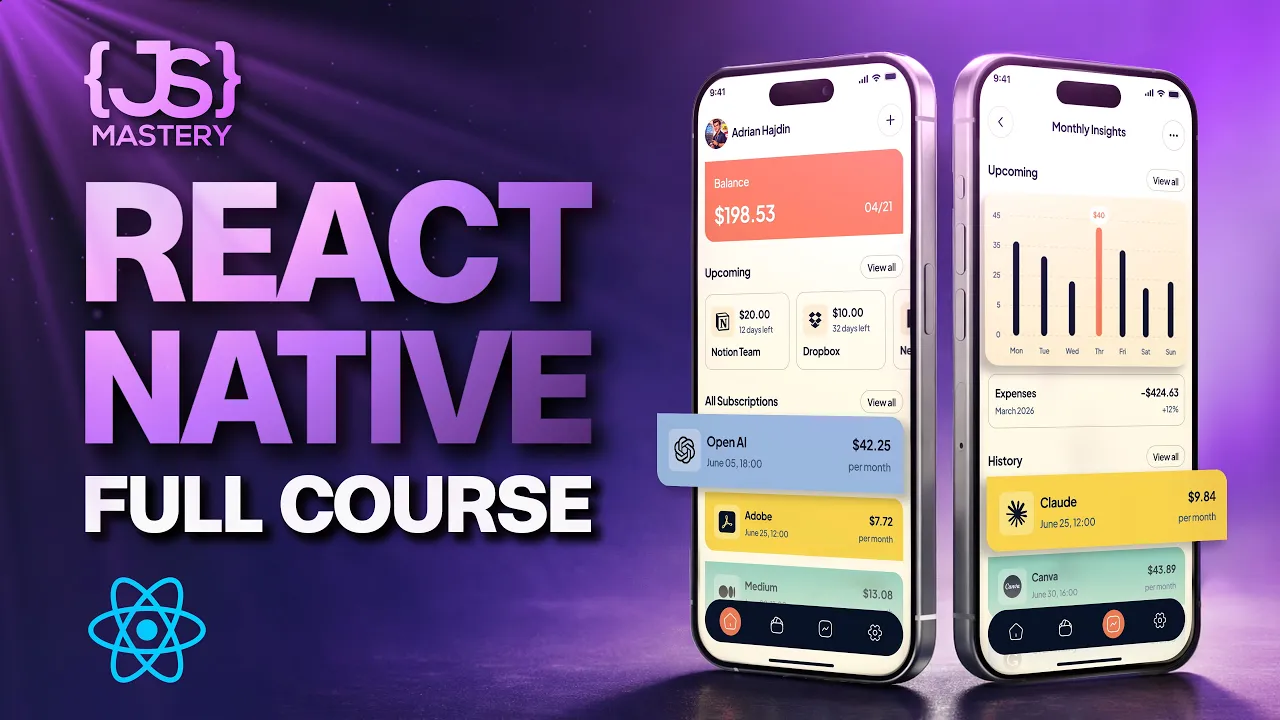

Get daily recaps from
Traversy Media
AI-powered summaries delivered to your inbox. Save hours every week while staying fully informed.