How to Actually Build Mobile Apps with AI in 2026 | A Complete Beginner's Tutorial

Chapters23
The video outlines building a full mobile language-learning app powered by AI, using a practical vibe-coding workflow that balances speed with structure, and outlines the tech stack and reference workflow you’ll follow to ship features end-to-end.
A practical, hands-on guide to building a full mobile app with AI in 2026 using a workflow called practical vibe coding, React Native, Expo, and real-time AI agents.
Summary
JavaScript Mastery’s guide walks you through turning a casual app idea into a shipped product in 2026 by embracing AI-driven workflow. The host demonstrates a complete Dolingo-like language app built with React Native, Expo, TypeScript, NativeWind, Zustand, Clerk, Stream, and Posthog, all steered by a disciplined “practical vibe coding” approach. At the core is an agents.md file that sets the project rules, stack, and behavior so AI prompts stay consistent across features. The video then launches feature-by-feature prompts, starting with onboarding, sign-in, language selection, and a bottom-tab navigation, all implemented with AI assistance and iterative code reviews (Code Rabbit, Code Ex). You’ll see design tokens, a centralized design system, and a data model for languages, units, and lessons, all hard-coded for MVP speed. Real-time AI teaching comes alive with Stream’s audio sessions and a vision agent that can respond verbally, with live captions, and even handle sign-in through Clerk. The creator also shows how to wire analytics with Posthog to understand onboarding funnels, language preferences, and lesson engagement. Throughout, the emphasis stays on the workflow—agents.md as the project’s memory, one-task prompts, and strict behavioral constraints to keep the codebase cohesive. By the end, you’ll see a production-ready MVP and a repeatable, scalable approach you can apply to any stack.
Key Takeaways
- Create an immutable project context with an agents.md file at the root that defines role, overview, stack, rules, and patterns; this prevents drift across prompts and files.
- ]}
- target_audience':'Essential viewing for React Native developers and product engineers who want to ship AI-powered mobile apps quickly while maintaining architecture discipline. It’s especially valuable for teams or solo builders aiming to iterate fast without spaghetti-code prompts.
- topics':['React Native','Expo','NativeWind','Zustand','Clerk','Stream','Vision Agents','Posthog','Code Rabbit','AI prompts','agent MD file','practical vibe coding'],
Who Is This For?
Essential viewing for React Native developers and product engineers who want to ship AI-powered mobile apps quickly while maintaining architecture discipline. It’s especially valuable for teams or solo builders aiming to iterate fast without spaghetti-code prompts.
Notable Quotes
"The first part of the video teaches you the workflow. I'm calling it practical vibe coding."
—Defines the core methodology and name of the workflow.
"Agents MD handles the rules. The task line handles what's new and the constraints handle what's protected."
—Describes the four-part prompting structure central to the method.
"This is the only way to build mobile applications with AI without getting lost in all that spaghetti code."
—Emphasizes the value of the structured workflow over ad hoc prompts.
"The workflow runs on any stack, but here we’re using React Native with Expo, NativeWind, Clerk, and Stream."
—Lists the tech stack demonstrated in the video.
"Practical vibe coding means build feature by feature and verify each one before moving to the next."
—Stresses incremental development and verification.
Questions This Video Answers
- How do you set up a repeatable AI-driven workflow for mobile apps with React Native and Expo?
- What is an agents.md file and how does it keep AI prompts aligned across features?
- Can I integrate Stream audio with a vision agent for a real-time AI teacher in a mobile app?
- What are best practices for prompting AI in a mobile app MVP to avoid spaghetti code?
- How can Posthog be used to analyze onboarding funnels and lesson engagement in an AI-powered language app?
Full Transcript
I'm sure you've had an idea for an app you never built. The kind that stays in your notes app for 2 years or that you mentioned to your friend over a coffee. The one that you opened up a tutorial for and then closed it as soon as you saw the stack. Most ideas die there. But AI changed the math because the gap between I want to build this and it's already running on my phone is now just a weekend and not 6 months. Most AI demos that you see on YouTube or X show you how to spin up a toy project in 20 minutes.
You finish it, then try to build something real and the whole thing falls apart by the third feature. Vibe coding doesn't survive contact with anything serious. Overengineering is even worse. Two days of planning and writing architecture docs for an app with zero screens. Both approaches are how nothing gets built. This video sits in the middle. You're going to build a full Dolingo clone in React Native using AI the whole way through. Onboarding, sign up and sign in with email plus social, language selection, lessons, profile, and a realtime AI teacher that you can actually talk to out loud.
Please repeat after me. Hola. Hola. Nice start. You speak, it responds back and forth like practicing with someone who's always around. Try hola with a clean O sound like ola. Ola. Ola. That was much better. You won't write a single line of manual code. You also won't just yolo the prompts and hope it works. The first part of the video teaches you the workflow. I'm calling it practical vibe coding. structured enough that you never lose track of what's in your codebase, but fast enough so that you actually ship. The second part is the full build.
The stack, React Native with Expo and TypeScript, Native Wind for styling, Zastand for state management, Clerk for O and user management, stream voice agents powering the AI teacher that responds in real time. Nov Diaz. Just one small tweak. 10 is DS with a soft yes sound, not DS. Posthog for product analytics and Code Rabbit reviewing every AI generated PR before it merges. But the app isn't the point, the workflow is. And if you stick around for the second half, I'll show you why this is the only way to build mobile applications with AI without getting lost in all that spaghetti code.
So, use that workflow that I'll talk about in the video, which you can also get as a reference guide. I'll leave the link in the description, and use it on anything you build next. Now, grab some coffee, Red Bull, or tea, and let's go. Earlier this year, Andre Carpathy, one of Open AI's founding members, posted about something he called Vibe Coding, fully given to AI. Don't read the code. Describe what you want and let it happen. The dev internet split. Half the replies said, "This is the future." And the other half said, "It's how you build something that nobody can ever maintain." Both replies were right.
If you've actually tried to build something real with pure vibe coding, you know how it goes. The first three features fly and then around feature five, you ask AI to fix one thing, something else breaks. You ask it again and now you're staring at code that you didn't write in a project you can't fully explain. Speed without direction always lands here. But the other extreme looks completely different but ends up at the same place. Days of planning before a single screen exists. Folder structures, color tokens, architecture docs, naming conventions, and pattern libraries, hours of prep work for an AI to maybe build something one day.
It feels productive because you're typing a lot, but the app never gets started. You're essentially preparing for a battle without ever fighting one. So what's the middle ground? It's a method I call practical vibe coding. Keep the speed of AI development and add just enough structure so that AI knows what it's working on and you don't lose track. Build feature by feature and verify each one before moving to the next. And this whole method runs through one file. It's called the agents MD, a markdown file at the root of your project. It tells the AI how your project works, what stack you're using, where files go, and what rules to follow before you say anything else in your prompt.
And it's not written for you. Tools like cursor, cloud code, and windserve read project files for context. And that agents MD file is the first file they read. Without it, you'd end up writing the same context lines into every prompt. Same stack description, same folder rules, same use this and don't use that. And the moment you forget to repeat one, the AI fills the gap on its own. It picks a different state library, a different folder convention, or a different styling approach. Across 20 prompts, your codebase ends up looking like five different people built it with 10 different architecture patterns who never talked to each other in the first place.
So then what is the agents MD file made of? First, a role. You are an expert React Native plus expo engineer. You write clean, simple code. You prioritize clarity over abstraction. That paragraph alone changes the quality of everything that follows. Then you give it a short overview. What the app is, what does it do, and who uses it. One paragraph is enough here. The stack, every library and service, one line each on what it handles. This stops the AI from suggesting alternatives midbu. There's also the folder structure, where screens live, where components go, and where state lives as well.
The styling rules on what approach you want to use, your color tokens, or any quirks like native wind doesn't work with safe area view, for example. So, write that down. And finally, the patterns to follow. Anything you'd otherwise have to repeat across different sessions. And you don't have to write this perfectly up front. You write what you know and then update it when something keeps coming up. Like when a native wind gave me trouble with safe area view, I added that rule to the file. And then after that, the AI never made the mistake again.
So solve it once, document it, and then move on. Now the full agents.mmd file for this project specifically comes later in the build. and it's on the GitHub repo, too. But if you want a reusable template you can drop into any project and make it work with it, plus the rest of the practical vibe coding workflow as a written reference, well, grab the free playbook linked in the description. But now, let's talk a bit more about how we're going to actually prompt. So, once you've got the agents.mmd file, what's next? How do you actually use it?
The file handles the project context, but the prompt handles what you're trying to build right now. And this is where I see most developers get it wrong. They type a few sentences about what they want and hope the AI figures out the rest. Sometimes it works. And more often the output looks close, but it isn't quite right. Or it breaks something else that was working. or I've seen it introduce a pattern that doesn't match the rest of the codebase and then you waste another 20 minutes explaining what went wrong. So the fix isn't a longer prompt, it's a more specific one with the right structure.
So every single prompt that we'll write together for this project has the same four parts and in the same order. Starting with number one and that is to point it to your agents.mmd. Say something like read the agents MD first and follow it strictly every single time without exceptions because AI tools don't automatically remember what they read in previous sessions. So these two lines force the file back into the context before any code gets written. And that strictly matters too because it signals that the rules in that file aren't just suggestions. The second part of every prompt is one task.
State exactly what you're building. One feature, one screen, one integration. Not something like set up native wind and build the onboarding screen and add authentication. That's three prompts merged into one because it felt efficient. But trust me, it isn't. If something breaks across three tasks, you can't tell which one caused it. So stay scoped to one thing per prompt. The third part of every prompt are constraints that protect what already works. And again, most devs skip this. Every feature you've built so far is working, but unfortunately, the AI doesn't know to leave it alone unless you say so.
So add lines like do not change the screen design, preserve the existing UI exactly, keep the existing stream audio flow intact, and don't expose any secrets in the mobile app. These tell the AI what not to break. They're your working codes institutional memory written down so the AI treats it as something to work around, not to refactor. And finally, the fourth part of every prompt are design references. If you're doing something visual, attach that image or screenshot or pieces of the design. The AI reads layouts better than it reads descriptions of layouts. So, one image will save you three prompts of you explaining margins.
So, put together a real prompt looks something like this. Read the agents MD first and then follow it strictly. Implement the onboarding screen as shown in the attached design exactly using the assets from the assets folder. Add a navigation link on the home route to open up the onboarding screen and use the mascot logo image for the top logo alongside the app name. Do not include the pagionation dots and then also drag and drop the image design. It's short, scoped, has a constraint, and has a reference. The AI knows what to build, what not to add, and what it should look like.
And I've also prepared a prompt template that follows these patterns alongside more examples in that free playbook down below so that you can reuse it across any kind of project to give your AI more discipline and structure. Once again, the link is down in the description. And that was the fourpart prom structure. But now let's talk a bit more about constraints. Even when I taught developers the structure, they still got wrong the constraints part because you can prep the full agents file. You can write the task, attach the design, and then write a constraint that doesn't actually constrain anything.
And that happens because most devs are thinking about code when they should actually be thinking about behavior. You don't need to tell the AI how to write the code. It'll figure it out. What you need to tell it is how the feature should behave. What's already working that should stay the same, what's allowed to change, and what's off limits. Some examples that you'll see later on in the build, so definitely make sure to stick until the end look like this. If anything is unclear, ask before implementing. That stops the AI from making decisions on its own when it hits ambiguity.
Also, do not expose any secrets in the mobile app. Keep the existing stream audio flow intact. that protects the security model and the already working integration. And I came up with these just by looking at the app the way that a product engineer would. What could go wrong from a user's perspective? What might the AI accidentally change that's already working? Write those things down into the constraint part of the prompt. Okay, so now you have that fourpart structure figured out and you know that constraints have to be about behavior. But not every feature has a design.
Some are about state management, o logic or backend integration. There's nothing visual for you to attach or drag and drop. So how do you prompt for those? Well, again just describe behavior. First we have the usual read agents MD file and follow it. Then you tell it something like integrate the language selection state. Store the selected language using zastand that's a state library with react native async storage. That's going to be our database of choice. So if an authenticated user has no selected language, route them to the language selection screen and then only after the selection should they reach the home route.
preserve the existing UI. Exactly. And we can also add a temporary button on the home screen to clear the async storage so I can actually test the flow. The first part is the behavior of how we want our users to be able to use the app. And that last line is a development utility that you'll remove later. So remember, prompt for the infrastructure that lets you verify the feature, not just the feature itself. And what about cases where the AI itself is the problem? Where it just doesn't know the current version of the thing you're using?
This is incredibly common with libraries and services that update fast. The AI's training data is months behind, sometimes a year. So, it generates code that looks right, but it uses a deprecated method, an old API, or a config pattern that just changed in the last major version. You won't notice these changes until something breaks at build time or in production. And the fix, thankfully, is simple. Just paste the current documentation directly into the prompt after the instructions, separated by a divider. An example would be something like replace the mocked O flow with real clerk authentication.
Keep the existing UI and navigation intact. Implement email signup, signin, social o, and verification through clerk. And then after verification, navigate to the home route. And then after all of that, simply paste the markdown clerk docs which you can copy over from their website. That way, the AI will read your instructions first, understand what you're trying to build, and then uses the docs to do it correctly with the latest version of the API. And you can do this for any library where you're not sure whether the AI has the current version. And there's also a cleaner path for libraries that publish official skill packs, and almost every dev tool nowadays does that.
You simply need to install the agent skill once and then the AI will keep using the right version automatically without you needing to pace the docs every time. Expo clerk and stream all have them. And I'll teach you later on how we can install those agent skills for any tool you're using. Another option as well is to use something like context 7 which also brings back the latest version of documentations for any tool you're using. But again, if you stick along throughout this video, I'll teach you how to use all of those in practice to make sure that your agents always have the latest info.
But even that is going to be just the beginning of what we are about to teach in the ultimate AI agent course that's coming soon on jsmastery.com. I've been working on that one for more than a year now, analyzing how to work with agents and the best way to make the most out of them. So, if you haven't already, I'll leave the link down in the description to sign up for the weight list completely for free. So, you can access it first and at the most affordable price. I'll leave the link down in the description so you can join the weight list.
And now, let me tell you a bit more about how to prompt when something in your application breaks. I mean, even with this full structure that I'm giving you, things will break sometimes. That's not a failure of the method. It's just how software development is. So when something breaks the response is always the same. Write just one targeted prompt fix something like the verification model is appearing behind the keyboard on iOS. It should sit above the keyboard. Don't change any other model behavior or layout. You don't need to reexlain the feature. You don't paste the codebase.
You state the problem. State the correct behavior and then add a constraint. if needed to keep everything else untouched. So this means one problem, one fix, and one verification. And that's it. That's how you can prompt. Well, so finally, let me give you one sentence that ties all of it together. A perfect prompt is just an instruction with a defined scope. And the scope is three things. What are you building right now? what already works that you're not touching and what rules the AI already knows from the file. Once those three are decided, the prompt almost writes itself.
Agents MD handles the rules. The task line handles what's new and the constraints handle what's protected and you can eventually add a design reference or a dock paste if needed. That's it. So build the onboarding screen, see if it works, move on. Same for the signin, the language selection, and every other feature to follow. And then when something breaks, it's contained because you only changed one thing. If you build this way, which I'm going to show you how to do later on in the build, you can apply it to anything else next. The product will change, but the workflow doesn't.
That's the actual skill, and that's what you're walking away from watching this video until the end. The workflow that you'll learn here runs on any stack, but here's the one that we're using for this build. So, let's get it set up. For authentication and user management, we'll use Clerk. The developer experience for React Native and Expo is honestly really clean, especially for OTP o sessions and protected routes. You can do it fully custom or enable their pre-built components. But on top of the developer experience, the second biggest reason why I go for Clerk is their pricing.
They have the most generous free plan that I've ever seen, where you can have up to 50,000 monthly retained users per app. That's actually more than you need for most MVPs, startup projects, and even fullyran businesses. And then the thing that makes it a no-brainer are their billing features. On top of O, you can immediately add billing to your app so that you can monetize it and actually start making money from your app. So, click the clerk link down in the description, create your account, and then create a new application on their dashboard. You can call it something like JSM React Native.
Then for the AI teacher part of the application and the real time lesson experience, I'll teach you how to use stream alongside their new and fully open-source vision AI SDK. The vision agents is exactly what we needed for this build as they allow you to integrate low latency voice and video AI agents, which is perfect in this case because your conversation when learning language should feel like you're talking to a real person in real time. Getting started with Stream will be super easy, especially thanks to their agent skills, but just so it's even easier later on when we do end up using it, go ahead and click the link down in the description, and create your free account.
You can sign in with Google or GitHub, and you'll be in and get your API key and secret, which we'll use later throughout the build. We'll also use Posthog for analytics because as you continue building more serious products, understanding how your users interact with your app becomes really important. Things like lesson completion, retention, and feature usage will help a lot over time. So, Post Hog combines analytics with session replays, feature flags, and product insights all in one. There is a very developer friendly package. And that's the thing that I love about Post Hog the most.
They're not trying to speak to some huge corporations, but rather this hedgehog speaks directly to us developers working with their tool. So, I'll leave the link down in the description below. So, click get started and create your account. Then later on, I'll teach you how to use their Post Hog wizard to automatically install and set up Post Hog within your application. And that's it for the crash course. Very soon, we'll dive into the build. And just a final reminder before we get started that I also wrote up everything you learned about in the last 10 to 20 minutes as a free playbook.
The idea, the design, the stack, the agent subd with all the prompts and templates included so that you can also integrate it within your upcoming projects, not just this one. for the final time. The link is in the description if you want it on hand while you build your own apps even after this video. So, finally, let's start building the app feature by feature using the practical vibe coding workflow. Let's build it. To get started developing our great application, we'll start from bare beginnings by literally creating a new empty folder on our desktop. Call it something like Dualingo clone and then simply drag and drop it into your code editor.
Throughout this video, I'll be using VS Code. I like using it because of its simple interface to interact with your agents. There's a simple chat builtin as well as Cloud Code extensions that work natively with whichever agent you're using. But don't worry about that for now as I'll show you exactly what you need once we actually start building. For now, I want us to generate a new application from scratch manually. Head over to expo.dev, then switch over to docs, and you can get started with a simple command. MPX create expo app at latest. So, just copy it.
Go back and open up your integrated terminal, paste it in, and add dot slash at the end, which will create it within the current folder. It'll download and extract all the necessary project files and then run mpm install so we can immediately run it. So give it a minute and then when it's done you'll see a screen that looks something like this telling you to run it for either Android iOS or the web or what you can do is just start the developer server by running mpx expo start and then pressing enter. This will fire up the metro bundler which compiles and serves your React Native code.
And then you'll see a QR code and a couple of keyboard shortcuts below. You can press the letter A to open up Android Studio, I for iOS simulator, R to reload the app, or J to open up the debugger. We'll use a few of these as we build. And in this course, I'll also teach you how to set up and run the application on your Android Studio or the iOS simulator through Xcode. But to get started with the easiest way to develop with Expo is through Expo Go app on your phone. It's a mobile app that lets you preview your project on a real device by simply scanning this QR code.
Doesn't require any full builds and you get realtime updates as you save your code. So, simply open up your Google Play Store on Android or the App Store on iOS. Search for Expo Go and install it. Pause the video. Go ahead and do that now and then come back. It should literally take a second. Once you download it, simply log into your account. And if you're on an Android device, you'll have to scan the QR code directly from within the app itself. If you're on iOS, you'll need to simply open up your camera app and then scan it from there.
And if you're on iOS and it's not connecting, make sure that your VPN is turned off and that your phone is on the same Wi-Fi network as your computer. So once you scan it and open it up, it should look something like this. From this point onward, at all times, you'll see exactly what I'm seeing on my real physical device that I hold in my hand, but you can see it on right here on my screen as I'm casting the full device. so that as we're developing different features, we can see what's happening in real time on my screen.
For you, I would just recommend to hold your device in your hand and then test it out manually while we develop. Now, Expo generated a lot of different files for us right here. Plenty of different files and folders that we don't necessarily need to start with, but we don't need this generated boilerplate code that says welcome, try it, explore it, and so on. So we can do what the step three says and that is to open up another terminal and simply run mpm run reset project which will ask you whether you want to move the existing files to an app example folder instead of deleting them.
In this case simply say no and let's delete them permanently. The Expo app might ask you for some additional permissions. And since the project reset has been completed you have to rerun the development server. So head over into our initial terminal, press Ctrl + C to stop the server, and then once again run the MPX expo start command, which will restart the server, and then you can press the letter R to reload the app on your phone. And now there's just a blank screen, allowing you to head over into app index.tsx, where you can edit it and make it say something like Dualingo clone.
you'll see that the changes will be reflected in real time on your phone. And with that, the Expo setup is done. We have everything we need to start developing our app. So, in the next lesson, let's immediately set up that agents.m MD file that I've been telling you so much about throughout the crash course. As you learned in the crash course, the next step after deciding the text stack and setting up the project is creating that agents.md file. So, right here in the root of your application, create a new file called agents in capital letters.md.
Then head over to the video kit link down in the description. And if you scroll down, you'll be able to see the snippets to copy part where at the top there's going to be the agents.md file which you can simply copy. Once you copy it, paste it right here and then we can go over it together so you understand how it looks like specifically for this project. And the reason why we're not writing it by hand together is that I didn't write it myself either. The entire process of how I came up with this agents.mmd file and how you can come up with agents.mmd file for your own upcoming projects is within that it's basically a conversation with an AI to generate it.
Still, let's go over it together so you can understand exactly what is happening and we can go through it together in the preview mode which will allow us to read it just as text. So the first thing in your agents.md file is a role. You tell the AI what kind of developer it should be for this project. Sounds small but it's not. A general purpose AI will give you general purpose answers. The role acts as a filter. Every suggestion, pattern and line of code will get shaped by it. For this project, I wrote expert React Native Engineer Practical Learning Project.
Clean and simple. Prioritize clarity over unnecessary abstraction and think like a senior mobile developer. But explain and implement like someone building a practical learning project. So before anything else, just ask yourself who would you want to work on your project? what should they care about and what should they avoid? Then write that at the top of the agents.mmd file. Now after the role, give the AI everything it would otherwise have to guess. A short overview of what the app does and who uses it. Like we're building a Dualingo inspired AI language learning mobile app using Expo.
The app teaches users languages through interactive lessons that may include video or audiobased teacher lessons, chatbased AI tutor lessons, vocabulary review, local XP and lesson completion, and more. The goal is to teach developers how to build a modern AI powered expo app feature by feature. Then we dive into the stack. Just one line for every library that we use. This stops AI from reaching for different state libraries halfway through the build. A bit about the development philosophy. In this case, we're building feature by feature. And for every feature, we want to first understand the user request.
Check this file before coding. Keep the implementation simple. Avoid overengineering. Prefer readable code over clever code. And build the smallest useful version first. Only refactor when repetition or complexity appears. and keep the app easy to teach upon and explain. We also dive into some decision-making and clarifications where I tell it that if something is unclear or could be improved, I wanted to proactively suggest better approaches and if a new library would significantly simplify or improve the implementation, then recommend that library clearly explain why is it useful and ask the user for permission before adding or installing it.
And agents thrive on examples. So here I give it an example of this could be implemented manually but using React Native reanimated would make animation smoother. Do you want to add it? And then only if we say yes it does. If not we tell it to not install or add any libraries without user approval. This is a little thing that I add to my agents MD file that makes a huge difference and I think I also provided it in that playbook below so you can copy it and use it for all the other projects. Then we dive a bit into the architecture guidelines.
How to structure the app, what each folder is all about. This was generated with AI by following the expo documentation. How it generates images, and then most importantly, the styling rules. In this case, we're using native wind and tailwind CSS for classes. We don't want it to use the native stylesheet unless it's not possible to do a specific thing with Tailwind CSS class names. I also give it some information on how it can build from a specific design image and we'll ask it to reuse some stuff from globals.css if it's already there. We ask it to specifically use the native wind version installed in the app by checking which one is available in package json.
And then a bit below you can see this style exception rules. This is a real example from this project where native wind the styling library we'll use here doesn't work with safe area view which is another library which we need to nicely contain everything on all the screens. You'll see that on it the class name prop just doesn't work and this is not something that I know right off the bat. This came up during development of a previous React Native project I've built. Specifically, that was this React Native full course 2026, which I would highly recommend that you watch before this one if you still want to learn how to develop some things manually and understood how React Native and Expo work behind the scenes.
Watching both of these videos together will give you the full understanding. But yeah, once I saw this, I decided to add it to the agents.mmd file for all of my upcoming React Native applications, which means that you will not just create the agents.mmd file at the start of your app. Rather, when something comes up during development and that keeps reappearing on all of your prompts, you want to just add it to the agents MD so you don't need to repeat yourself. That's the mindset. when something keeps coming up, you put it into the agents.mmd file once and you never deal with it again.
But yeah, the agents MD file for this project has things specific to this app. Native wind exception rules, image centralization rules, stream and clerk specifics, but none of it applies if you're building something else. So this isn't a template to copy paste. It's a reflection of your decisions. Take the structure, take the mindset, and fill it in with what's actually true for what you're building. And if you're building a simple notes app, you might just need a role, a short overview, your folder structure, and a couple of rules. And then add more only when you need to.
But yeah, make sure you have this agents.md file, not within the app folder where I made it. That's a mistake. It has to be within the root of your application because that's where the agents will look for it. And alongside this main file, we'll also set up a few skills for some services that we'll be using. Agent skills are an open-source standard, which you can think of as a reusable instruction pack that teaches your AI agent how to perform a specific task or a workflow. For this app specifically, you'll need to set up Expo skills, which will tell your agents how to work with Expo the right way.
So, you can open up your terminal, do it in a new window, and simply run MPX Skills add. That's how you add any skill. And in this case, we're installing Expo Skills. I'll zoom it out so you can see it a bit better. And press enter. Press Y to install the skills installer. and then together let me show you which skills you need to select. You can use the space key not the enter key to select them. So let's start with building native UI. This is useful for building beautiful UIs. Then we'll get EAS update insights, Expo API routes, Expo CI/CD workflows, Expo deployment, also Expo dev client.
Then we'll get Expo Tailwind setup native data fetching as well as upgrading expo and then press enter. You'll then see that this works universally for the following agents like codeex or cursor if you're using those. Same thing for warp and open code gemini 2. And then you can also add it manually for additional agents like claw code open and so on. So select the one which you think you'll be using and press enter. For the installation scope project is going to be fine and we can do it through sim link which is a recommended installation method.
So just say proceed with installation and that's it. Finally once that is done you can stop your server and rerun mpx expo start one more time. And this means that you have successfully set up and understood how to create your agents.mmd file. In the next lesson we'll start using that agent immediately to set up native wind the best way to style your react native applications. Throw this project, we'll use native wind. And what it does is it simply lets you write Tailwind CSS classes directly within your React Native apps. So if you've used Tailwind on the web, you already know how to style mobile apps.
Same utility classes and same mental model. In this case, we're going with Nativewind v5, which uses the latest Tailwind CSS features. Depending on when you're watching this video, it might still be in pre-release, but the core principles, the classes, and the workflows are stable. And if anything changes, it'll be minor file paths or configs, not the way you write styles. So, while they're going through the docs, make sure that it is set to v5 here and here, not v4. Then head over to the installation part and press this copy button, which I always love to see in new DevTool documentation pages as it allows you to very quickly move over that doc page to your agent.
Then head back over into your VS Code and let's write our first prompt. The way we'll be doing it throughout this course is by pressing command or control shift I which is going to open up the integrated Visual Studio Code agentic development window. Now it doesn't matter which agent you go with because the interface is more or less the same. I'll expand it right here so you can see it better. But whether you use copilot, claw code, codeex or something like cursor or windsurf, they all work the same way once you're inside. So this video is completely agnostic when it comes to the tool.
The thinking and the specs are what actually matter and the tool is your call. That said, I understand that many of you are wary about the budget and the amount of tokens that it consumes. So, here's my recommendation on how you can get most done with spending the least. I'll be using claude code specifically set to the sonnet model with thinking turned on since this is what we use internally at JSM and what most people are running these days. For that, the Claude Pro plan should be more than enough, which is about 20 bucks a month.
Now, if you occasionally hit limits on that plan, you can merge it with OpenAI's Codeex Go plan, which is just eight bucks a month. So, if you want the budget option and if you don't want to go for Cloud Code at all, OpenAI's Go or Plus plans are perfect. And they're usually giving away a month for free. So, check that out. And if you're already paying for something like Cursor, just use that. Either way, I'll make sure that you don't burn through a ton of tokens regardless of what you pick. So, go ahead and open up the chat window.
Then, as I said, you can just press commandshift I to open up the chat window within VS Code. And what I like about it is that it's not locking you in into one agent. You can use the built-in Copilot CLI or head over into the extensions tab and then search for something like Claude Code which has like 13 million downloads. Or if you prefer OpenAI, you can head over to Codeex and install the Codex extension. Then to switch between them, just open up the same chat window that we opened up before, expand it, and you'll be able to see all the extensions right here.
they're just within different views. Or if you prefer using it within the terminal, you can do that, too. You just need to run claude within it, and it'll open it up. And for the longest time, I was a CLI guy. But Claude VS Code extension has gotten so good that I've recently switched over. It works the same way the CLI does, just with a nicer interface. So, that's what I'll be using going forward. And one thing worth pointing out is that there's a little microphone button at the bottom of the input. You can either tap it or hold command D to speak your prompt instead of typing it.
You'll see me do that often. So, let's write our first prompt together. As you learned in the crash course, the first part of the prompt will be to tell your agent to read the agents.mmd file first and then follow it strictly. And then we specify what we're doing within this specific task. And in this one, the goal is to set up native wind in the expo app by following the native wind documentation that we'll provide just below. So use the installed native wind version and apply the required config globals.css setup babel and metro changes, typescript types, and the app entry imports as needed.
Do not use the outdated setup steps or different versioning docs. And then don't forget to copy that docs page. Make sure that it says V5 right here at the top and just paste it right here once again for the best output to token spend limit. I'll be using sonnet with the effort set to high and thinking turned on. Now hopefully you were typing this prompt along with me or maybe you've paused it and written it in your own words. But this course isn't really about typing. It's about understanding what we're doing and why. So, if you don't feel like typing every prompt out yourself, you don't have to.
In the video kit linked down in the description, I'll drop every prompt we use throughout the rest of the course in a zipped folder. So, if I'm moving too fast and you just want to follow along, grab them from there and unzip them somewhere in the root of your application. That way, you'll be able to copy the prompt for every feature, paste it in here so you can more closely follow along as I'm explaining it. But yeah, you should already know the structure of our prompt based on the crash course that you watched. They'll all start with the same first sentence.
Then we have the feature. And then we can optionally drag and drop some designs or documentation pages. And another pro tip is that whenever we finish implementing a specific feature, you'll want to close your window, reopen it, and then start with a blank new session. Don't reuse the old one because stale context from earlier work will leak in and confuse the agent and also spend more tokens. So stay in the same chat only when what you're about to do is tied directly to what you just built. And yeah, there's going to be plenty more of these steps within the ultimate agent course.
But for now, I think we are ready to run our first prompt. So go ahead and run it. The first thing that the agent will do is it'll read the agents.mmd file and explore the current project structure. Once it reads it, it'll check the current app structure. And once it does, it'll say that it has everything it needs and it'll proceed with installing native wind v5 with its dependencies and then set up all the required config files. So I'll allow it to install what it needs to install. It'll proceed installing it. Then it'll ask you whether it can check the native wind versions that we're using.
So I'll allow it. It'll figure out that the V5 preview is available. And since the docs provided are for V5, it'll install the correct version. And then it'll proceed to edit the config files to set it all up. All steps are complete. And then it gives us a summary. This summary is super useful if you want to dive a bit deeper into exactly what the agent did. And in most cases, it's going to be enough to understand what happened. But if at one point you need additional explanations of exactly what the agent did, you can always just ask the follow-up questions to explain specific pieces of code.
I'll show you how to do that later throughout the build. So, let's actually test it. It says to rerun MPX Expo start and add the class name props to check it out. Go to your terminal and rerun your MPX expo start and press the letter R to reload the app. Then open up app and index.tsx and modify this view not with a style but with just a class name in the same way you would a regular React application. So I'll give it a flex of one justify center and items center as well. And then we have a piece of text that will give a class name of text- excel text dash indigo 600 to change its color.
We can also do text- center to center it. And I'll give it a margin top of 90. That's it. Native wind has been set up successfully. And we did it without having to manually go through every single one of these commands and setting up the config files. If you think about it, that's the dirty work. That's the manual work that developers used to have to do, but no longer have to. Because nowadays, we can just prompt our AI agents and let them do the boring stuff while we can focus on thinking about the app architecture and which features we wanted to have.
Great work so far. In the next lesson, we'll dive deeper into setting up our design system. Now, before we start building out some features, let's set up our design language and get all the assets. You can head in the video kit link down in the description and then click the assets button right here. Here you'll see a couple of folders. The prompt design references that we'll be able to drag and drop to make our prompts more specific. The prompts themselves, so you don't have to write everything I'm writing. rather you can just follow along and then finally the actual assets.
So for now let's go ahead and download the assets then unzip them and drag and drop them into the root of your application. And in this case we just want to copy the folder into the workspace. The assets already exist but that's fine. We can replace it because we're going to include the new ones within it. You'll be able to see the font that we'll be using across the application as well as a couple of images such as this earth icon, the favicon, the maset that we'll be using. You know how Dolingo has their own mascet.
There's also going to be the palace and some other streaks and treasures that our users can unlock within the application. And believe it or not, I used Chad GPT image generation to generate these different design systems by telling it to create a design system similar to that of a popular language learning app. So what we're going to do next is get access to the prompt materials by downloading them and then drag and dropping it in. If you open up the prompt materials 01, you'll see a design system right here. Again, this was generated by AI by just giving it some information on how I want our app to feel and behave.
We came up with a couple of primary colors, a couple of semantics like success and warning colors, as well as neutrals, and then the text font sizes. Now, believe it or not, this is enough for an AI to generate an entire design system off of. So, we'll use this as a design reference that we're going to pass into the prompt. So go ahead and open up the chat window again. Again, you can use whichever agent you want, but what matters is that we don't reuse the previous session. Instead, go ahead and click this start new session button right at the top right, which is going to open up a new session.
Then within it, we'll start by telling it to read the agents MD file and follow it strictly. And then we can start by telling it something like implement the full design system using native wind based on the attached design theme. And this is what we talked about in the crash course, but now we're going to do it for the first time together. You can simply refer to a specific design or image or anything. Put it within your application files and folders and then simply drag and drop it in. And sometimes you might need to hold the shift key while drag and dropping to attach it as context.
Then we can tell it to set up the global CSS utilities, separate design tokens in the theme folder and font and loading config for the app. Finally, ensure that everything is as shown in the attached design theme that we provide right here. So press enter and let's see how it does. It'll first read the agents.mmd file and the design system image that we shared. It's doing exactly as it's promised. Then it's reading the current project structure so it can figure out how to implement the theme within it. And then only after it analyzes everything, it'll implement the design system across all the required files.
This includes the globals.css, CSS, the constants and theme with all the design tokens, the images with centralized image exports, the app layout to load the popins font, and then finally the updated metro config with native wind input option. So, let's give it some time, pause the video, and I'll be right back. And finally, when it is done, it is even asking me to run the llinter for me to check for errors. So, I'll always allow it to run specific commands like the llinter so that we can verify that everything is done cleanly. And as it says clean, here's a summary of everything implemented.
It changed the globals.css implementing the full design token layer. We definitely want to check this out in detail. And there's utility classes for different typographies like the heading, line height, and everything else. the backgrounds as well, the colors, font families, and everything for TypeScript, the constant images, fonts loaded, and this globals. CSS put into use. So, let's go ahead and go through all of these files together. First, we have the global.css and take a look at how neatly it implemented all of this. It imported tailwind CSS utilities and then it documented and created the primary colors like the color lingua purple.
Uh there's deep purple success and so on. So this is wonderful and it even simplified the use case by allowing us to just refer to a specific heading like typo as in typography H1. So this is great and it'll definitely simplify the further development of the application. So, what do you say that we give it a shot? I'll head over into our app index.tsx. And instead of all of these class names right here, I'll just use typo h1. Restart the application if needed. And take a look at this. This looks so much better than what we had before.
But of course, we want to center it. So, for the time being, I'll just give it a margin top of 90 to put it back in the middle, as well as text center. And don't forget that there's also consistent colors. So if you head over into your globals, you can see the color lingua deep blue. For example, you can just say color lingua and then you'll see all of our colors such as purple, deep purple, and so on. And if you don't feel like using this Ben methodology with typo every time, you can just ask it to simplify it.
So right here within the chat, you can say, let's go with simpler naming for our utilities. No need to include typo and two underscores before a specific H1 or H2. Instead, just make it simpler for me to refer to these utility classes. And I think this should be enough. This task should be pretty simple for it to figure out. So, let's give it a second. And it should update this part immediately. And there we go. It did it. It just renamed it to H1. And now, if you head back over here, you can now just more easily type H1 as the class name.
And you can see that everything will remain as it is. And you can easily switch over to H2, H3, and so on. And for the colors, I want to keep this lingua here because we need to know that these are the custom colors that we'll be using. And if at any point you need a more detailed explanation of exactly what's happening within each file that got generated or you just need more clarification on top of what I already explained, you can always write a follow-up message to this initial prompt where we generate some stuff with something like explain each generated file for this feature in detail, including the reasoning, architectural choices, and design decisions behind the implementation.
Of course, this is super detailed, but you can just ask it, tell me in simple language, what does this do? Let's see how it approaches it. Detailed breakdown coming right in. The globals.css is the single source of truth for the entire visual language of the app. At the CSS level, we have some imports. Then we have the theming, the colors and how they're being defined as well as the utility blocks which combine multiple styles into a single class name that we can very easily reuse. There's the constants which is needed because native wind class name doesn't work on every react native component like safe area views for example.
So when you hit those components we still want to ensure to use the same JS constants and not CSS strings. Better than hard coding the values, right? Then there's the constants images where we can easily import all the images, the layout where we simply load in the fonts and the config where we say that we want to use native wind to actually make it work. Cool. So with that in mind, the application has been set up and our design language has been set up too, which means that immediately in the next lesson, we'll be able to start working on our first screen.
So, I'll go ahead and clean this up and call this Lingua as that's the name of the application we're developing. And now we have to commit all the changes we created so far. It seems like there's tons of files that got changed, but most of these are actually coming from this agents.md folder, which are instructions for everybody following along with this video and for their agents specifically to know what's happening. We only need to install this once. And if you're wondering, should we really be pushing this over to GitHub or not? Should we be keeping it private?
Well, it's always great to push the agents to GitHub as well, so that other developers and their agents working on the project also have the same context as you. We also added the initial routes, the assets, the constants, and the prompt materials. For you, you might also have the full prompts folder here as well. This is just the setup. So, open up github.com/new and create a new project. I'll call this React Native Lingua and then create a repository. We can use the terminal to follow a couple of these lines to get the project pushed over to GitHub or we can just ask our agent to do that for us.
So, I'll just open up the cloud code in a new session and tell it to push the code we have so far to a GitHub repo. And then we can of course paste the commands that we got right here, including our remote origin URL. It should know what it needs to do without us having to manually run these through the command line. Of course, it's going to ask you for permissions and I'll give it access to it. You'll see that I'm using a code rabbit VS Code extension. So, it's asking me whether I would like to start a review.
Since we've just set up the project, it's not needed quite yet, but this is going to come in super handy as soon as we start developing our initial screens. And there we go. All done. Both commits, the initial one and the new one with the project setup are now pushed to our GitHub repository. So you can reload the screen and see all the changes right here. Now to stick with proper development practices, we're going to create and switch to a new branch called development. Again, you can ask cloud code to do that for you. Or maybe for a second, we don't have to be so lazy and we can do it ourselves by saying get checkout-b.
This is where we'll be doing all of our changes. And then when we implement a specific feature, we'll open up a pull request from a dev branch to the main branch so that we can review the changes and only if it's all good, we can merge it. So with the setup complete, we are ready to start developing our first screen. In this lesson, we'll implement our first screen. If you head over to prompt material and then onboarding screen, you'll see what the screen is all about. It's a straightforward screen that has a logo at the top.
It has a head text, some subtext, and then an image and a button. In this case, to keep it simple, we won't do the pagionation or the sliders that you can see right here. But if you want to explore the multi-step onboarding, you can totally go ahead and do that. Doing this manually and properly centering everything and making sure it looks good on all screens would take us about what 30 minutes. Let's see how fast we can do it with AI. At this point, I assume you already downloaded the zip prompts folder and you have it here.
So, we can use this to fast track our prompts. We are at the lesson 03 on boarding UI right now. So go ahead and open it. We can review it together and then automatically put it into an AI agent by clicking one of these two buttons. It again starts with reading the AI agents file. And then the goal is to implement the onboarding screen as shown in the attached design exactly as is using assets from the assets folder. We sometimes have to be very specific on which assets we might want to use. Then we ask it to add a navigation link on the home route to open up the onboarding screen.
Use the mascot logo image for the top logo alongside the app name. And now here it's up to you which name you want to choose to replace Lingua. You can do whatever you prefer. In this case, I'll just use Lingua as the official app name. And do not include the pagionation docs. So this is the constraint that we wanted to add. And then finally, we give it the path to the onboarding screen design. You can go ahead and copy all of this and then paste it into the chat. Make sure that it has access to this image.
But an even easier way to do it is to just click any of these buttons. And you'll notice that it'll preload the MD file as the attached context. So that way, the full prompt is already here, and you can simply tell it to implement it. It'll read the prompt file to figure out what it needs to be implemented. And you can see that it's automatically reading the agents, which means that it knows what it has to do. It'll explore the project structure, explore the onboarding screen image that we shared with it, so it knows what needs to develop, read all the images and the layout and everything else, and get it done hopefully with the right layout.
So, let's give it a minute, pause the video, and I'll be right back. Once it figured out what it wanted to do, it implemented the onboarding screen, the home route, and registered that new screen. That includes editing the index.tsx to include a link to the onboarding. As you can see that right here, it basically added the link to open up the onboarding route. Then, it edited the layout to add that new page. And finally, it implemented the onboarding page by wrapping it in a safe area view so everything fits within a single screen. It added a simple top image, a heading.
It simply added the image and the logo, the hero heading, the subtitle, the mascot illustration, and finally the call to action button to start using the app. So reload your application by just pressing the letter R and you should be able to see a new open onboarding link on your phone. Go ahead and click it and you'll be redirected to this page. The logo is at the top. The hero text and subheading are there. There are some chat bubbles right here, but the image isn't really visible. And finally, there's the get started button, which looks very nice.
We're almost there. But let's take a look at the image that it was supposed to use from the assets. That's going to be the mask welcome. This one right here. It didn't have the chat bubbles and the onboarding screen design that we provided had them. So, it figured out that it needs to do that with CSS. In this case, I would actually recommend that you try to come up with a full image including those bubbles already as it will be simpler. But sometimes your designer or your AI will provide you something that looks more like this.
So, you'll have to find your way around it. Before we fix that though, there's another thing that I noticed in the onboarding page. You'll notice that the AI may have mixed Tailwind CSS classes like it uses them here with the typical stylesheet styles that it uses here and that it defined below. This is way too much and we don't need this if we're using native wind. And this is because the agents.mmd file instructs it to use stylesheet for elements like safe area view since tail and CSS doesn't work reliably with some react native components. However, the AI might have overapplied that instruction and generated the stylesheet styles for other elements as well.
At this point, you can either prompt it again to convert those styles back to Tailwind CSS where appropriate or leave it as is and let Code Rabbit review the implementation as I'm sure that it's going to flag this inconsistency. So, let's fix those two one by one. You want to send only one corrective thing at a time. So, first we'll tell it to properly center the masked image in the middle. Right now, it's off to the side. and I'll provide a screenshot of exactly how it looks so it gets the idea of what's wrong and just paste it and it's likely that it implemented it properly for you right from the start.
Sometimes the AI will handle something properly on my end but not on yours and vice versa. So when it breaks on both of our devices, that's great. I'll go ahead and show you how to fix it. When it breaks on my end but not yours, you can be happy and just watch me fix it or skip through a bit. But when it messes up on yours and not on mine, unfortunately, I won't be able to help you. So, pause the video and apply a couple of corrective fixes until you get the right solution and then we can move on together.
And very quickly, it just centered the image. So, now that our onboarding screen is looking good, I want to ask it to not use the stylesheet as much. Again, if we take a look at the on boarding, you'll see that it uses a lot of manual styles using this stylesheet. While it is necessary for the safe area view, it's definitely not necessary for all of these other elements. So I'll specify that the agents.mmd file only specifies to use the stylesheet for components where tailwind CSS or native wind class names don't work natively which is the case for the safe area view but not for text images and all of the other components.
for those still use the class name native wind syntax fix the onboarding screen to do it properly and after a minute it updated it. So now if we head back over into the onboarding screen you can see that now the styles only include a shadow and everything else is done through class names. This looks good. We have a clickable button at the bottom which means that our onboarding screen had been implemented. So what we'll do for every new feature that we implement is review it before we merge it over to the main branch. So open up your terminal, run git add dot get commit-m implement the onboarding screen and then get push.
Of course since we created a new branch you'll have to set upstream to our remote origin. So we push it over there. Here you'll see that our dev branch had recent pushes 2 seconds ago. So let's go ahead and compare them to the main branch and open up a pull request. You'll see that on my end code rabbit will automatically start reviewing the changes. That's because I use it for all of my projects. If it didn't yet show up right here with some random quotes for you, let me show you how to set it up.
You can click the Code Rabbit link down in the description to set it up. We'll use Code Rabbit for our AI powered reviews. And trust me, reviewing your code is even more important when you're generating it with AI in the first place. I mean, they're the strongest player right now in the AI code review industry with over 3 million reposed. And you can go ahead and watch this video to see why the teams prefer them. But one of the biggest points is going to be that the CEO and founder of Nvidia, a huge organization, said that they're using Code Rabbit all over Nvidia.
And if it's good for such a huge corporation, trust me, it's going to be good for our own projects as well. So go ahead and create your account, then click add repositories and give it access to all the repos. You should be able to see your new repo right here. That's going to be React Native Lingua. And that means that it's already tracking all the changes. So if you come back, you might need to do another push on the dev branch to be able to see the changes or it's going to be there on your next PR.
For me, it's already there. And it first greets us with a summary of what we did within that PR, which is super useful if you're working in a team and somebody else needs to review it. The summary is great so they can see what happened at a glance. In this case, we're introducing an onboarding screen with a branded experience featuring a mascot character, multilingual welcome messages, and a get started button. Then we get a walkthrough of exactly what happened across different files. This PR review was super simple as we just modified a couple of files, but trust me, as we continue later through the build, the reviews are going to get much more detailed.
In this case, there's just one actionable comment posted and it's a major issue as well as a quick win telling us that the call to action button, this one, this get started one is not functional. It doesn't lead to anywhere. So, the suggested fix is to basically implement a function that tells us where it needs to lead. And I'll mark this as resolved as it'll be leading to the O page which we're going to develop in the next lesson. So go ahead and merge this BR and get back to your codebase so we can start implementing the O next.
In this lesson, we'll implement the O screens UI. No logic for now, just the UI. And that UI will look like it does right here in the prompt material under the O screen. So we need a text, a subtext, a nice illustration, as well as input fields and social login buttons. and then we'll tell AI to reuse it and create similar screens for signin too. So head over into prompts and head over to authentication UI. The goal is to implement the signup screen exactly as is shown in the attached design. Then create a matching sign-in screen using the same layout and visual style but with sign-in copy and no password field.
Both screens should use the email and social o UI only. And then we are updating the onboarding. So pressing the get started button which code rabbit flagged navigates to the signup screen. And when the main sign up or sign-in button is pressed, we want to show a verification model saying that the user has received an email and should enter the verification code. The code should be six digits. It should use the number pad. And we want to keep the modal above the keyboard and automatically navigate to the home route when the last digit is entered.
And then we also give it the off screen layout. So go ahead and open up your agent in a new window and tell it to implement it. Of course, make sure that you're providing the full markdown file or that you actually paste the contents of the markdown within the chat itself. And then press enter. Pause the video. Give it about a minute and I'll be right back. This time it actually took it about two minutes to understand the task and then about a minute more to get the full picture of everything that we wanted to implement.
Then it came up with a list of different to-dos and it started implementing them one by one by first adding the O layout which is going to be the parent layout of both of these sign up and sign in pages and then the additional components such as the verification modal and the social buttons which is going to reuse across those two pages. And now it's going to go through the process of developing it. And very quickly we get a full summary of what's changed. We even get the info on what we need to do to test it out.
So, it says right here, run the app. We already are running it. So, I'm going to go back and I will reload the application by pressing the letter R. Then open up the onboarding. Click get started. And that'll bring us to this beautiful O page. First, we are on the create account page, but you can also switch over to the login page by pressing the link at the bottom. And you can keep switching between those two pages right here. The creator account page is a bit longer, so it doesn't fit within a single view, but it's still nicely scrollable, so we can see the full contents.
Still, we can remove some social options in case you want to make it fit within a single screen. And most importantly, when you click on a specific input, the keyboard opens up. And since the signup button is right here, everything is still visible. So you can nicely enter your email and password and then sign up or sign in. And when you click it, the modal pops up allowing you to enter your sixdigit code that you received via email. I mean, you haven't received it yet, but you will soon as soon as we implement the logic for the authentication.
So, the fact that we were able to develop the UI of these two pages so quickly in literally a couple of minutes is absolutely crazy. If you want, you can check out these components in detail or as usual, just ask it to explain each generated file or maybe a specific file that you're a bit confused about, such as the layout in detail, including the reasoning, architectural choices, and design decisions. So, if you take a look at the layout, it is basically just a parent layout, which hides the header from all of the pages within the layout.
In this case, that's going to be the sign-in and signup pages. So, the explanation is going to be simple. We have the root layout, but specifically here, we're wondering about the O layout, which essentially forms the group for the O pages, and it's short by design. First, we have to ask ourselves why does this O group exist in the first place? That's because Expo Router uses route groups to locally organize screens without affecting the URL. That means that as you navigate over to it, they're going to be contained within O and these parentheses are dropped from the URL and this is purely organizational.
So you can see how you can use AI for these beautiful explanations of what it implemented. So now that our UI is done, in the next lesson we'll implement the logic for the authentication. But first let's review this O UI. Instead of making a pull request to review all the changes within GitHub, Code Rabbit also has its own extension. Once you install it and authenticate, it'll take a look at the files that you modified, see that they're on the dev branch, and allow you to review them directly within your code editor without ever leaving it.
So, I'll start the review, give it about a minute, and then we'll go through the potential changes that we need to implement to make our code more scalable and less errorprone. Once the review is finished, the code rabbit will have added comments directly to our code. In this case, there's just one comment under our social button.tsx component that says to convert to native wind styling per project guidelines. So, I love this. It actually took a look at the project guidelines and saw that the social buttons uses the stylesheet type of styling and not class names.
The component uses stylesheet create for elements that support native wind class name. As per coding guidelines, stylesheet should only be used for specific components like safe area, view, text, input, modal, and so on. So the fix for this is super simple. You can either do it manually or you can click the fix with AI button which will trigger a conversation with the chat with this pre-filled message coming from Code Rabbit. It'll review it, check it, figure out what the project guidelines are talking about, and it'll completely remove this stylesheet, and instead replace it with just a couple of class names, which makes it more readable and more consistent with the general project styling.
So, I'll go ahead and keep those changes and then push this over to GitHub by saying get addit commit-m implement oi. Perfect. In the next lesson, let's focus on O implementation. In this lesson, we'll make our O UI fully functional with Clerk. So, make sure that you've already created your Clerk account by clicking the link down in the description and heading over to the dashboard. Then, also make sure that you have a new application created called JSM Lingua or the name of your application. And then you can choose different social providers. In the UI, we have Google, Facebook, and Apple.
But I think just email and Google are going to be fine. We can later on remove these buttons from the UI. So, click create application. After creation, we can follow the steps to set clerk up with expo. So, select expo right here. And then, if you scroll below, you'll see your clerk API keys, which you can copy. Back within the application, create a new file right here in the root of the application called env and paste this clerk key right in. Now there are two ways in which we can set this up using AI. One is through agent skills where you simply download and set up clerk skills like we did for expo a couple of lessons ago.
And then at all times when working with clerk, your agent will know exactly what has to happen. So go ahead and copy this installation command by searching for clerk skills. Open up your empty terminal and run MPX skills add clerk skills if you don't already have them. It'll ask you which clerk features you want to install. In this case, go with core clerk features as well as clerk web hooks. I think this one is going to be useful as well for syncing the real-time data. There's also the clerk expo patterns which is going to come in super handy and it'll tell your agent as it's specific to what we're doing.
Then press enter, select your agent, do it on the project scope and install it through Simink. Good. That's it. And what I love about Clerk is if you head over to their docs, specifically under the Expo SDK quick start, you'll be able to copy the full page as markdown. Before you click copy, switch over to JavaScript. We'll go with that option as we want to have custom UI layout for the O. If you go with native components, you'll automatically get Clerk's pre-built components and then you'll be able to style them a bit. So, switch over to JavaScript, copy the markdown, head back over to your VS Code, specifically within prompts, and we're working on the clerk implementation right now.
At the end, you can paste the latest clerk documentation that you just copied. But let's read through the first part of the prompt. Study the existing O screens and current mocked O flow and then replace the mock behavior with the real JavaScript native sign-in clerk authentication by following the clerk documentation provided below. Keep the existing UI and navigation flow intact. Implement email-based sign-in sign up social authorware supported and verification code handling through clerk. After successful verification and authentication, navigate to the home route. If not authenticated, show the onboarding route. Do not change the screen design.
And if you have any questions, ask me before implementing it. Open up the agentic chat and tell it to implement it. This one will surely take a bit longer. So, let's give it some time. Pause the video. Maybe take a bit of a walk or look at the distance through the window to clear up your eyes a bit. It's good for your eyesight. And then come back. And while it's still going, as I thought, this one took much longer than before because this is the first real implementation logic task. It took about 380 seconds just to think about everything, then 80 more seconds to get a complete picture.
And now it's going to implement everything from installing clerk and expo and expose secure store to wrapping the app with the clerk provider in the layout. adding O guards, protecting the O routes and redirecting to the homepage if already signed in. Replacing the mock signin email with OTP, replacing the mock signup with email password and OTP verification, updating the verification modal, and then finally wiring it all up through expo and then adding expo seccure store with clerk expo plugins to the app JSON. It's interesting how the actual process even for it understanding of what we wanted it to do took longer than it takes implementing those tasks one by one.
And I think that's very important. You no longer have to write everything manually because it's not the lines of code that matter. It's about the architecture that implements the features that at the end of the day solve the business goals or solve the needs of your users. So let's give it a moment more to finish and then we'll go through the full implementation together. And after a few more minutes, the authentication implementation is now complete. Here's what's changed. First, the app layout. It wrapped it with a clerk provider plus the token cache from clerk expo token cache.
And you can see that change right here. It is nothing more than just wrapping the stack with a clerk provider. Then within our app index, it added a guard. so that if we're not signed in, it's going to redirect us back to the onboarding. Finally, the O layout redirects the authenticated users away from the O screens back to the homepage. The signup now uses real clerk implementation through signup.pass verification sent over to the email, verifying that code, and then finally finalizing it. Same thing for the sign-in through the email OTP. And the verification model is now fully functional.
Let's test it out. I'll reload the application within the terminal. And since this was a larger change, I might even stop the server entirely and then rerun MPXO start and then press the letter R. Let's go from the onboarding to the O screen where we can first try to sign in through email. So I'll enter my contact atjsmastery.pro email right here. And let's do the same thing for the password and click sign up. And you'll notice that we have our error messages and warnings being displayed right as you type. The password must have eight characters.
But even if you enter eight characters and you try to do it with a simple password, it'll tell you that this one has been found in an online databach. So instead, let's go with something a bit more complex and click sign up. It'll create your account and then send you an email. Of course, you could open that email on your phone, but I opened it right here on my computer. And then I'll type it in. 692117. And it logs us in. This means that the authentication is fully working. Let's try to sign out as well, which brings us back to the onboarding.
And then try to sign in with the account you just created. You'll have to enter your email. That's going to be the same one. And click send code. In this case, you don't even need your password. Rather, you'll just get the OTP within the email. So, I'll type the one that I got. And we're in. Now, let's sign out. And let's try to create an account using Google. If you do that, you'll notice that on my end at least, I get an uncaught promise. Clerk Expo O session and Expo web browser are required for SSO.
Install them. What we'll do next is I'll open up the terminal and I'll simply copy this error message. Then open up the active claude window where we were working on. And this is a situation where it makes sense to stay within the same chat. And then I'll say the email signup and signin work, but when I try to create an account or continue with Google, this is the error that I get. And then we can simply paste the error right in and press enter. This took less than 10 seconds. It just installed the Expo O session as the SSO flow requires it alongside the Expo web browser which was already there.
So let's restart our session by stopping the server and then running it one more time. And then once we're there, you can head over to the O screen and click continue with Google. This time it says Expo wants to use accounts.google.com to sign in. So click continue. And as with all the applications, it nicely opens up a new browser window asking you to authenticate with your already logged in account. So go ahead and choose it and click continue. And that's it. Within a couple of clicks, you're signed into your application. Note that I used a different Google email from the one that I used with email and password signup.
So if you head over to your clerk dashboard under your application overview, you should be able to see two new signups. We have JavaScript mastery with all of its metadata picked up directly from Google and the other one through the email off. Now, our application does include two additional signup methods which you can remove if you want to. But just to show you how easy it is to add additional signup methods with Clerk, you simply have to head over into SSO connections, add connection for all users. And now we can include Facebook. Just go ahead and enable it as well as adding Apple, which is going to be amazing on iOS devices.
Once you do that, you can just click continue with Apple, which is once again going to pull a new window allowing you to sign in directly through your Apple device. I mean, how amazing this is. It even uses Face ID to log you in. So now back under users, since I use the same email right here, check this out. the same email is now connected through two different social providers. And I think that's the thing that most people don't realize as they start implementing their own off. Sure, with AI, you are faster in getting everything set up and allowing your users to log in, but there are so many of these little details that can break and cause serious trouble to your application and your users's data.
So when working with databases, user data, billing, and authentication that connects all of it together, I choose to use the tools that I trust. And I mean, take a look at the length of this chapter on YouTube. How long did it take us to implement full authentication? That's amazing. We have many files changed right here as we also installed some additional agent skills and we already reviewed some of the code before. So for now I'll proceed by just pushing the code over to GitHub and merging it so that in the next lesson we can focus on implementing the actual language logic.
Go ahead and type git add dot getit commit-m implement o functionality through clerk and run git push so that back within github you can just open up a pull request get it reviewed for the second time with code rabbit if you want to even though we've already done a quick check through the vs code extension and then merge the PR okay in the previous lesson We finished the authentication flow and integrated clerk into the app. Now before we move into the actual language selection screen that's going to look something like this, we first need to set up the structure of the learning contents of the app properly.
Because if you think about it, almost everything in this app depends on content, languages, lessons, units, vocabulary, phrases, and AI teacher prompts. So instead of hard- coding random things inside of different screens, we're going to organize everything into properly typed data files. This will keep the project much cleaner and it'll also make the AI workflow significantly more consistent because the app will now have predictable data structures. And since this is an MVP, we're intentionally not using a database yet. Instead, we'll use Expo React Native async storage that will serve the data locally alongside Zustand for persistence.
So things like selected languages, lesson progress, local app state, it can all stay on the device itself without needing a proper backend yet. This will also keep the project much easier to iterate on until we get to the stage where we're sure how we want our structure to look like. And that's how good developers build things. You do the whole UI and MVP the features properly with all the needed functionalities with hard-coded data first and then integrate a database functionality and make it ready. You're learning how to build for iteration speed and go to market strategy today.
So with that said, let's generate that learning content architecture for the application. Head over into your prompts, and that's going to be prompt number six, the content system. Create the learning content system using hard-coded TypeScript data. Add types, learning, data, languages, data units, and data lessons. I was very precise right here just so both you and I have the same structure, but of course, otherwise AI would have been able to figure out what it needs to add. We needed to define the supported languages, units, lessons, activities, vocabulary, phrases, lesson goals, and AI teacher prompts for future audiobased vision agent lessons.
This has more to do with what you want your application to have rather than which features or pieces of code we wanted to…
Transcript truncated. Watch the full video for the complete content.
More from JavaScript Mastery
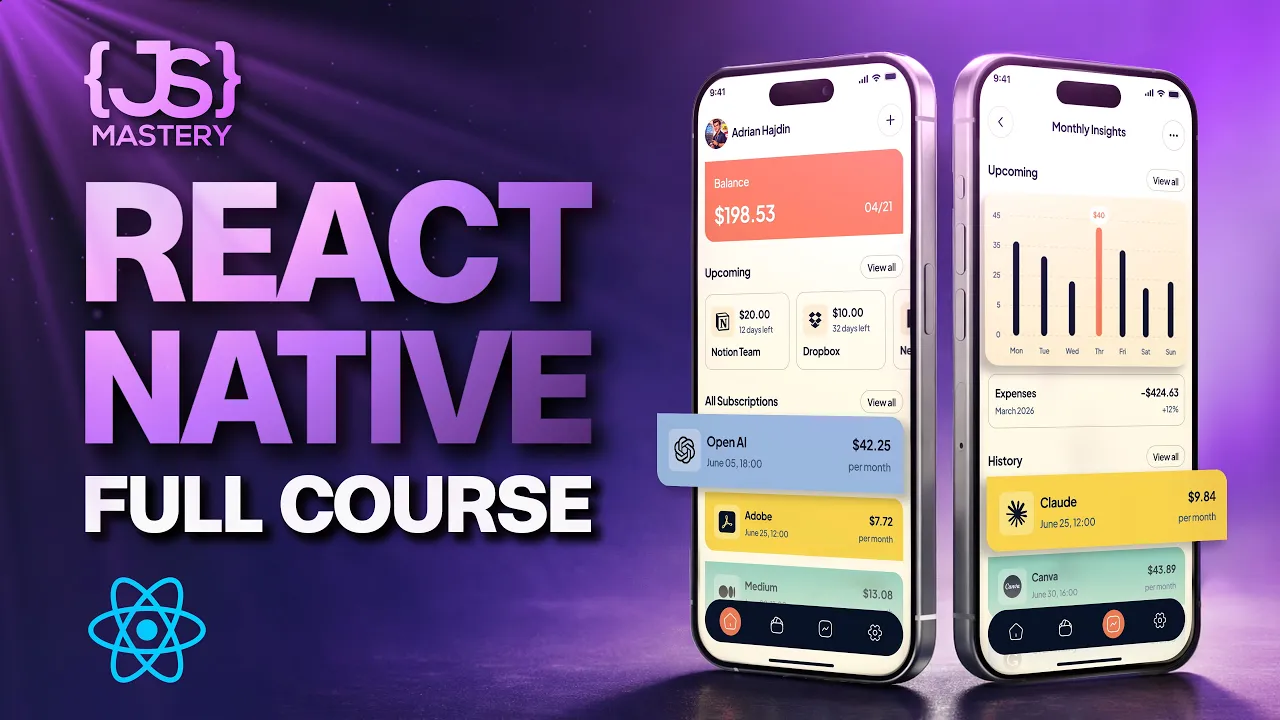









Get daily recaps from
JavaScript Mastery
AI-powered summaries delivered to your inbox. Save hours every week while staying fully informed.