Hermes Agent: Zero to Personal AI Assistant (1 Hour Course)

Chapters10
The video showcases Hermes Agent as a powerful, self-improving AI that can be set up on a private server and used across platforms, highlighting its built-in skills and capabilities through a Telegram demo and comparisons to other tools.
Hermes Agent lets you run a self-improving, open-source AI assistant on your own infrastructure, with on-the-go Telegram control and a Docker-based setup.
Summary
Nate Herk walks you from zero to a working Hermes Agent, an open-source AI agent you host yourself. He emphasizes its self-improvement loop, its 684 built-in skills (91 ready-made on install), and how it can run on a private VPS or even a Mac Mini using Docker or Termux on Android. The video contrasts Hermes with Claude Code and OpenClaw, arguing Hermes is lighter, faster, and especially strong for on-the-go use via Telegram, while still supporting a terminal workflow for deep work. Nate diligently explains Hermes’s five pillars: memory, skills, soul, cron-based automation, and the self-improving loop, and shows how these feed a persistent, evolving agent. He demonstrates setting up a VPS (Hostinger), choosing an inference provider (CodeX/OpenAI), linking Telegram, and configuring GitHub backups to keep a private repo in sync. A live walkthrough covers creating API keys safely, managing multiple agents in containers, and the importance of least-privilege access for security. The session includes practical tips on dashboards, security practices, and when to scale by splitting tasks into separate Hermes agents. By the end, you’ll not only have Hermes running but also a blueprint for onboarding, maintaining, and expanding your personal AI assistant with repeatable skills and cron jobs.
Key Takeaways
- Hermes Agent is open-source, MIT-licensed, and runs on your own infrastructure (Docker on a VPS or Android via Termux) with hundreds of prebuilt skills.
- Memory.md and user.md form the durable context that Hermes loads on startup, while skills.md defines reusable playbooks that get invoked as needed.
- The five pillars are memory, skills, soul, cron-driven automation, and the self-improving loop; together they enable a persistent, evolving agent.
- Cron-based automations turn reactive tasks into proactive routines (e.g., nightly GitHub sync or a daily knowledge update).
- A safe GitHub-backed backup strategy is key: store your agent’s state in a private repo and protect API keys with env files rather than chat history.
- Security best practice: treat each Hermes agent as a separate “intern” with least-privilege access and separate keys/tools to reduce risk.
- Telegram and CLI offer different strengths: Telegram is great for quick, on-the-go tasks, while the CLI is preferred for deep, structured work.
Who Is This For?
Essential viewing for developers who want a self-hosted AI assistant and are comfortable with VPSs, Docker, API keys, and GitHub. It’s especially valuable for makers who want on-the-go control via Telegram and a robust, secure personal AI workflow.
Notable Quotes
"Hermes Agent is an open source AI agent from Noose Research and it is an MIT licensed like I said open source project right now."
—Introduction to Hermes as an open-source option.
"If I go to docs and then I click on skills, you can see that there's like 684 total skills, but there's 91 that are already basically just built in once you install Hermes."
—Highlights the built-in skill surface.
"This is a full minute and 16 seconds. I'm not going to play the whole thing, but let's take a quick listen."
—Shows Hermes can output voice as well as text in demonstrations.
"Cron's turn Hermes from reactive into a proactive scheduled automation, and you're still getting that full agentic loop if you want it."
—Explains the value of scheduled automations.
"The more you use your Hermes agent, the better it's going to get and the more it's going to understand you."
—Summarizes the self-improving loop.
Questions This Video Answers
- How do you set up Hermes Agent on a private VPS with Docker?
- What are the five pillars of Hermes Agent and how do they work together?
- What’s the difference between using Hermes Agent through Telegram vs the CLI?
- How can I safely store API keys and back up Hermes state to GitHub?
- How do cron jobs integrate with Hermes to automate tasks?
Hermes AgentOpen Source AINoose ResearchCodeX/OpenAITelegram botDockerVPS setupGitHub integrationcron jobsmemory.md','skills.md','soul.md'
Full Transcript
Hermes Agent is one of the most powerful AI agents that I've ever played with. So, in today's video, I'm going to take you from absolutely nothing to being able to get one set up. And by the end, you're going to understand exactly how to actually get the most out of the super powerful AI agent. This is the landing page for Hermes Agent. It is an agent that grows with you. So, it has like sort of that self-improving loop with skills and stuff. So, it's very, very cool and it's a lot easier to set up than you'd think.
We're not going to have to use a Mac Mini or anything. I'm going to show you how you can just set one up on a private server. Now, this thing out of the box is already super powerful. If I go to docs and then I click on skills, you can see that there's like 684 total skills, but there's 91 that are already basically just built in once you install Hermes. So, for example, you can see that it generated me some Excal diagrams, which we'll look at in a sec. But I didn't have it install any sort of Excal skill.
It just had that already. And I never gave it a transcription skill or a voice skill. But take a look at this. Hey there, sir. Can you just go ahead and tell YouTube who you are, what you do, and what some of your crrons are? By the way, when I say cron, that basically just means like an automation. It's a scheduled automation. And don't worry, we're going to dive into all of that later in the video. I'll also talk about Hermes compared to Cloud Code compared to OpenClaw and the differences and why in this specific video I'm going with Hermes.
So, you can see that it shot back an actual voice note as well as text. So, this is a full minute and 16 seconds. I'm not going to play the whole thing, but let's take a quick listen. Here's a YouTube friendly version. Hey YouTube, I'm Hermes agent. I'm Nate's AI assistant running on his own infrastructure. I'm not just a chatbot in a browser. I can use tools, remember preferences, write reusable skills, run scheduled automations, search past conversations, work through Telegram, and help manage real workflows. All right, thank you so much, Hermes. But anyways, take a look at some of these crons that my Hermes is running.
A daily AI news briefing, which is posted inside of my school community, YouTube comment monitoring. So, if you guys have noticed on my YouTube videos lately, I've had an AI agent that has access to the transcript and knowledge about me and has been responding to your guys' comments. And that is this Hermes agent school community engagement, morning business summaries, server checks, research reports, follow-up reminders, and that's just some of the crrons that I have this agent working on. And if you guys have seen my videos on my channel about hyperframes with claude code, basically to edit videos, I wanted to see if Hermes could do that.
So I said, "Hey, can you make me a video using hyperframes about what Hermes agent is, how you work, how you remember things?" It ran all of these different things. So it has a skill called creative. It had a skill called manm video. It was searching for hyper. It ran all these terminal commands. And it also, you can see here, it's using vision to analyze the actual video to see how it turned out. Now, its first pass wasn't great. It didn't even use hyperframes. I'm not exactly sure what this used, but as you can see, some of the spacing is off.
It's not amazing, but you know, it's not terrible for the fact that I just said, "Hey, make me a video." So, basically, then I said, "Okay, what tool did you use? I wanted you to use hyperframes." So, it had to look into it. It did the research on its own. It asked me if it could install hyperframes. I said yes. And then it comes back with a video that's actually much, much better. So, I'm not going to play the whole thing, but here's the video that it actually came up with. It looks a lot better.
The spacing is a lot better. It just has these diagrams that actually like don't overlap and they're not going out of bounds. So, think about this one natural language request. It did the research. It wrote this and all I said, as you guys can see, is, "Hey, make me a video about what Hermes agent is and how your memory and skills work. It should feel fast-paced and exciting." So, that's one mindset shift here is if you are confused about anything to do with Hermes, Hermes probably understands it the best and it can also look up its own documentation.
So just ask it, hey, can you do this? If you see something cool on X, grab that X post, give it the link, and say, hey, read this and then help me implement it. It's really going to be your best friend here by just brainstorming and then you tell it to go figure out how to do it. Okay, so that was just a quick demo about what Hermes agent looks like when I'm using it through Telegram. You can use it through tons of other platforms as well. So let's just actually dive into this video here.
Hermes agent from zero to your own assistant. Okay, so what is Hermes agent? It is an open source AI agent from Noose Research and it is an MIT licensed like I said open source project right now. It has 140,000 GitHub stars and that is growing really fast. It's one of the fastest growing open source projects on GitHub. It runs on your own infrastructure whether that is a Mac Mini, a laptop, a VPS, it can run inside Docker container, wherever you want to put it. It can even run on an Android via Termox. There are tons of different messaging platforms.
I'm going to be showing you guys Telegram today. You could also do Discord, Slack, WhatsApp. You could even do iMessage if you wanted to connect it to that. And really the big thing that got me interested in trying it out was the self-improvement over time by writing its own skills and updating those. And it's kind of built on top of five main pillars which I'm going to talk to you guys about in just a sec here. But before we get into that, I wanted to cover Hermes versus Claude Code versus OpenClaw and kind of even like Codeex too.
So this is just my comparison of the way that I compartmentalize them in my head. So Claude Code is still my daily driver. That's where I do 90% of my knowledge work throughout the day. But there's a clear distinction in my mind between the way that I'm going to use cloud code and openclaw or hermes. So this is obviously anthropics coding assistant. It lives in your terminal next to your code and you basically sit there and you drive it. You could enact like dispatch or remote control to use it on the go. But honestly, I don't really do that too much.
The way I think about cloud code is when I'm sitting down at my desk or I'm on my laptop and I'm doing work. Now OpenClaw is where I started to play around with it. I did the trading video if you guys saw that with OpenClaw. And the way that I started to think about this was I'm not going to use OpenClaw or Hermes to sit down and do like my knowledge work and my coding. I'm going to use OpenClaw and Hermes when I'm on the go. When I want to be on my phone and be able to set up crowns really quick and have everything kind of just be managed right there in Telegram where I can talk to something and it wakes up immediately and responds to me back.
And it's truly been a gamecher for being able to go on a walk and still do work or you know be out and about. This was created by Peter Steinberger. He then joined OpenAI and OpenClaw is still an independent once again also an open source project that has over 350,000 GitHub stars. Now there's a much larger team around OpenClaw compared to Hermes and they are also doing frequent updates. Also Nvidia built Nemoclaw on top of OpenClaw as a separate enterprise stack. Now Hermes and OpenClaw may seem kind of similar when you just kind of take a first glance but there are a lot of differences.
Hermes is also lighter, faster, focused on self-improvement. And they've come out and say like, hey, you know, this is built for people that want to tinker with open source models, Quen, Llama. I'm not necessarily using Hermes right now with open source models, but definitely something that I'm going to start experimenting with. But one of the main reasons that I started kind of switching over to Hermes was my openclaw was just kind of breaking a lot. They would push a lot of updates and changes and sometimes it would just like crash my open claw and I'd have to get in there and fix some stuff.
And Hermes doesn't seem to do that as much. Fingers crossed. But a lot of people are using these altogether. And I'm definitely using cloud code with Hermes together for sure because I mean if you think about what are your coding agents actually working in? They're working in some sort of directory which is just a file structure, a folder structure and all of that we want to sync to GitHub. So if you have a GitHub repo of all of your knowledge, all of the business context, all of your skills, you can pick out any of these agents, even codecs, and just plop it on top of your GitHub repo.
And now you can play with all these different tools and see how they interact. There's just a little bit of difference sometimes with terminology, whether that's like a claw.md or an agent.mmd or, you know, a couple little tiny things, but each agent understands its own terminology. So, if you say, "Hey, take this repo and make sure you can use it." It should be able to make all the changes for you very quick. And I'm going to show you guys a way that I use cloud code to help me manage all of my Hermes agents and OpenClaw agents, which makes me stay way more organized.
I never forget things, and trust me, it's definitely a game changer. So anyways, before we jump in and we start doing the install and the onboarding to Hermes, I just want you guys to understand some of these, you know, main concepts to think about, which are the five pillars. And what I did is I actually copied this exact five pillar structure, which by the way, my Hermes agent helped me think of, I copied this, I pasted it into Hermes, if I scroll up a little bit here, and I said, "Hey, can you just use the Excal skill to generate diagrams for all of these and make sure that all of this information is correct?" It gave me a zip file right here.
And I took that zip file, I put it into Excal. And let's now take a look at these five pillar diagrams. Okay. So the first pillar is memory. Memory is the small durable context that Hermes should carry across sessions. So there's two main files to be thinking about when it comes to memory. The first one is the user.md. Who you are, your style, your preferences, and things that you don't like. The second one is the memory. MD. This is like the environment, the projects you're working on, some of your business context potentially. And these two files get loaded at the session start so that it always kind of knows what's going on.
Because the way that you want to think about AI in general is that it wakes up stateless, meaning it wakes up with basically no memory. If you guys have ever seen the movie Momento, that's kind of like how agents work. So it's your job to make sure that the context that gets loaded in. CloudMD, user.mmd, memory.mmd, agents.mmd. It's your job to make sure that those files are pretty holistic so that every time you wake up an agent, you don't feel like you're repeating yourself. And don't worry, these files Hermes agent understands and it's automatically going to start extracting things about you and extracting things from your projects and putting these files together.
So, you don't actually have to like manually consciously think about it. As you can see, the session would start. You would go ahead and start talking, building skills, doing knowledge work, and as you're starting to add tools and as you're starting to give more info and make changes, it's going to automatically come back and update these files for you. Now, that doesn't mean to just be completely oblivious to it. You still want to say, "Hey, by the way, chuck that in the memory." Or, "Hey, make sure you don't ever do this again. throw that in the user.mmd stuff like that.
And you can see the escal diagram wasn't perfect. I had to expand that a little bit. But here's some beginner nuance. Save durable preferences and facts to memory. Use session search for old conversations. So it's basically able to store all of your sessions into a SQLite database and it can go search through those. And do not store secrets or temporary task status. So we'll talk about API keys and the way that you should be putting them into your Hermes agent responsibly once we get into the setup. So that is the first pillar, memory. The second pillar we have here is skills.
So skills are procedural memory, reusable playbooks for how to do a task well. If you guys have already been working with Codeex or Claude Code or all these other things, you probably understand skills, but I'll give you the real quick lowdown. Basically, think of a skill as a recipe. Someone asks you, "Hey, can you make me some chocolate chip pancakes?" You want to pull up a recipe and then you're going to follow that recipe to a tea, and that's how your pancakes turn out the same and, you know, yummy every time. Otherwise, if you were just going off of memory of how to make the chocolate chip pancakes, sometimes they might be a little more burnt than the other times.
Sometimes they would have less chocolate chips than other times. You just want them to be consistently done in the same way and that is your skill or your recipe. So all of these skills are in a file called skill.md. They have a YAML front matter which is basically just like a little front matter that that tells the agent, hey this skill does this, so use it for X, Y, and Z. And that's basically a concept called progressive disclosure which helps make sure that you're not loading full skills, full context bloat into a session if you don't actually need to use that skill.
So Hermes will understand the use case for the skill. It will then invoke the skill and read it. And then it will ship that information into the session and then invoke the skill and do what you need. And what's cool about the Hermes agent is that if you're doing things frequently, if you forget, hey, let's build a skill out of this, it will analyze conversations. It will analyze your workflow and it will turn things into skills. And then of course, as you use skills more and more, if you're giving feedback, it's going to update those skills as well.
As you can see, these Excal diagrams keep messing up right here, which is basically just the beginner nuance. So memory equals what to remember. Skill equals how to do it again. Hermes can create or patch skills after real work. So super cool. And of course there's a skills hub. So any skills you've already built can be used in Hermes. Or you can go to the skills hub and you can see that there's over 520 community skills. There's different categories. So you can definitely search through here to see what you can add to your Hermes to make it even more powerful.
It looks like there's actually 16 right here that are anthropic um official skills. We have canvas design, front-end design, we have a skill creator skill. So you can pull all of these into your Hermes agent super super easily. You just have to basically run this command or you know you could drop in this URL to your Hermes agent and say, "Hey, install this skill right now." All right, so that's pillar two. Pillar three is the soul. Now soulm basically shapes the assistant. This shapes your Hermes agent so that if you have six different Hermes agents, they all have basically a different vibe.
Some can be concise, some can be rude, some can be I don't know. But anyways, the soldm is another markdown file that gets put into the context of the agent. And now it's able to just have a bit of a personality. So if you're also letting other people interact with your Hermes, they will feel the personality. If your Hermes is, you know, commenting on YouTube videos like mine, there will be some sort of personality. The one in my YouTube comments, I told it to be like very sarcastic, but not rude. And by the way guys, it's not super super important that you need to like know what a skill file looks like or know exactly what a markdown file looks like, but don't get intimidated.
Here is a skill. So this is skill.md. This one's called generate image. So everything in between these two lines up here, that is the the YAML front matter that I was talking about. This is what your agent reads in order to understand, okay, should I use the skill or not? If it then decides, yes, I should use this skill, then it's going to read all of this other stuff, which is just markdown. And markdown just basically means that it's using like headers and bullets and it's just a way for agents to read structure within a block of text.
Like this means bold. Anyways, that is what a markdown file is and that's what a skill file looks like. So a soul file would look like that, but there wouldn't be that YAML front matter. But as you might have guessed, the soul file will also evolve over time based on the feedback that you're giving your Hermes. So what is pillar number four? This is where it gets super cool and this is one of the main value props for me over something like cloud code is the fact that I can just say hey spin up a cron job to do this at this time and it just does it.
Cloud code obviously you have your routines you have your loops but that usually requires you to leave some sort of infrastructure on unless you're using like the that new cloud routine but you're only limited to 15 of those at least on the the max plan 15 of those a day. So once again, Hermes doesn't replace Claude Code for me, but it's kind of my onthe-go spin up things really quick, and that's why I love it. So Cron's turn Hermes from reactive into a proactive scheduled automation, and you're still getting that full agentic loop if you want it.
So you could say in natural language, hey, every morning at 6:00 a.m. I want you to do X, Y, and Z. It will go ahead and use a skill and use its tools to create that cron job. And then when that time hits, it will basically invoke like a fresh isolated session. it doesn't inherit any of the context that you're currently, you know, having that conversation about. And then it will just run that skill. After that happens, it will send that result back to the original chat and it will maybe update any local files or do whatever it needs to do based on the skill requirements.
So, some useful pieces of advice down here. Context from is to pass one job output into another. Work dur is, you know, work directory and it runs tools from a project folder. And then you can do this flag for no agent, which is just a script. So, hey, I just want you to run this Python script. I don't want the agent caress loop inside of that. I just want the script to be ran. So, if you think back to the WAT framework workflow agent tools, you'd basically just be deploying the workflow on something like modal.
You're not deploying the agent as well. So, safety nuance, cron sessions cannot recursively create more cron jobs. So, the prompts need to be self-contained. And if any of this is starting to feel a little bit overwhelming, I just want you to understand this terminology so that when we hop into the setup and the onboarding, it all clicks a little bit better. So, just stick with me. All right. And then the last pillar here is the self-improving loop. Hermes improves when useful experience gets persisted as memory skills and searchable history. So if you think about the loop like this, you do the work, the agent learns, you save things to memory or to agents.mmd or to, you know, user.mmd.
And then you turn those repeatable steps into skills or your preferences into more memory. And then the agent's able to search past sessions when old context matters. And then you basically just go in that loop over and over. So the more you use your Hermes agent, the better it's going to get and the more it's going to understand you. So the nuance here is that automatic does not mean magic. The loop works best when the user corrects Hermes, asks it to save things to memory and lets it create and update skills after you've done some complex work.
And there is one more kind of honorable mention which is the context file. So agents.mmd, if you're using codecs, you know what that is. If you're using cloud code, this is the claw.md which is kind of just like the overall project goal, kind of like the structure of the project. So, this is something that you're more so going to use if you're like coding in different projects with Hermes and I would say more so if you're in like the terminal using Hermes. And in today's video, I'm not going to focus too hard on the terminal.
I am going to talk about the difference between using in the terminal or using it through Telegram or whatever other channel you use. But this is not going to be a deep dive on Hermes in the terminal because once again, any terminal style work that I'd be doing, I would just be doing that in cloud code. That's the way that my workflow currently exists. But anyways, this honestly works pretty similar to the way like the memory or the soul file works, but those are all global. And this one's more of like a local project. This is what we're working on in this contained environment.
So anyways, hopefully you guys aren't too bored yet. Let's actually go ahead and get your guys' hands on. I am going to say before we jump into this, all of this video I'm going to have broken down into a resource guide, which might even be helpful for you to just give your Hermes agent the document and say, "Hey, help me get all this set up." But if you want to access that free resource guide that breaks down everything that we're going to talk about today, that will be in my free school community, the link for that is down in the description.
You'll go into here, you'll click on classroom, you'll click on all YouTube resources, and you'll be able to find every doc, skill, GitHub repo, everything I've ever dropped for free on YouTube right in there. Okay, so now let's get into the setup of Hermes agent. All right, so the way that we're going to be doing this is on a VPS, which stands for a virtual private server. Now, I'm going to be using Hostinger for my Hermes agent. I have been using Hostinger for hosting nadn and for openclaw and for cloud code. So this is my VPS provider of choice.
There's a link in the description if you guys want to go here. You can see there's also basically like a one-click install for Hermes agent when you spin up one of these VPS. So very very cool. Now the first thing you have to do is choose the plan. So on here you can see KVM 1 2 4 or 8. I'm just going to go ahead and start with two for now. This basically just changes like how much CPU and RAM you have and your bandwidth in your server. So you could definitely start on one and if you need to just scale up, you can scale up later.
But I'm just going to go ahead and click KVM 2. And then I'm just going to go ahead and click on deploy. So you have to choose your period. So 24 months, 12 months or 1 month. Um I think that you should just probably go for the annual at least because you're going to save more money. But also, you know, you pay about a 100 bucks and then you have this just set up forever. And you can also or for a year I guess but you can also deploy multiple different Hermes agents or even multiple open claws and claw codes on your VPS as long as you can support the RAM and the CPU.
And if you choose an annual plan, so 12 months or 24, you can use code Nate Herk and you can save an additional 10% on that plan. So you can see right here it says Hermes agent auto deploys with your VPS. You can also get daily auto backups. And then you're going to choose your server location. And then once you've made your payment, you just have to go ahead and get started with setting up your VPS. So you'll choose your server location. Click on next. This is where you can see the actual OS that you want to use.
So I'm going to do Ubuntu and I'm going to do 24.04 LTS. And what else you can see here is that there's tons of different apps that you could also deploy. Nadn, Nemo Claw, and this is where you could come in here and you could search Hermes agent as well. And if you do want to do the one-click install, then go ahead and do Hermes agent. But if you want to do it on the root of your VPS, then just stick with me here. I'm going to do a breakdown of the differences there in just like a minute.
So, if you want to wait until you see that, just wait for a sec. So, you're going to have to go ahead and create a root password. I'm going to go ahead and click next. If you forget that later, you can obviously just um regenerate it. So, it's not a huge deal, but obviously you probably want to remember that. You can add a malware scanner for free. So, I'll just check that box and hit finish setup. And now, this will take just a couple minutes to actually spin up your VPS. So, while we're waiting for that, let me talk about the difference between setting it up kind of with the oneclick or setting it up directly at the root of your VPS.
Okay, so a VPS is basically just a computer in the cloud that you will be renting from Hostinger. You will get an IP address and you will get a password in order to basically SSH in which means you were just like getting into that virtual private computer so that you can manage the files and install things stuff like that. So if you install Hermes directly on the VPS, it will be at the root level and if you install it using the one-click Docker image, it will be in a containerized Docker environment within your VPS. So, I know that might make like no sense at all, but here's a quick visual.
Your VPS has data, it has like services, it has other files, and then you could also put the Hermes agent right there. Or you could have all of your files and stuff, you know, locked into the root of your VPS. And then you can spin up an individual container for all of your different Hermes agents or OpenClaw agents within the actual different Docker containers. So, for the sake of the video, I'm going to be doing the Docker container approach because it's just a one-click install and it's much simpler. But even the root VPS is very, very simple.
Now, here is something that I am very, very strong on that some people might disagree with me and think that it's overengineering, but I think it's like why would you not do this for all of my VPS agents, I have created a my own cloud code project to help me manage them. So, right here, you can see this is called upit agents. If I click on VPS agents, you can see that I have my bull, which is my trading bot. I have my main hermes. I have my uppid OS and I have Klouse which was like my main personal assistant.
And so for each of these I can see my passwords and my environment variables and I can see you know like what's the IP address of this VPS and how do we have this set up in the docker or at the root and it has information about security and integrations and basically now I have one clean place to manage all of my different agents because I've got a lot of different VPS's running and I don't want to forget my passwords and I don't want to forget like which agent is on which server. So I just have this project set up.
So, I would definitely recommend you guys do this and I'm actually going to do this live with you guys here to show you what I mean. So, all right, we are going to go ahead and set up a new VPS and we're going to do a new Hermes agent. So, in the VPS agents folder, create a new subfolder called YouTube Hermes. And then we're going to go ahead and set up like, you know, like the passwords and the configuration stuff just so that you can help me make sure we maintain this project. Well, now the reason I like to do this is because do you think that I like understanding VPSs and terminal commands and CLI?
Not at all. And I'm not very good at it. So, who's better at that than me? Hermes agent and Claude Code. And sometimes if you're running random commands and you don't know what you're doing, your Hermes agent might like shut down. And now I have Cloud Code to help me boot it back up if I need to. And this may sound scary and overwhelming, but trust me, it is so so simple. This is just a good best practice to keep yourself organized. Okay, so switching back over to our Hostinger dashboard, you can now see that we have our VPS ready.
So if I click on managevps, this opens up our main dashboard. Couple things to look at. So first of all, we have our root access. This is what we can actually give to cloud code. So if it needs to root into our um VPS and like look at our passwords or help us fix things, it can do so. It would just need the password as well. So here's where you can change that root password. Down here, you can see your current plan. You can see when it expires. You can see your, you know, your analytics and server data will pop up and it will show you if you need to like upgrade to a higher plan.
And also you can see on this lefth hand side these are all the different servers that I've got running which is why I want a cloud code project to help me keep that organized. So the other thing you can do is you can change the host name. If you come into here um you just have to have it end in a dot something. So if I just do YouTube Hermes and then I dovps I should be able to get that to go through and now this host name in my dashboard will change to that. So I can just keep myself a little bit more organized.
Okay. So the two methods, right? If you want to do this at the root, you would basically just open up a terminal or Hostinger gives you a terminal right here, which means I click on this button. This opens up a terminal that that's already sshed into our project. You can see it's root at YouTube- Hermes. And this is where you would just go ahead and go to Hermes and you would just run the install command. So, you would come down here and you would install with this oneline command. And then you'd go ahead and do Hermes setup and start configuring your Hermes agent.
But like I told you guys, today, what we're going to do is the one-click install. So, we would go over to our Docker manager. And this is where we'd go ahead and click install. And remember how we have our main server, but if we wanted to spin up a bunch of different Docker containers inside of this server, we could do so. And that's how you could keep like different Hermes agents in here and kind of keep them separate. Okay. Well, this says it's going to take 10 minutes. I doubt it. Okay. Yeah, it just finished up.
So, I'm going to click compose. I'm going to go to oneclick deploy. And then when this loads up, this is where I will search for Hermes. And I will click on select. Now, here is where you have to set an admin username and an admin password for your Hermes agent. I'm just going to leave this as default. I'm going to copy this password. And what I'm going to do is I'm going to go to my cloud code project and I'm going to save the admin password and username into this new one. So right here, you can see it made this one called YouTube- Hermes.
And what I want to do is I'm going to add a new file in here. Call this one the env. And then in thisv I'm basically just going to do admin username equals and then admin password equals. And then I'm going to paste those two things in here. So this is where I can keep myself organized with that. All right. So I've saved that to myv file. And now I can click deploy. And this is going to spin up that container. And now if we want to access this, all we're going to have to do is click on this little button right here that it will give us which will basically like put us into that container.
And we can chat with Hermes. We can do the onboarding. We can do everything in there. But this main terminal button that is going to take us to the root of our VPS, not inside of this Docker container. I hope I'm not losing you guys. I know that it may seem like I'm an expert at this stuff, but truly I'm all self-taught. I ask Hermes, "Hey, explain this to me." I ask Cloud Code, "Hey, explain this to me." And that is how I've learned all this stuff, so it's really not too bad. Okay, so while that's getting set up, let me go back into our project that we manage our VPS agents on.
Let's answer some questions. So, has the VPS already been provisioned on Hostinger? I'm going to say yes, it's already been provisioned. Um, what's the primary scope for this YouTube Hermes? I'm just going to say other for now. You don't really need to know that yet. Right now, we're just setting this up as a demo. All right. Telegram bot. Um, we will do a new bot via botfather. Yep. And for the LLM provider, we will be using codeex GPT OOTH. So, I will show you guys all of that as we get onboarded. By the way, the speech to text tool that I'm using right here is called Glideo.
It is our speechtoext startup. I fully transitioned over from Whisper to Glido and I am now official member of the GLO team. It's faster. It's completely private and it's way more agentic. So, check it out. Link in the description. Okay. So now you can see that this Hermes agent thing is set up. All I have to do now is click on open. And this is where you have to go get the admin username and password that you just saved. So go grab that and put it in. And once you put that in, you basically just start the onboarding right away.
So we're going to do our quick setup. So I'm just going to go ahead and hit enter. We then have to choose an inference provider. So as you can see, there's tons of different options, like a ton of different options. But what I want to do is I want to use OpenAI codeex. This actually lets you take your chat GBT subscription. So 20 bucks, 100 bucks, 200 bucks a month and use that inside of Hermes agent instead of API keys. So it's going to be the cheapest option by far besides using like um you know an open source model.
So I'm going to choose OpenAI codeex. Now what happens is it makes you go to this URL. So I'm going to click on that. It has you sign into your chatbt account and then you have to give it access and then you have to go back into the terminal. You're going to grab this uh what is that? A nine-digit code and copy that and then paste that into there. Hit continue. And when you go back to your VPS, you should be fully signed in and it should authenticate. There you go. Login successful. We get to choose a model now.
So I'm obviously going to choose GBT 5.5. And now we're going to set up our channel. So setup messaging. Now I'm going to choose that. We're going to go ahead and hit space to hit Telegram. This is where you could also choose some other things if you want, but for now I'm just going to go Telegram and hit enter. And now it asks us for a Telegram bot token. So what we have to do in our telegram is we have to start a new conversation with the botfather to create a new bot. So here I am in the botfather.
I'm going to do slash newbot. It asks us for a name. This is going to be YouTube Hermes. And then it asks us for a bot username. So I'm going to try YouTube Hermes. Oops. YouTube Hermes bot. Does that work? Username is taken. Okay. An absolutely super ugly name, but that works. And now this is the token right here that you're going to need to copy and you're going to give to um your VPS down here. So I'm going to go ahead and paste that in. It might not actually appear. Sometimes it just does that in the terminal, but I'm going to go ahead and hit enter anyways.
So now that token has been saved. And the next thing you have to do is allow a certain user ID. So right now I only want my Telegram account to be able to talk to our Hermes. So we have to go get our own user ID. It gives you the steps right here. You have to message the user info bot and it will give you your number. So once again, if you go back into Telegram and just search for user infobot, it will look like this. This is where it gives you your ID. So you're going to go ahead and copy that and paste that into VPS terminal thingy.
So this is the home channel. I'm going to say yes. This is the user ID I want to use for the home channel. Hit yes. And now we're basically completely set up with Hermes. What do we have available? So to start off tool availability, we have vision. We have browser automation. We have image gen. We have text to speech. We have terminal commands, task planning, and skills. We also have different files. So, here's our settings. Here's our API keys. Here's our data. Here is how we can edit configuration. So, what I'm going to do is I'm just going to copy all of this, right?
I'm going to take all of this and I'm going to go ahead and hit copy. And I'm going to go back into our cloud code project, paste that in, and then just say, all right, so we just set up this Hermes agent and here is all the information that it gave us. So, make sure you save this so later if I need help with tools or skills or files, you know exactly how to help us do that. So, hopefully now you guys are starting to understand the value. If you're ever getting confused on something with your Hermes or your VPS, you just open this up and say, "I'm working on this agent.
I need help with X, Y, and Z." I've actually saved myself a ton of times doing this. And also, when you want to start thinking about security and maybe getting a firewall on your VPS and locking it down a little bit, which I definitely recommend you should look into, that is something that Cloud Code is going to help you out with big time. But Hermes can also help you out with that, too. Um, I have my Hermes agents doing like a nightly sweep of just making sure that things are kind of locked down in the right spots.
But anyways, now you can see it says, "Do you want to launch Hermes chat?" Now, I'm going to say yes. And this pulls up the command line interface for Hermes. You can see it's going to load up. It's going to let us chat with it right here. And it's going to look kind of similar to if you use Cloud Code in the terminal. There we go. So, we have our Hermes agent. I love this text up here. We can see available tools. We can see available skills. You can see there's already a ton of them.
There's 85 already installed. And we're able to see our model, our context window, and how long we've been in this session. So, let me just make sure that our connection to ChatBT is working. I'm just going to say hello. And awesome. It has given us a response. Now, let's go ahead and start our Telegram and see if we can get this connected. So, this is the bot that I just made. I'm going to hit start and I'm going to say hello. And if it's working, then we'll see a typing in the top left up here.
But what you'll notice right now is that it's not working. There's no typing. So, what I'm going to do is go back into our Hermes right here and say, "Hey, for some reason the Telegram connection doesn't seem to be working. I just shot the message off and said hello and I'm not getting anything back." And look at that. It's already invoking a Hermes agent skill to understand what's going on. It's doing a plan. It's running some commands right here. So, it's basically going to investigate how we make sure to get this Telegram connection all set up.
Okay, so it actually just sent me a message. It says Hermes Gateway is back online. If you sent hello, try it again. So, we'll go ahead and try that again. Hello. And now we can see in the top left it is typing and it's actually able to respond. So, it said that it found the issue. The gateway was stopped and it started it again. So, that is perfect. Okay. So, we are up and running. We can see we now have Hermes right here. So, let's just go ahead and get onboarded a little bit with it.
I'm going to say, "Hey, Mr. Hermes, my name is Nate. Um, I want you to be my ultimate personal AI assistant. So, let me know what you need from me and what, you know, features and stuff that you can actually do for me and how you can make my life easier." And once again, that is actually going to be able to transcribe that audio and understand it and then respond to us. And what I love about using Hermes, especially even if you're in Telegram, you still get to see the visibility of what it's doing. So you can see skill view.
You can see it's adding some user memory. So it's saying user's name is Nate Herk. So as I'm editing this video, I was like, "Wait a minute. How did this thing know my last name was Herklman?" All I said in the voice message was, "Hey, my name's Nate." And I was like, "Oh, that's scary." And then I realized Telegram has my full name. So yeah. And then it goes ahead and responds with a bunch of stuff. So great to meet you. I've saved your name and that you want me to operate as a serious personal AI assistant.
Here's what I can do. I can do admin stuff. I can do research. I can do coding, automation, files and documents, voice. Here's some stuff I need from you. So, this is where you'll probably just want to yap to this thing for 5 to 10 minutes. Tell it about your goals. Tell it about what you're working on. Tell it about your team. Tell it about skills that already exist that you have. And just giving it some more information so it knows you a little bit better. Now, what this is going to start to do is it's going to start to build its own environment, right?
It's going to build those files that we mentioned, and it's going to potentially start to build out the whole infrastructure for skills and other stuff. So the first thing that I think that everyone needs to do when they set up a Hermes agent is they need to connect it to a GitHub repo. The reason being if Hermes goes down for some reason and the VPS is corrupted, you still have all of that saved. So you could take that repo and just wake up a new Hermes agent and sync it to that and then it's like you didn't lose anything.
So that's exactly what we're going to do. Before I start to give you all of this information about me, I really want to just make sure that we sync this project to a GitHub repo. So can you just do some research and figure out how that works? I can go ahead and give you whatever you need as far as an API key or um information about my GitHub account so that you can create this, but I want you to set this up as a private repo for me. And so what this is going to do, it's going to do research.
I'm going to show you guys how we give it that API key in the safe way. And it's also going to help us figure out, you know, it's going to probably build a skill around this. And then what we're going to do is we're going to turn it into a cron so that every single day at midnight or something, it automatically backs up everything that we did. So every day if we ever make changes, our repo is committing every single day automatically. You can see it's viewing different skills. It already has two skills for GitHub repo management and GitHub off, which is awesome.
It's running some terminal stuff. It's searching through some files. I'll check in with you guys once we have an action to take. And while it's doing that, let me just show you guys. So if you've never used GitHub before, don't be intimidated. It is basically just think about it like a like a shared drive, like a one drive. It's a place for you to store your projects and your code bases. And that way if you wanted to pick up on your laptop or on a different device, you could still access all of those files. So it's really important that we're going to set up this automated backup.
It's completely free to set up. Go to GitHub and get an account set up. And now we got a response here that says, "Okay, I checked the environment and I researched the clean setup path. Git is installed, but the CLI is not installed." But it actually said, "Okay, we're going to do the API with a personal access token. So create a private repo, initialize git locally, and add a safe.git get ignore to make sure that our API keys and our secrets don't get pushed to this repo. Even though we're going to keep it private, still best practice.
It says, I need you to send me these four things. Your GitHub username, your private repo name, your Git commit identity, and your GitHub token. Before pushing, I'll make sure we do not upload secrets that are in these files, and I will also create a ignore. So, it knows GitHub way better than I do, probably better than you do, unless you're coming from a GitHub background. So, if you're curious about it, just ask it. and it has these skills to manage GitHub repos. And now what's interesting is if I actually go and give it my personal access token, it should be able to set up the repo.
So I don't want to manually click around and do that. Let's see if it can do it for us. But what I do need to do is get our token. So I'm going to click on this link it gave us. That opens up my GitHub. I'm going to go ahead and generate a new token. So I'm going to do a fine grained new token. I'm going to real quick authenticate. Token name. We're going to call this the YouTube Hermes. I'm going to just have this one probably you want this to never expire, but because I'm going to delete this right after the video, I'll just keep it at 30 days.
You can do public, you could do all, or you could do select. And so this is I guess the point where you would probably want to make the repo if you want it to only sync to that one. So I'm just going to go ahead and say all repos. And then for permissions, what we need to do is we want to do contents and we want to make sure that this is read and write so it can pull in stuff but also push updates every night. We're going to go ahead and generate that token. And I am going to now just have to copy this and show you guys how we give it to Hermes because what you might be tempted to do is just drop it in the chat.
And honestly, like depending on the model you're using, it might not be a huge deal, but it's just not best practice. And if you do accidentally do it and it's going to, you know, OpenAI servers, then you can just rotate it. So it's not a big deal. If you're using an open source model and it's completely local and private, then you could just drop it in because Hermes obviously will take it, put it into the NEV, and put it where it needs to go, which is which is nice. but then it's in the conversation history.
So, the way that we're going to do this is we're actually going to go back to the VPS and then you're going to go ahead right here and click on open. And what this is going to do is obviously open up that chat, but we're going to try to get out of the Hermes chat and just get into like this docker container. So, I'll hit control C. And now what I can do is Hermes config set all caps github token. Hit space. And now I can paste in that GitHub token. And when I hit enter, that basically sets that in the /opt/data.env.
So now we have put this token into that.env file inside of our VPS without putting it into the AI conversation window. And this is the way that you should be setting up all of your API keys in here. So now if I say, all right, so I just dropped in my API key for GitHub in thev file. It is called github token. So see if that works. And then what I want you to do is actually just create the repo for me. My GitHub username is Nate Herk AI. My commit identity can just be Nate Herk and you can call this repo whatever you want and make sure it's private.
Okay, so hopefully that works and hopefully it's able to find that API key. Let's go ahead and just see what it does. Now once again, if this stuff down here is confusing you or if you want to delete a key or whatever it is, then you will go to your cloud code project. you will give it the info it needs and say, "Hey, by the way, my agent is set up in a Docker container and this is the name of the container and here is the SSH and help me just figure out where my files are or where my API keys are." Okay, so that worked.
It found the API key. But what happened is we didn't give it permission to actually create repos. Okay, cool. So, I'm actually going to just go ahead and create a new classic token. But remember, we can't have two tokens in there called GitHub token or they're going to clash. So, I'm actually glad this happened because what this will do is it will have me have to show you guys how we can delete an API key. So, I'm just going to say to our Hermes, okay, can you give me the command to run inside of the terminal that we can actually open up that file that you just accessed because I need to delete that GitHub token so I can give you a new one.
All right, so we have this command which is the file path for that. Env. And if I go to the terminal now, the one up here, which is our root level VPS terminal, not the Docker one, and we paste that in, that should basically open up that file for us. Although, it looks like that we haven't actually installed nano yet. So, I'm going to say when I pasted in that first one, it said nano colon command not found. And I know that I had this like pasted in a little bit weird, but I think that we still would have got this either way.
So, now we can just use this instead apparently. So, let's copy that. And let's get this pasted in here. Hit enter. And now we see, can you just show me how we could get the nano command to work instead? And just want to confirm that we should be doing this on the root of the VPS, not inside of the Docker container image that you run on. Okay, so that v1 command was weird and I'm normally I use the nano. So I just asked that question. Okay, so I figured it out. What happened was the agent's running inside of a container, right?
And then we were doing looking at the root file for thev, but actually we needed to be looking at thev inside of that docker container. So this is the nano command that we actually need to use that gets us into the docker container.env file. So now you guys understand that you don't have to understand like exactly how all this stuff works. You just have to be able to communicate clearly what's wrong and what you're seeing. So, I'm going to go ahead and delete this GitHub token. And then we're going to go ahead and generate the new one.
And you guys are going to see me put it in the same way that we did earlier. What you do in here is you do Ctrl O. And then you hit enter. And then you do Ctrl X. And that's how you save it. But now I can go ahead and create a classic token instead of a fine grained. We're going to do a new classic. And now we can select the scopes. And this is where you would choose exactly what actions you want. We definitely want the repo actions to be able to access public repos and invitations.
And this is where you might want to just go through and give it like read access to things but not write access to everything. But as you guys can see, it's not a huge deal if you need to come back in later and increase or decrease the scope. So I'm just going to go ahead and generate this token. We're going to copy this and we're going to do that exact same thing in here where we do our Hermes config set GitHub token. And then we paste that puppy in. And now that should be set. I'm going to go back into Hermes and say awesome.
The new GitHub token that you see in that env file should be the updated one. So go ahead and create that private repo for us now. And what you see here is even in Telegram it can ask you for access to things or permissions. So you can allow it once, you can allow it for the session or you can always allow something. So in this case when it is creating a repo or it's going to be like committing to a repo. I'm just going to go ahead and do always allow so that in our skill we're about to set up where it does a daily sync it just does it with no problem.
Okay. So that has been created. It gave us a link. If I click on this, it should pull up a private repo right here. You can see this is Hermes personal AI assistant. It's private. And here are all the files that it already pushed into what we're doing in this project. So, if you wanted to dig in, you could take a look at what is here. Now that that's created, let's go ahead and make a skill. Awesome. So, I'm going to be using you a lot and you're going to be creating different skills and different memories about me and stuff like that.
So, what we need to do is set up our first cron job. And I want you to build a skill around this. Basically, every single night at 12 a.m., so midnight central time, I want you to push changes to this GitHub repo. This is going to be kind of our, you know, our source of truth. So, if you have any questions about that, please ask. But otherwise, just go ahead and set up the skill and set up the cron. And it's really just as simple as that. In natural language, you say, "Hey, every night at 12 a.m." Or you can even do things like what I do for my YouTube videos is I I drop a video and then I give it the link to that YouTube video and I say, "Hey, for the next 12 hours, run a cron every 10 minutes to go check on comments and respond to them." So you can set up basically the same way that like the slash loop works in cloud code.
You can say, "Hey, for the next 24 hours, just do this every 5 minutes and then once 24 hours has passed, go ahead and kill that cron." And it can do things like that as well. You can see it's viewing a bunch of different skills. It's going to run some terminal stuff and then hopefully we're going to see it create a skill and maybe update some stuff in its memory. Now, while this is running, there's one thing that I wanted to hit on real quick, which is basically like what's the difference between using um Hermes in the terminal or using it in Telegram.
So, functionally, it's really not all that different. It's the same agent in both interfaces. Telegram does not run a weaker version of it, but you have a little bit less control when you're using it in Telegram. The CLI is kind of like the cockpit and Telegram is more like your remote control. You can also set up things like your dashboard and Hermes has its own canband board so you can monitor like tasks which is in my opinion I don't use it at all. I think if I was doing like hardcore coding and I had different agents working on different things and I could view you know like the project in a visual way it would be super helpful but the way that I'm using Hermes agent like I talked about in the beginning of the video where it's kind of like my onthe-go wherever AI agent I don't really need that cambban board.
It's not too useful for me. But anyways, that's like the mental model. The CLI, which I hardly ever use, is best for like deep work. You're building something, you're coding, you're um you know, you're living in there as kind of like your operating system. And it just has more like commands. You you have the ability obviously as we saw in here, you can see your context better. You can manage that better. You have all of the slash commands available to you. Whereas in Telegram, it's not exactly the same. And the session or the context window feels a little bit more ambiguous.
And ultimately, it is. It's still doing like autocompaction and stuff under the hood, but that's why I'm saying like in Telegram, I'm not going to be vibe coding apps and projects because I might be in context rot territory and I don't have really the best ability to manage that. So for me being able to say, hey, check on ClickUp and check in with the team and do this and you know do this cron. It's not like a super super high-risk operation which is why I'm fine having less visibility into context window session management things like that.
So that's what Telegram is best for. Scheduled things, quick tasks, you know, kind of your general knowledge work that's not super super high risk. Once again though, same agent, same brain, same window, same skills, same memory, but you lose a lot of the visibility there. You lose a lot of those slash commands and context, right? It's token based. It's not message- based. So the model no matter what is going to see your system prompt, you know, your user.md, your soul, all that kind of stuff. And that has to fit inside the context window. and it's going to be running those auto compactions as you get near that.
So in Telegram it's a little bit tougher to understand like okay where did the session actually reset and how much information does it see in this current working sort of memory. So hopefully that makes sense the difference between CLI and Telegram and that's why if you were trying to vibe code like a hardcore app or game out of Telegram it might just not feel as good as if you were doing it in the CLI. But anyways let's see what's going on here. So it set up the first cron job. You can see if we look at this stuff, it was able to write some files.
It was able to use a cron job create tool. It used the cron job list to see if it's there. And it also updated memory at the bottom. So that's super awesome. The skill is called nightly GitHub sync and it's syncing to this repo. So the container is running in UTC. So instead of using a fixed UTC time that would break during daylight savings, I made it run hourly and selfch checked central time. So this actually syncs to midnight my time in Chicago and it's going to mirror safe assistant state into the repo under this branch.
And now what else you could do is you could copy this and give this to your cloud code project if you wanted it to have this visibility. Or of course you could have your cloud code project look at the repo you're building. However you want to keep things a little bit synced up, whatever makes you feel more comfortable because like you don't have to remember all this. Cloud code can. Hermes obviously does. Just give yourself a little bit of like insurance there. Anyways, that nightly sync is now active. So that's great. But all right, I think at this point you guys really have everything that you need.
You understand the pillars. You understand how to do API keys and you know navigate your VPS environment. At this point it's really just a matter of figuring out what workflows make sense to put into your Hermes agent. So if we want to start talking about that a little bit, you have two main paths to have your first skill. The first one is where you describe an outcome. You just saw that what I did with the GitHub sync cron. That was super super simple. The other path is you could write your own or you could install one from your cloud code projects or obviously from the skills library where you would click on a skill and you would just run this command or tell your Hermes agent to go install that.
So, for example, if I went ahead and just copied this URL, put it into here, and said, I want you to go ahead and real quick install the hyperframes official skill from here, and then generate me a 5-second video, which is just like you introducing yourself and showing me a little bit of your personality, if there's anything in your sold out MD already. So, while that's running, we'll continue talking about it. So, and then basically, as you're asking it to do more things and as you're asking it to work on those repeatable processes, watch what happens.
Like I think that's what's really important is to watch what it's doing. You know, watch if it's viewing a skill, watch if it's running something in the terminal because if you wanted to invoke a skill and it's not, then that's basically an indicator for you to say, hey, whenever I say, you know, something along the lines of this, you should probably be invoking that skill. So go ahead and update the YAML front matter so that you more accurately actually call on the correct skill. And from there, you just use it more and you give it as much feedback as possible.
Give it more information about you. Now, a few things I wanted to touch on about like the mindset of having a personal assistant like this. I typically always set up my Hermes agents with their own accounts. So, if I'm going to give this thing an email address, I'm going to give it its own Gmail or its own agent mail account. I'm not going to give it mine. Or if I am, I'm going to give it an API key with very strict scopes. I'm also giving all of my different agents different API keys if they're going to spend.
So, Open Router or Perplexity, I'm going to give each one a named API key so I can see which agents are using how much of my money. And I think best practices is like pretend this is an actual intern or a new employee. What access would you give them? You wouldn't just give them your credit card. You wouldn't just give them all this stuff. So why would you do that with an autonomous agent? I'm going to go ahead and approve this command real quick. So I think it's really important to be thinking about it in that way obviously to protect yourself and to protect your business.
And speaking of protection, another thing that you want to look at probably doing is when you come into your VPS, think about how you can lock this down a little bit more. So, you can come over here to security and you can set up a firewall. And right here, you can see I've got one on this VPS and I think it's overall on my VPS called up at Guard, but you can set one up to lock it down for like your IP and to block out certain ports and stuff like that. And I don't really know anything about firewalls as far as like formal education.
I had to do my own research, but guess how I set up my firewall? I asked Hermes and I asked Cloud Code to do research, look at our environment, look at our VPS, and help me figure out how to lock it down. And then what you could do is build skills around it where every night or once a week they're doing an audit on the security. They're maybe trying to attack it, trying to get in and they're helping you optimize just to make sure that your VPS is staying safe and secure. But anyways, we're starting to reach the end of this video here.
So I wanted to wrap up with maintaining your Hermes agent. Definitely let me know in the comments what else you want to see with Hermes, if I can expand on some stuff deeper for you guys or specific use cases. But anyways, when the agent gets something wrong twice, correct it on the spot and tell it to update the relevant skill and or memory. So, same thing. If you give the same instruction twice, ask Hermes to write a skill for it. When the agent is too verbose or off tone, you have it edit the soul. When you want a new scheduled task, you build a skill and then you just ask it to schedule that cron.
When something breaks, check the memory.mmd. Stale memory is the number one cause of weird agent behavior. And this isn't a tool you finish setting up. It's a teammate that you keep using and you keep training. And of course, you could always at any time say, "Hey, read me your memory file. Read me your soul file. Let me see what's actually in there." And it's funny right here. Remember how I asked this agent to make a video about itself to show me its personality? It had to obviously read its own soul file to know what to put inside of that video.
And it's only going to be a 5-second video. So, we'll see what it really comes out as. But this is just showing you how I dropped in a skill. It's installing it. It's doing all the hard work. And we should get an output very soon. All right. Fingers crossed that this is good. It installed the hyperframe skill and it generated a 5second video based on its soul. I don't even know what was in its soul. So, let's take a look what we got here. We have Hermes. Helpful, knowledgeable, direct. Think, build, research, automate. Nate, I'm your action engine.
So, for a 5-second video, not too bad. I turn messy goals into finished actions. Yes, you absolutely do, Hermes. And I didn't even give this poor thing a name yet. So, from here, I'm going to start building up the soul. I'm going to start giving it way more information about me and my business, and I'm going to keep letting it build up skills and just learn more over time. And that's exactly what you guys should be doing. Now, also one more quick thing is I obviously did this for a demo. So, I told it to pause that cron for now.
And I wanted to show you we finally hit that threshold where it does a compaction. So, we were at almost 170,000 tokens, which is over the threshold of about 136k. So, it decided to go ahead and try to compress. For some reason, that failed. So, it inserted a fallback context marker. And then we can see it can use the other cron tools to list and pause. And then it did a memory update as well. But let's say you didn't understand what these two lines mean. Once again, just paste that in and say, "Okay, so you just sent me these messages and I don't understand what that means.
Explain it to me." So, I'm not going to read this out right now because I feel like I've been talking to you guys for a long time. If you give that a quick read, go ahead and pause the video and understand what that means in case you get that message from your Hermes agent at some point. Now, as you start to make more and more of these Hermes agents, it does get interesting. you have some decisions to make which is basically like where do they live and when do I do that and how do they have separation but still be able to talk to each other questions like that start to come up so I wanted to talk a little bit more about how you kind of scale this up so if you're doing it on one VPS I think the best way to do it is to have them each in their own container which is why in this setup I decided to do the one-click install besides the fact that it's very very easy so for example if you guys remember we have our kind of like personal main one that we set And remember when we were trying to figure out the API keys and deleting them and stuff, we figured out that those API keys were stored inside of that Docker container.
So this agent has its own memory, its own tools, and its own private keys. So then as we started to add on more, if we put them in their own container as well, they will all have their own keys, and then they don't clash. And that's where you can get more visibility as far as like how often they're using their tools and how much money they're costing you and things like that. And that's the value of having, you know, your VPS being like the office building and then each agent being their own container with their own passwords, you know, keyboard, whatever you, you know, if you're thinking like an office analogy, coffee mug, whatever it is.
So that ENV file, the ENV, first of all, that doesn't get committed to GitHub. So you're not pushing your secrets out there even though it's staying private. But then each agent's basically having their own. As you can see, if you have a marketing Hermes and you have a finance Hermes, they will not be sharing keys. They will not see each other's keys. And you can use the least privilege rule, which is basically give each agent only the credentials and the tools needed for its job. So, for example, your marketing agent doesn't really need maybe read access into your QuickBooks, but your finance Hermes probably does.
And then a quick little decision tree for you guys on when you should create a new Hermes because really for a while you're probably going to be all set with just the one. And even if you have one main one that starts doing a little bit of finance stuff, some finance skills, a little bit of marketing skills, what happens is okay, when you want to scale up and create a dedicated finance Hermes, you can migrate those tools and those crons and those skills super super easy. And that's the cool part about all of that just living as a markdown file.
So then you take those and you move them over. But anyways, start with the task or the role that you're thinking about making an agent for. Does it need different permissions, secrets, or tools? If yes, go ahead and start a new agent. If no, keep on moving. Does it need separate longerterm memory or separate long-term memory? If yes, create a new agent. If no, ask the next question, which is, is it ongoing repeated work? If yes, create a new agent. If no, keep it in your main personal. Because if it's a one-off task, you don't need a full new container and a full new Hermes setup.
So, simple rule, if it needs its own memory, its own tools, its own credentials, its own schedule or audience, then feel free to split it up into its own Hermes agent. So, I would recommend that you maybe look at like a road map of okay, these are maybe the next one or two or three agents that I'd want, but once again, I would say try to get as much use out of your main personal one to start just because you are still learning how the skills work and how to work with your Hermes and how to set up everything.
So, limiting the amount of like distractions really and just keeping one working on that one really well, you'll be able to get pretty far. That's how I would recommend starting out. And obviously as you start to get more you might get confused about like okay how do I have this hierarchy between them and how do I make them you know talk and assign work to each other that is something that your main Hermes agent the one that you're building right now whether you want to call that like your COO or your executive assistant or whatever that main one is going to be able to help you figure out all that delegation and stuff like that you just have to have some conversations with it and have it help you plan.
But ultimately there is a point where you probably get to certain scale and you need to you know start to segment some stuff off. So a bad pattern would be one mega agent with all the API keys with all the skills with so much bloat of different tools and different crons running which could cause high confusion and also high risk if something happens to that one agent for some reason. But as you start to scale up, you can adopt a better pattern where you're starting to split up things. Whether that's via vertical or whether that's via, you know, social media platform or whether that's whatever your separation that makes sense in your business and in your workflows and in your SOPs and in your job descriptions.
That is where you want to get a little bit more separation. You lower the risk. You, you know, you aren't putting all your eggs in one basket. As they say, cleaner memory and probably easier debugging and better visibility. So, wanted to hit on that real quick. But once again, just because you can spin up a bunch of agents in one VPS doesn't mean you need to. So don't force it. Just let that phase happen naturally once you've really felt good about Hermes and once you feel like you, you know, have gone through this decision tree and you hit some of these criteria where you need a new one.
And then of course you can keep your cloud code project updated and you're going to be really happy that I told you to set all this stuff up so you can understand the different containers and the different where the files are and all that stuff. This is going to come in handy big time for you. Now, Hermes also does come with like its own dashboard where you can look at the recent sessions. You can see your different connected platforms and it is pretty helpful. But honestly, I don't ever find myself going in here because one of the things that I talked about earlier is the fact that I mainly like to use my Hermes agents when I'm out and about and I'm kind of on the go.
But if I'm sitting down on my computer, I'm usually just working inside of Cloud Code. And this dashboard, it's usually just easier to open up on a local device because you have to open up the tunnel and there's a gateway. and you guys will understand once you start setting it up. But if you want to check it out, this is where you can also have your cananban board and you can also look at things like, you know, different keys and different configs and skills and plugins. And it's just basically a nice little visual dashboard to see what's going on here.
You can also look at your crons and you can create new ones from here. So, what you'd do is you'd go to your Hermes agent and you'd say, "Hey, I want to open up the Hermes dashboard. Can you help me figure it out?" What you're going to need to do is you're going to need to say, "Okay, here is like my VPS route and here is my um Docker container setup." if you have that set up like that because you have to kind of like open up the gateway and make sure there's a tunnel open so that you can open up this local um dashboard and that's where you can start to play around with this.
So the first time you do it you might feel a little bit like this sucks because the first time you might be pasting different things around and it might not feel like it's going to work but it will work. Just keep giving your Hermes agent the info. Keep giving it what you're doing and it will get you there. And once you get there then say okay save this to your memory. turn this into a skill so that every time I ask for the dashboard, you give me the you know, three commands I need to run and then I just boom boom boom run them and I'm good.
So, I just wanted to warn you guys about that. And um you know, if you want to get in here and play around. The camber board is pretty cool. If you got multiple agents running, you can sort of like assign them to different agents and they'll pick up tasks and you can see them move around. But like I said, I didn't really spend too much time on this in this video because I don't ever find myself in this dashboard. But it is a nice built-in feature. So, anyways, don't forget I'm going to put all of this information that we talked about today and the full setup guide and all that stuff into a free resource guide that you can access in my free school community.
The link is in the description. Don't forget to use the link to go to Hostinger and use code Nate Herk to get 10% off your annual plan when you set up that VPS. And yeah, let me know what else you guys want to see with Hermes and where I can expand on some stuff. I'd love to bring you guys some more content around what you want to see. So, that's going to do it for today. If you enjoyed the video or you learned something new, please give it a like. It helps me out a ton.
And as always, I appreciate you guys making it to the end of the video. and I will see you in the next one.
More from Nate Herk | AI Automation
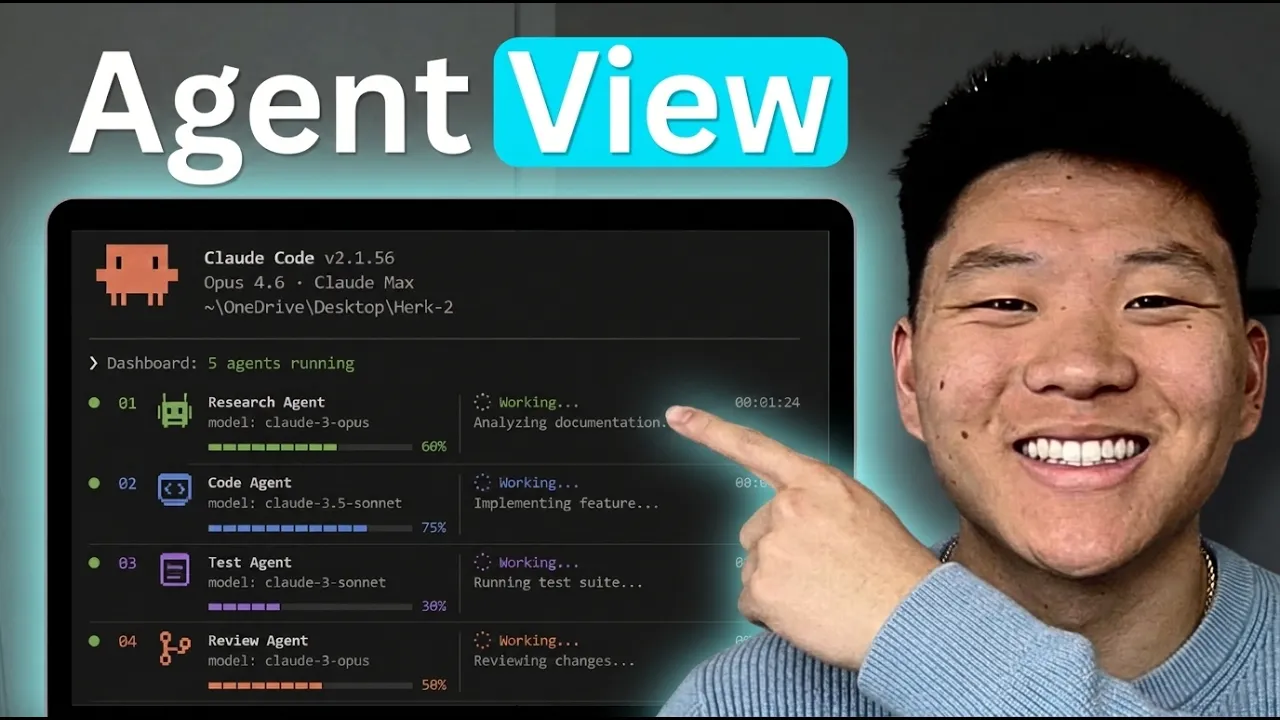





Get daily recaps from
Nate Herk | AI Automation
AI-powered summaries delivered to your inbox. Save hours every week while staying fully informed.