Copilot CLI Tutorial #11 - Delegating Tasks to the Cloud

Chapters7
Introducing the idea of delegating tasks to a cloud Copilot agent to work remotely and create a new branch and PR.
Delegating tasks to the cloud with Copilot CLI speeds up development by running independent tasks remotely, auto-creating branches and PRs, and letting you pull changes back locally for review in VS Code.
Summary
Net Ninja’s Copilot CLI Tutorial #11 shows how to push work to cloud agents so Copilot can develop on a separate branch, open a pull request, and keep you updated with a live cloud session. Matt demonstrates why delegating to the cloud can keep your local focus intact while parallel tasks move forward, such as fixing unrelated bugs or building new UI components. The tutorial walks through issuing a delegate prompt, confirming GitHub integration, and watching Copilot push to a new branch (copilot/julemmings) and create a PR. You’ll see how to monitor the cloud session, chat with Copilot during the task, and later bring the entire session and changes back to VS Code, either with or without the code changes. The lesson also covers reviewing the PR, merging when ready, and re-opening local work by pulling down the cloud session or the updated branch. Net Ninja stresses practical workflow gains: faster parallel work, seamless GitHub integration, and a smooth handoff between cloud activity and local development. The video wraps with encouragement to explore deeper Copilot CLI mastery, and plugs Net Ninja Pro for ad-free access and premium content.
Key Takeaways
- Delegating a task to the cloud creates a new branch (copilot/julemmings) and a PR automatically, while the cloud handles remote work on the task.
- A cloud session link appears during delegation, allowing you to monitor and instruct Copilot in real time without losing local focus.
- You can resume or pull down the cloud session or the entire branch back into VS Code, choosing between just the session or the full code changes.
- Copilot can work on multiple tasks simultaneously in the cloud, speeding up development when tackling independent components or new features.
- The workflow includes a prompt like, “Can you make some reusable UI components for this app and base their designs on the current site design? Do not use the components anywhere yet.” and a subsequent GitHub confirmation step.
- The process produces a live PR that updates as Copilot progresses, enabling early review and eventual merging.
- Nets Ninja demonstrates finishing the cloud work, reviewing the completed code in the PR, and then merging into main after local verification.
Who Is This For?
Developers already using Copilot CLI or GitHub workflows who want to accelerate feature work or bug fixes by delegating tasks to cloud agents. It’s especially useful for parallelizing work and keeping a clean local workspace while cloud tasks run.
Notable Quotes
"Can you make some reusable UI components for this app and base their designs on the current site design? Do not use the components anywhere yet."
—Shows the example prompt used to delegate a cloud task.
"It’s going to push changes to a new branch, which is called copilot/julemmings."
—Demonstrates automatic branch creation on delegation.
"We can view the session as it’s going on and chat with Copilot while it works to gear it in a different location."
—Highlights cloud-session monitoring and real-time guidance.
"When you delegated this task to the cloud, Copilot also opened a pull request for the new feature."
—Shows PR creation linked to cloud work.
"You can bring down the session and the branch with all the code changes back into VS Code."
—Explains local reattachment to cloud-worked changes.
Questions This Video Answers
- How do you delegate a coding task to Copilot CLI's cloud agent and what happens to your branch?
- Can Copilot CLI open a GitHub pull request automatically when delegating to the cloud?
- How do you bring cloud session changes back into VS Code after remote work with Copilot CLI?
- What are the benefits of running independent tasks in the cloud vs. local development with Copilot?
- How do you monitor and interact with a Copilot cloud session during remote task work?
Copilot CLICloud delegationGitHub integrationPull requestsVS Code integrationCloud sessionsBranch managementDev productivityNet Ninja Copilot series
Full Transcript
All right, then gang. In this final lesson of the series, we're going to be taking a look at how we can delegate coding tasks to the cloud, whereby Copilot can work remotely on that task on a new branch, and even open up a PR for whatever new feature or fix it's working on. Now, you might think that at first that sounds a little bit pointless. I mean, why not just have it work locally as we have been doing instead throughout the series? But, there are a couple of reasons I like delegating to cloud agents, and those are that one, if I'm working locally on a feature and I come across a unrelated bug, I can delegate a new task to the cloud to fix that bug while I carry on working locally with whatever feature I'm fleshing out.
And two, I can also have multiple different tasks all running simultaneously on the cloud while I'm still working locally. So, it just speeds up the whole development process a lot when you've got a lot of different small independent tasks to complete. So, then, how do we delegate tasks? Well, it's pretty simple. We just need to use the delegate command followed by a prompt to describe the task that we want the cloud agent to work on. So, for example, I could say something like, "Can you make some reusable UI components for this app and base their designs on the current site design?
Do not use the components anywhere yet." Then, I can just hit enter. So, when we do that, it's going to ask us for confirmation whether we want to send this session to GitHub. And when we do that, it's going to push changes to a new branch, which is called copilot/julemmings. Automatically comes up with this branch. It's just random. And then, it's going to be based on our current branch that we're currently on, which is still footer component. And then, it's going to create a PR in the repo. So, I'm going to press yes to allow this.
So, then, at some point whilst Copilot works remotely on the task, it's going to open a PR for the new feature while it's still working on it. And it's also going to leave a link down here to the active cloud session, which we can view. Also, because this session has now been sent to the cloud so that Copilot can work remotely, we can't use the session here locally anymore while it does so. So, we'd have to start a new session or switch to a previous one to continue working locally. For now though, let's click on this link to view the session as it's going on.
So then, on this page you're going to see the current Copilot session and all the work that Copilot is doing remotely. And also, at the bottom of the session we can chat with Copilot while it works to gear it in a different location if we don't like what we're seeing here. And then, Copilot will respond to those instructions. Anyway, when we delegated this task to the cloud, Copilot also opened a pull request for the new feature, which we can see by going to pull requests and then it's this one right here. So, you can see already a description of what's going on and what work's going to be added to this PR and Copilot's automatically going to update this PR as it works until eventually it finishes and then we can review the code.
Also, we can head back to the session by clicking this button right here, which takes us back to the page we were just on. All right. So, I'm going to stop recording here just for a moment until it's complete. Then, I'll start recording again when it's done. All right. So, now that's all done, we can scroll through this whole session to see all the work that it has completed and the different components it's made. And we can also head to the PR now and review the code there and we can merge it if we wanted it to.
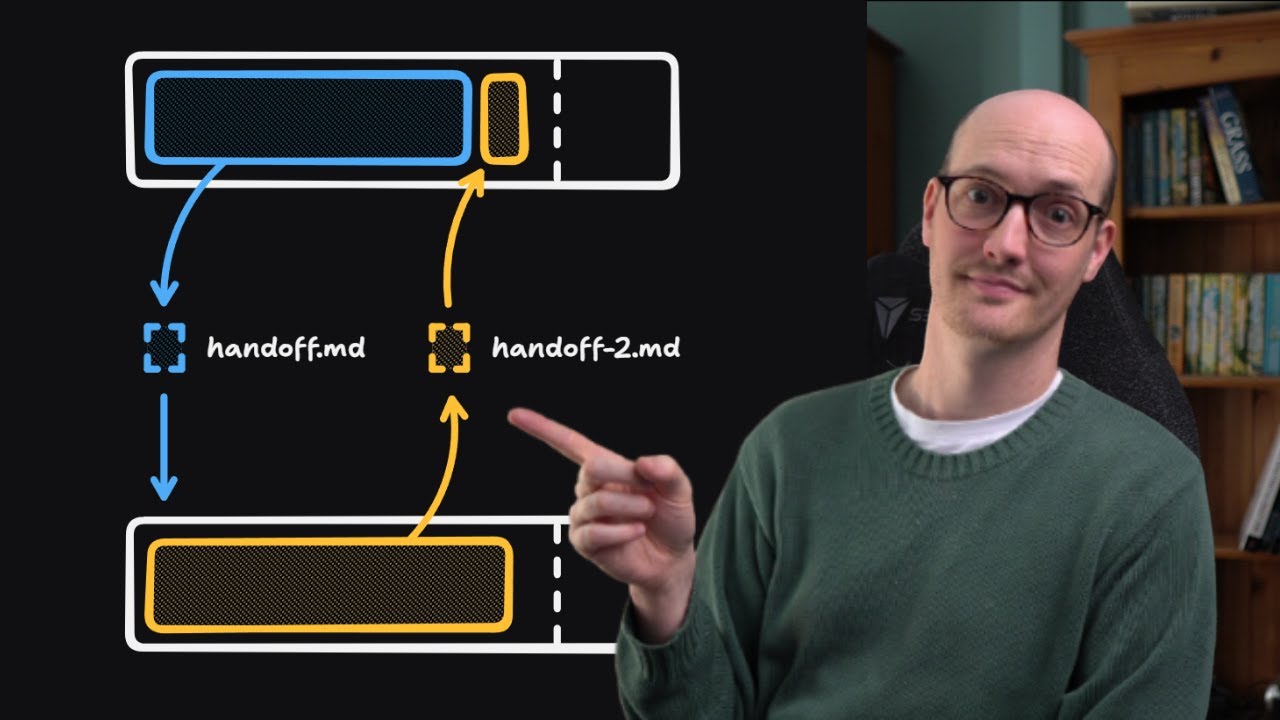
First though, I want to show you how we can bring this session back down to the project locally including the branch and all the code changes as well so we can view those changes in VS Code. So, all we need to do is head right to the top of the session and we'll see an open in VS Code button. Now, if we click on the little arrow next to this, we're going to get a Copilot CLI command that we can copy and then we just need to paste that into the terminal in VS Code. And when we do that, it's going to bring down this session and also ask us if we want to bring down the branch too with all the code changes.
So then, let's paste this in and when we do that, you can see that all we're actually doing is using the Copilot command to start a session, then the resume flag to resume a particular one, and then we're just adding on the ID of that cloud session at the end. So, if we hit enter now, then just after a couple of moments, we're going to get a choice. We can either just pull down the session and not the code, and then any follow-up prompts that we issue to Copilot, they're going to work on in the cloud then, or we can pull down the branch with all of the code changes and continue locally with the session instead.
So, you can key through these options and select whichever one you want. I want to bring down all the code locally, so I'll select that local option. And when we do that, it's just going to take a couple of seconds, but then it drops us into the session locally. Also, if you look down here, you can see we've been switched to the branch it was working on remotely. And if we take a look at the files, we should see some new UI components as well. Awesome. So, again, you could review all of this code locally now if you wanted to, or even preview the changes in a browser by spinning up the dev server.
You can even make changes to the branch and push those back up. And then, when you're happy, you can head back to the PR in GitHub and merge the branch into main. So then, that's about it for delegating tasks to the cloud. And like I said before, I find this really useful when I spot a bug or I need Copilot to work on some independent components or even flesh out a feature which doesn't clash with the work I'm doing locally. And that, my friends, is the end of the series as well. Hopefully, you've enjoyed it and you've enjoyed using the Copilot CLI, too.
I actually really like using it now, almost as much as Cloud Code, and I feel like there's a few advantages it has over Cloud Code in some areas, too, like it's more seamless interaction with GitHub and to some extent VS Code as well. And I actually really like the UI of Copilot as well. Anyway, I'm not here to say which one's better than the other. You can choose which one you prefer. I'm going to stick to using both. Also, my friends, if you enjoyed this series and you want me to make a much more in-depth masterclass course about using Copilot CLI, using different techniques and workflows I've used to flush out full applications, definitely let me know in the comments down below the video, and I'll see what I can do.
So, then, my friends, I really, really hope you enjoyed this series, and you learned something along the way. If you did, please, please, please don't forget to share, subscribe, and like. That really means a lot. And if you want to access all of my YouTube courses without adverts, also get access to premium courses and early access courses, as well, you can do at netninja.dev. You can sign up for Net Ninja Pro, which is just $9 a month, and also half price for the first month with this promo code right here. And for that, like I said, you get access to every course without adverts, without YouTube adverts.
You also get access to exclusive courses not found anywhere else. You get access to my premium courses on Udemy, and also early access to all of my YouTube courses, as well. So, the link to this page to sign up is going to be down below. Again, I really hope you enjoyed this series, and I'm going to see you in the very next one. [music]
More from Net Ninja



Get daily recaps from
Net Ninja
AI-powered summaries delivered to your inbox. Save hours every week while staying fully informed.