Your New Robotic Camera Man…

Chapters15
Introduces the new Insta3 Link 2 Pro and C variant and explains their mounting differences.
Insta3's Link 2 Pro and C bring a robotic-camera experience to your desk, with AI tracking, auto-framing, and a handy desk/top-down mode for serious video setups.
Summary
Unbox Therapy’s review centers on Insta3’s latest high-end webcam lineup, specifically the Link 2 Pro and the lighter Link 2 C. Gerald explains how the models differ: the Pro adds full pan-tilt movement for a true robotic-cameraman feel, while the C emphasizes portability with a 4K 1/1.3” sensor and a compact form. The host notes that both kits include everything you need to get up and running, including mounts that work on a laptop, monitor, or base. He highlights features borrowed from Insta3’s action-camera lineage, such as AI tracking, autoframing, HDR options, and a robust magnetic base with a quarter-inch thread for accessory compatibility. In a hands-on demo, he shows off the privacy switch, a touch-activated framing mode, desk-view top-down capability, and the ability to switch between whole-body, half-body, or head-only framing. The camera’s AI can recognize individual or multiple speakers, adjust framing in real time, and even manage whiteboard or green-screen backgrounds for more polished meetings. He also compares image quality against a MacBook Pro’s built-in webcam, showcasing the improved exposure and detail with HDR and the low-light performance. The review finishes with a quick demonstration of the Wave ecosystem integration, where a tiny dongle powers a seamless meeting setup. Overall, Unbox Therapy positions Insta3 as a compelling choice for creators and professionals who want a “robotic cameraman” that actually moves with you and keeps you in frame.
Key Takeaways
- >> Link 2 Pro adds full pan-tilt movement for robotic-cameraman-style tracking, expanding beyond autoframing.
- ">> Link 2 C emphasizes portability and includes a 4K 1/1.3" sensor for better laptop comparison images.
- ">> Both models ship with a magnetic base, a long USB-C cable, and a USB-A adapter for flexible mounting options.
- ">> HDR mode improves exposure and detail, especially when facing windows or mixed lighting scenarios.
- ">> Features like desk-view top-down, whiteboard mode, and background effects (green screen or blur) enhance meeting productivity.
- ">> The Wave ecosystem dongle enables easier setup and better speaker-tracking in meetings.
- "> The privacy switch and touch framing controls provide quick, physical and tactile control over the setup.
Who Is This For?
Creators and professionals who want a plug-and-play, high-quality webcam with real robotic-camera tracking. Ideal for livestreamers, yoga instructors, or meeting-heavy teams who value auto-framing, desk-down views, and background effects.
Notable Quotes
"This is the new one. Now, they got the gamer in the dimly lit room taking advantage of the one over one/ird sensor."
—Introducing the new models and the sensor setup.
"The field of view is now wider as well. And of course, they're pulling from all the things they're learning from their action camera department."
—Highlights improvements in field of view and cross-product learning.
"It's like a robotic cameraman. The tracking is probably the coolest thing because you don't have to worry about, hey, am I in frame or not?"
—Emphasizes the core value: robotic tracking keeps you framed.
"Privacy mode engage or just like take it off because it's so easy to take off or put on."
—Shows how quick the privacy mechanism works.
"We can do whole body, half body, or maybe from the waist up depending on what you're trying to film."
—Demonstrates adjustable framing options.
Questions This Video Answers
- What is the difference between Insta3 Link 2 Pro and Link 2 C in terms of tracking and flexibility?
- How does AI tracking on the Insta3 Link 2 compare to autoframing on other webcams?
- Can I use Insta3 Link 2 with a desk-top setup and also for top-down recording?
- Does HDR on Insta3 improve performance in bright windows or outdoor lighting?
- How does the Wave ecosystem integrate with Insta3 cameras for meetings?
Insta3 Link 2 ProInsta3 Link 2 CAI trackingautoframingpan-tilt cameraprivacy modedesk viewwhiteboard modegreen screenHDR camera settings
Full Transcript
So, you want an extremely high-end webcam. This is the latest from Insta3. We did a video on the Link 2. We are now into the Link 2 Pro. And they've also got a C variant. So, it's important to keep it together when you're looking at these model names, which basically changes the way it mounts. It's kind of like a cameraman tracking you around space. So, this is the new one. Now, they got the gamer in the dimly lit room taking advantage of the one over one/ird sensor. autoframing versus AI tracking. So that's the difference between the two different models.
In one case, you get the autoframing because you don't have this rotational base, but on the other model, you do get that full pan tilt. It's like a robotic cameraman. The field of view is now wider as well. And of course, they're pulling from all the things they're learning from their action camera department and bringing that into this category. They both include everything that you're going to need to get up and running. and either is capable of being installed either on a base, on a monitor, or on a laptop. Okay, here is 2 Pro. And now you're going to This is going to be easier to spot the difference here.
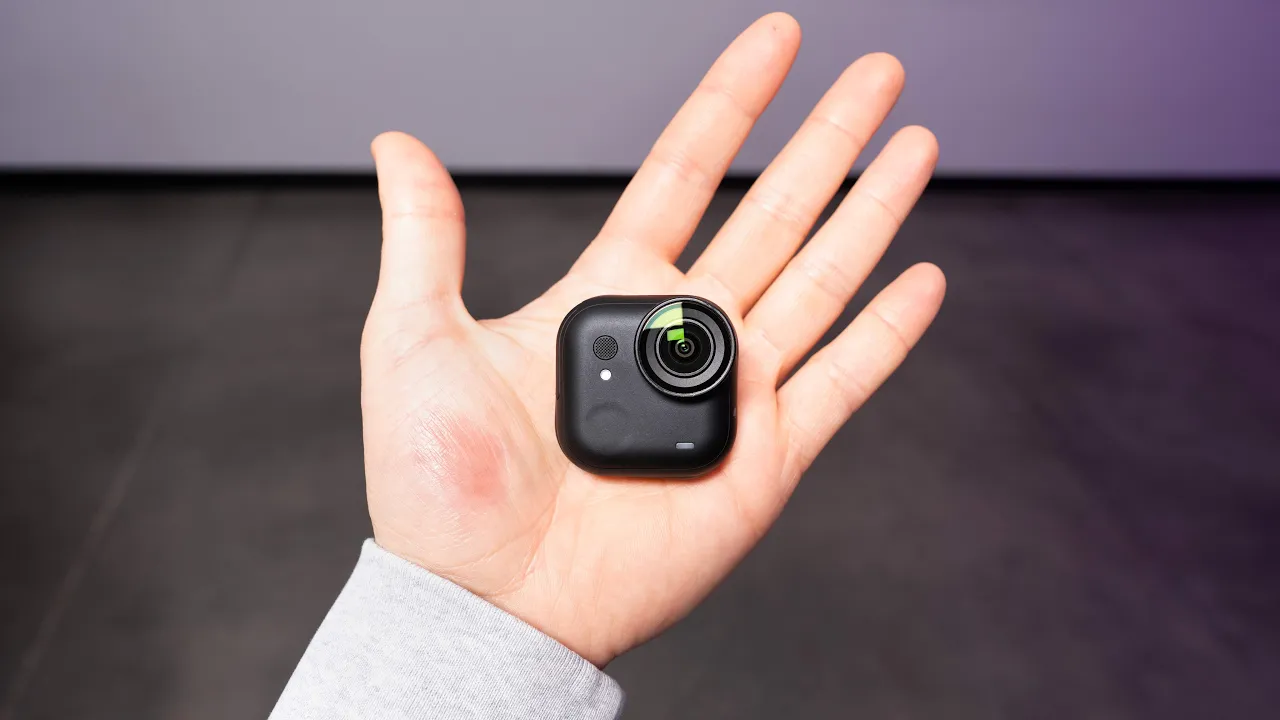
That's 2 Pro and there is C, which is a little bit more portable as you can tell. Look at that little guy right there. 4K 1 over 1/3 sensor. It's going to be better than whatever's on your laptop. I'll tell you that right now. And it also says superior audio awaits. Look at the size of the microphone capsule on the top there. So, there's the C and this is the stand that you get for the C. I'm going to actually remove the sticker here. This thing is metal. It feels sturdy. It feels good. And it also has a quarter thread on it in case you want to connect it to any type of stand that you've already got.
And if I recall correctly, it's like a magnetic thing, right? Yeah. You love it. You love to see it, don't you? It can maneuver at a couple of different points here to give you a good angle. And that's also useful for the top down mode if you want to record what's happening on the desktop. And what's nice about this, you got this little switch. Click it down. Privacy mode engage or just like take it off because it's so easy to take off or put on. USBC on the back. We get a long type-C cable which is great if you want to route this thing.
And we also get a C to A USB adapter. Okay. And then on the other side, this is for those that want to have even more flexibility and want to have that robotic cameraman effect. And this thing is quite convincing as it tracks you around the room. It also has a touch key on it so you can actually reach up and touch it. You can do all kinds of framing things like if you want to do like a full body or a closeup or maybe from the waist up depending on what you're trying to film.
But anyway, so the difference here is this. We get tilt and we get rotation. So now our robotic cameraman has some extra movements. However, it comes with the same base. You've got your same magnetic base. Lifts up and I mean this one is quite sturdy on there. Holy cow, that's a strong magnet on this one. Slaps on and you are tracking around the room. Also in this package, long USBC cable, USBA adapter. Yeah. So let's go ahead and do a quick little install so you can get an idea of what this looks like. This is a MacBook.
Slap it on. You know, I mean, obviously we can do what we want as far as adjusting the angle. See that? I can angle it down. I can angle it up. It's got a soft rubber foot on the back of the monitor. And obviously, compared to the MacBook's webcam, this is night and day stuff right here. Obviously, this one's going to sit up a little bit higher by default, which could be a good thing. It takes up a little bit more space, but it's got a lot more functionality. Okay, let me explain to you where we're at now.
So, currently I'm recording a video into the link controller and we're also capturing the screen as well. So, you can see some of the settings that I'm changing. First off, I've got the HDR enabled and it gives a superior image. I can show you the difference that it makes. So, that's HDR off and you can see it tries to kind of like gain up in order to compensate, but you lose some detail comparatively. And if I click the HDR on, you'll see it'll also make an adjustment, but it'll even out that exposure. It could be especially helpful if you're doing a video conference or something in front of a window or any kind of bright or overexposed area or even if you were like, I don't know, using this outdoors or something.
Since this camera is on top of this motorized kind of gimbal, it will track me. Now, the tracking is probably the coolest thing because you don't have to worry about, hey, am I in frame or not? I can kind of just move around freely. Like you see, I move back and even when I when I back up, it tries to maintain that framing. Single tracking, group tracking, half body versus head. Check this out. It will move in. Look at the slow pan. Look at the drama. I can go back to the half body if I prefer.
And I can also do whole body, which if I was doing some sort of fitness thing, you can see that it can do whole body as well. So, pretty cool. Like you do your online yoga classes. This is also where you're going to find your whiteboard mode. So, if I did have a whiteboard, it will aim to sort of maximize the readability of that whiteboard and flatten it out for people to see. You've also got this desk view, which if I click on this, it's actually going to showcase kind of what's down here on the desk from an overhead or like top down type of situation.
You can use hand gestures in order to interact with the camera. So, for example, this gesture here, it will flash and let me know that it sees me. And now look at that. The tracking is stopped. And if I want to reenable the AI tracking, same thing. Boom. Flashes and I am back to being tracked. We can do this. And we can zoom in, zoom out. So, we've got zoom controls. We've got the ability to enable the AI tracking or disable the AI tracking. And if we want to toggle the whiteboard mode, it's actually the peace sign.
There are different settings for tracking speed. Let's try quick tracking speedoo sports. There's also an effects pane which is going to let me swap out my background. I can set it to blur or bokeh and I can adjust the intensity of that effect if I want to go ahead and throw in a funky background like cyberpunk background for example. And of course I could sub in my own if I choose to. So, a lot of options here. That's Central Park. I'm on billionaires row right now. You know what? I have to pay for that view.
They've also got a green screen mode. So, if you do have a green screen, you could get an even more natural background replacement and you just have to check this box in order to use it. Uh over on the left hand side, we have our microphone. We have comprehensive settings for how to use the microphone. It's currently in the focus mode, which is best for noisy environments such as workstations, cafes. You can actually see based on the shape of the pickup pattern that it's only going to be looking for like a narrow speaker. We can also set it to standard mode.
I'll just switch it in real time so you guys can hear the difference. It's currently in standard mode. So, I'll go back to focus cuz Mo is actually going to make some noise in the background here. He's rattling that bag while I'm talking and it's going to attempt to eliminate that sound and prioritize the sound of my voice so he doesn't disturb and disrupt and ruin this entire presentation. We're going to do some group tracking right now instead of just an individual cuz this is a common thing when you're doing meetings. Look at this. It's going to see Will approaching in in his creepy way.
Why were you just hovering in here? Huh? The way you just hovered in here is two people a group. Does that count as a group? I mean, it's more of a pair. There's a group. That's a group. There he is. Get in here. And I'm back. It's a That's a group. Imagine that. You pick up the phone and that's what you see. Get me out of here. Let's hit some lights and see how it deals with darkness. Okay, we lost one front-facing light and now we're dimming surrounding lights. Ooh, scary. Usable. Definitely low light. Well, I mean, look at the front-facing camera.
All right. So, here is the example of the built-in webcam, the FaceTime cam on the MacBook Pro, so you can compare. And now, we're going to actually eliminate some lights so you can see the low light comparison. Oh god. Same scenario. I'm I'm looking a little strange. Now, the other nice thing with the Insta3 ecosystem is you can pair the device with the Wave. So, I'm going to power this up. I'll show you what I mean. Look at the little dongle which like lives on the top. Remember that. I mean, that's how you win your meeting immediately.
Just do that. Meeting done. So, the cool thing about this setup is it's able to track the speaker. So, even if you're in like a meeting room around a table and the camera is central and the microphone central, because it's got these microphones all the way around, it can detect and orient the speaker. So like I'm the one speaking. It's focused on me. Most are speaking. Testing, testing. 1 2 3. Testing testing. Now it's looking at me. Bars. But yeah, that's pretty cool. And now he's not going to talk because he knows the camera will just stay on me and he loves this.
Okay, I'll talk. And let's see if it switches over. Now it knows that I'm talking. It's like, "All right, well, let's switch back to that guy because this is a really important meeting and we need to see who's talking." Now, you can imagine if you had a room with like four, five, six people. It's pretty cool. And it's not just moving the camera, but it's also orienting the audio delivery for the individual that's speaking as well. Now, I'm going to go ahead and close this app. And you'll see that on the shutdown within 10 seconds, the camera will actually tilt downwards.
See you.
More from Unbox Therapy


Get daily recaps from
Unbox Therapy
AI-powered summaries delivered to your inbox. Save hours every week while staying fully informed.