Affinity Just Got a Massive Update 👀

Chapters5
Introduces brand kits inside Affinity, allowing easy access to logos, colors, fonts, and assets that stay consistent across teams and clients.
Affinity’s latest update brings practical, creator-focused tools like Canva-style brand kits, Claude-powered scripting, and smarter vector tracing that actually saves time.
Summary
Will Paterson walks through Affinity’s massive update lineup, highlighting features that creators will actually use. He demonstrates brand kit integration that syncs logos, colors, and textures across teams and brands, with seamless SVG exports into Canva’s brand kit. He then dives into Claude integration, showing scripted artboard organization and reusable automation like arrange all artboards version two. Paterson also showcases practical AI-assisted tasks, including a Bezier visualizer powered by Claude and a Bento board generator script, designed to automate repetitive design work. He notes improvements to image tracing, introducing a pixel selection to vector workflow, plus a new vector blob brush and a lighter UI option. Throughout, the emphasis is on AI-assisted automation that makes Affinity work more efficient rather than replacing human effort. The video ends with examples of how these tools simplify handoffs to clients and speed up team collaboration. Will shares his real-world studio setup and sponsorship shoutouts, keeping the focus on how these updates fit into daily design practice.
Key Takeaways
- Brand kits in Affinity sync logos, colors, and textures via the Canva-compatible brand kit, allowing SVG exports that auto-update the brand across the team.
- Claude integration enables AI-assisted scripts and automated artboard organization (e.g., arrange all artboards version two) that you can reuse later.
- Bezier visualizer automates curve visualization by applying color and anchors to show client-friendly curve data, generated as a script from Claude.
- Pixel selection to vector provides a direct path from raster to curves for lettering and silhouettes, improving vector conversion quality.
- A new vector blob brush and a lighter UI option improve drawing comfort and accessibility without sacrificing functionality.
- Specific workflow improvements, like exporting SVGs into a brand kit and using Bento board generators to rapidly assemble layouts, speed up client-ready deliverables.
Who Is This For?
Essential viewing for freelance designers and design teams using Affinity who want to streamline branding, asset sharing, and automation with Claude-powered scripts and enhanced vector tools.
Notable Quotes
""Brand kits... keep everyone on brand so they use the same assets no matter where they are.""
—Explains the core benefit of the brand kit integration in Affinity and Canva.
""This is insane... it’s connected to your Affinity... it’s creating a script or a code coding around infinity.""
—Describes the Claude scripting workflow and automation potential.
""I've got this one here called arrange all artboards version two... it’s organized all my artboards just like that.""
—Shows a concrete example of automatic artboard organization via Claude script.
""Pixel selection to vector... convert to curves. Boom.""
—Introduces the new image trace workflow that converts raster elements to vectors.
""There’s a vector blob brush... it works just like how you would expect it to work.""
—Notes the new blob brush tool and its usability.
Questions This Video Answers
- How does Affinity’s brand kit integration work with Canva today?
- Can Claude scripts really automate artboard organization in Affinity Designer?
- What is the pixel selection to vector workflow in Affinity and how does it compare to traditional image tracing?
- What are the benefits of a light UI mode in Affinity Designer for long work sessions?
- How can I use the Bento board generator in Affinity with Claude automation?
Affinity Designer updatesBrand kit integrationCanva brand kit compatibilityClaude AI integrationArtboard organization scriptsBezier visualizerPixel selection to vectorVector blob brushUI light modeBento board generator
Full Transcript
Affinity have made some huge updates since its launch. And in my opinion, these updates aren't just AI features that we will never use. These are huge improvements with us, the creators in mind. Let's dive in. The first major one is brand kit integration. Okay, to get brand kits, I'm just going to go up to help and type in brand kits. It is under window Canva brand kits. And it pops up in this UI box here. Now, if you don't use Canva or brand kits, you won't see any in here, but this is essentially the same brand kits that you'll find in Canva.
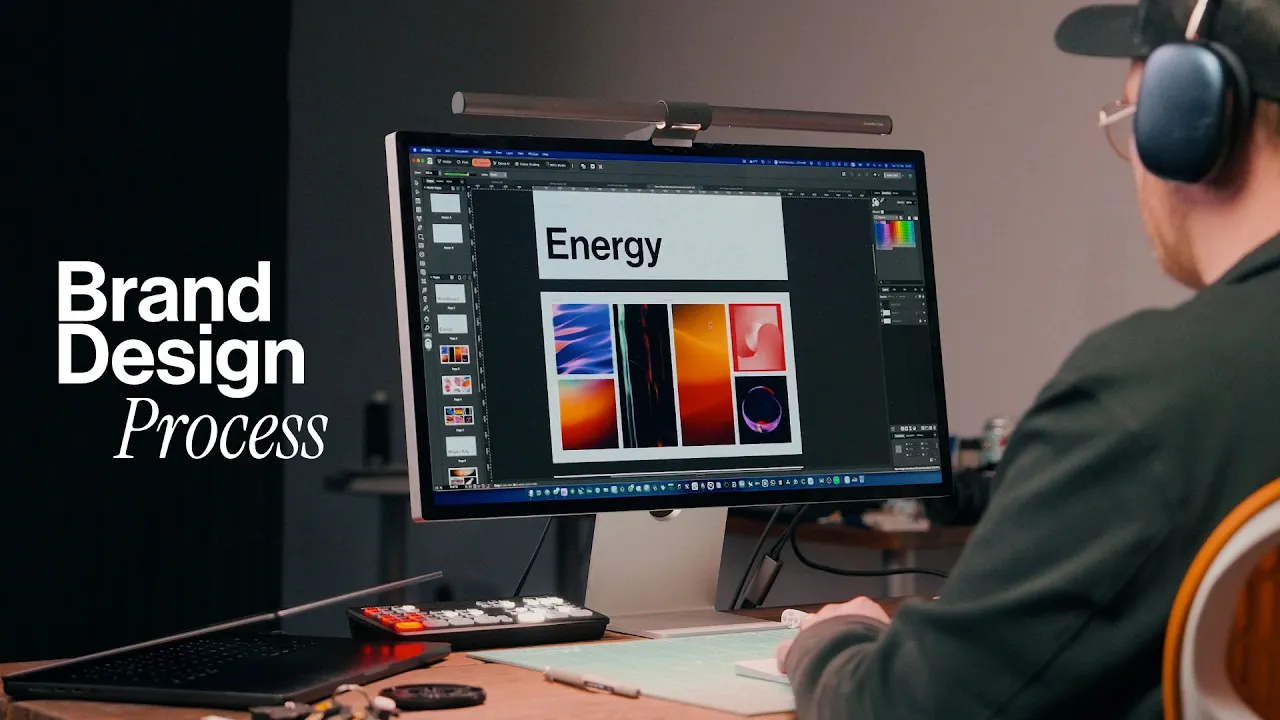
Here's my brand kit in Canva with all my images and my logos. This is designed to keep everyone on brand so they use the same assets no matter where they are. If I go to my actual brand kit in Affinity, Will Patterson Design Kit, we've got all my logos. So, we've got my green ornate logos that retrieves it from the brand kit. Boom. It's just here. It's in full vector form that you can see. And if I add an image in of myself like from here and then just drag it in, it will add that image directly.
And this is great because when you're working with a team who need to keep on brand or if you're a designer who needs to create brand assets for people to use in Canva, it makes it super easy. So now when you're designing a visual identity or a logo and you need to give it to the client, you can create their own brand kit for them. There's no handing off. Let's create a little diamond logo here. Do something like this. Let's say that this is like a logo that people want. And now what you can do is you can actually just group it in, drag it into the brand kit, and export it out.
I'm going to export this as SVG for export. But instead of doing that, I prefer to highlight it. Go to this up here, SVG. When it says ask for location, go to Canva. Choose the brand kit that you want. Willpax and design kit logos. Change the name. Random logo. Looks good. Export. What it'll do is it'll export it out and upload it straight to Canva into the brand kit. So when I go to my brand kit here, you'll notice that my SVG has appeared and I can bring it in, change its color to any brand color that we have.
And now this is being disseminated across the whole brand kit. Everyone who uses this will have the same one. This works for colors, fonts, other graphics and textures as well. Number one, this makes it super easy to work together as a team, especially if you're the professional designer and other people on your branding team need to just have a place for presentations or to use the brand itself without breaking it. This makes sense. Feature number two, integration with Claude. So, Affinity have been working on an integration with Claude where you can automate things to do and these come as scripts.
So, I can go into find scripts. So, general and scripts, and it'll open up in this box here. So, for instance, if I have a load of different artboards just scattered around, which happens a lot in my design work, and they're unorganized, I can actually go into Claude and ask it to fix that for me. In organize my artboards in Affinity, it's going to check the documentation and do some stuff, but it's connected to your Affinity, which is insane. What this is essentially doing is it's creating a script or a code coding around infinity. So once it's gone through all of that, what it actually gives us is a script that we can reuse later.
I've got this one here called arrange all artboards version two. I'm just going to click it and it comes up with a box and this is all AI. I want let's say three columns 100 and 100 in spacing. Press okay and boom, it's organized all my artboards just like that. saved me so much time. This is what AI should be doing. Speaking of updates, my office just got a brand new update. Flexispot reached out and asked if I would like one of their new Lotus swivel recliner chairs, and I couldn't help but say yes because having one of these chairs in my studio means a lot.
I can relax now. The Lotus Standard comes in loads of different colors as well as premium versions. It's got an adjustable recline, full body support. It's massive. You can really sit in it and be comfortable. And it's pretty ergonomic as well. So whether you like to sit normally or even fully recline back with your feet rest, it's very comfortable. One thing I really appreciated in the recliner was on the left hand side there is a storage compartment. I don't know what I'm going to put in there yet, but I might put in some pencils. For me, I'm using it for when I'm drawing or just doing some emails and I don't want to be sat at my desk because believe it or not, this isn't just a set.
This is my real desk where I do all my work. But it's great for anyone who wants to sit back and watch TV, play games, or even read. But my favorite feature by far is that it's got a rocking mechanism in it, too. So, not only does it recline, swivel, it rocks. If you want more information about Flexis Spots Lotus, then go ahead and click the link in the description below. Thanks Flexispot for sponsoring. Back to the video. Another thing I really love is the fact that you can create things that you never thought were possible that you could create with this claw integration.
I even made a Bezier visualizer the other day. So I can just highlight a shape, this circle, and click Bezier visualizer. I can choose all the colors. So curve overlay, let's choose it as red. Handle arms, let's choose as, let's go pink. Copy that. Handle points. Anchor points, we want black. And press okay. And when we've done that, if we zoom in, we've got ourselves a bezier visualizer. So it actually visualizes the curves here. And Claude was able to create a script for me to do that because I like to do this a lot to show clients.
So even for this, I can do it. There's your visualizer. Boom. It's created a visualizer effect for me here to show all my anchor points and all my lines instantly. And it created its own little group so I can hide it or show it. Notice how AI has just made things easier. It's just taken the boring jobs that I don't want to do and done it for me. I'm going to link in the description below script manager for Affinity because this is something you can download to submit scripts, download other people's scripts and to play around with it.
And one of them that I really liked was this bento board creator. All I do is press Bento box generator color fill. Nope. Press okay. And done. It's generated me a bento board easily that I can now start adding imagery to easily. You can do so much with this integration, but it's all about automating things that you don't want to do. It's not taking the work from you. It's not generating work. It's making the software, the Affinity software work better for you. Now, we all know about image trace. I've got an image here that's just pixels as you can see.
Affinity partner, something that I was drawing when I was over in America for Canva Create. If I select this, we go to vector. We can go to image trace. But the problem is it's a strange type of image trace. It's a literal one. It literally takes the white spaces and makes grays, which is not what we want. It's cool for some things, but not cool for everything. I just want the standard image trace. Well, Affinity now has it. Basically, it's called pixel selection to vector. I'm going to just commandclick on my lettering here to create a pixel selection.
Vector, convert to curves. Boom. Straight away, it's just converted that to curves. That's all vector now. It's not perfect, but it's there in vector. And you can even do this for silhouettes probably as well. I'm going to select this guy. We're going to go to vector. Convert to curves. Boom. It's created a silhouette in vector just really quickly. You can even use the brush tool. Do some analog ink stuff here. Go to the layers. I'm going to select that layer and just do the same thing. Just convert it to vector. It's done a pretty good job.
So that's just another update that I really appreciate. We now have a vector blob brush as well. If we just hold down on this blob here. There we go. We got a blob brush. It works just like how you would expect it to work, which is just nice to have. And also a lighter UI. Command, go to user interface. We can choose UI style to be light, which is really nice. Now, for anyone who loves the light user interface, there are so many more updates that Affinity have brought out, but these are the main ones that I thought piqued my interest and would peak yours, too.
If you enjoyed the video, subscribe down below. Remember to share and let me know what updates you would like to see
More from Will Paterson


Get daily recaps from
Will Paterson
AI-powered summaries delivered to your inbox. Save hours every week while staying fully informed.