This feels like cheating

Chapters8
Introduces the new real-time shaders feature in Framer and how they enhance designs.
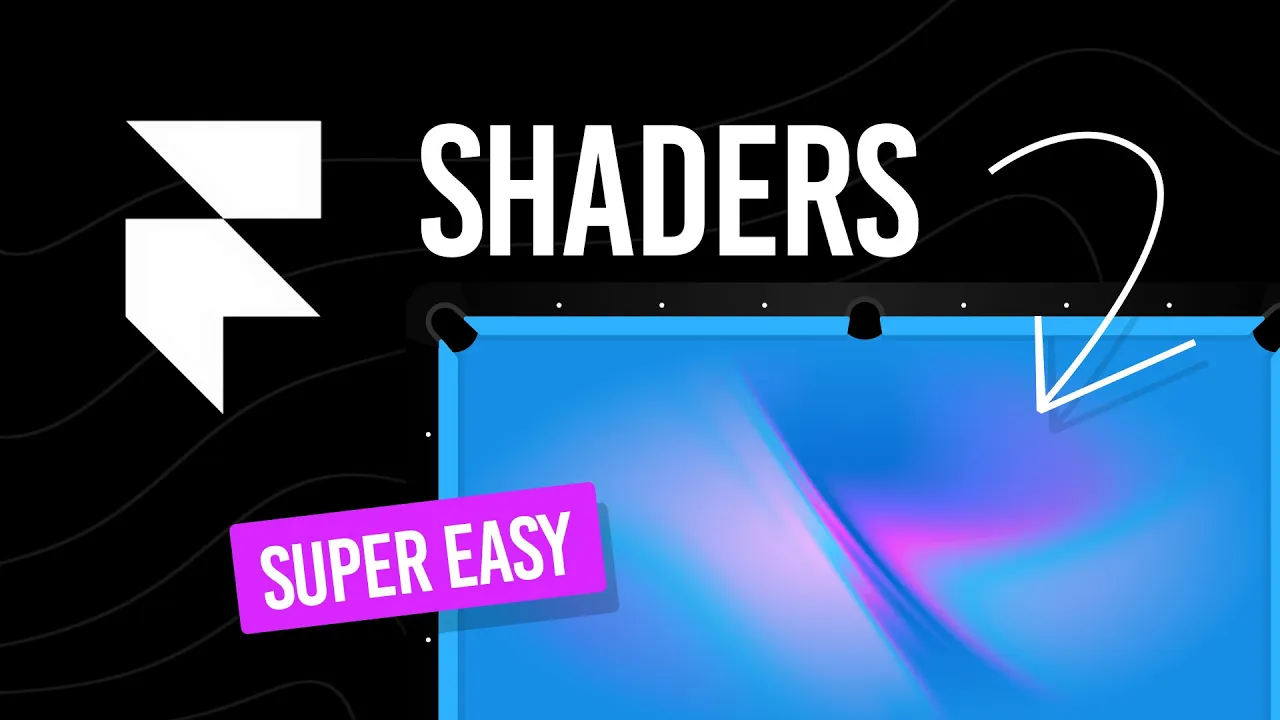
Framer shaders transform designs into real-time, customizable visuals like gradient waves, particles, and logo animations—no code required.
Summary
Dansky introduces Framer’s new shader feature, showing how real-time visual effects can elevate website designs. He demonstrates gradient shaders, including a wave gradient that you can resize with absolute positioning and Z-index to layer above or below other elements. The tutorial covers image shaders for adding pre-made visuals or your own graphics, all updating live as you tweak settings. Mesh and particle shaders let you explore 3D-like contours and floating particles, with controls for brightness, speed, and direction to craft both bold and subtle effects. Logo shaders get extra love via animated Framer logos or SVG lettermarks you bring in, with color and background tweaks that render in real time. Throughout, Dansky emphasizes responsive behavior, showing how shaders adapt across desktop, tablet, and mobile. The takeaway is clear: shaders in Framer are a fast, interactive way to add motion and depth without leaving the design surface. If you want your hero sections to pop, this walkthrough is a practical, hands-on guide to experimenting with these effects in real-time.
Key Takeaways
- Framer’s shader feature enables real-time visual effects directly in your design canvas, including gradients, images, and logo animations.
- Gradient shaders like the wave gradient can be resized with absolute positioning and layered using Z-index to integrate with existing content.
- Image shaders allow adding custom graphics or SVGs, with live preview of color and positioning changes.
- Mesh shaders offer adjustable contour-like visuals, while particle shaders let you control movement, direction, and brightness for dynamic motion.
- Logo shaders let you customize colors and apply SVG logos, with animations that play when the logo is selected.
- All shader changes render in real time and remain responsive across desktop, tablet, and mobile views.
- The workflow demonstrated teaches you to quickly experiment by dragging, tweaking sliders, and visually validating results on the canvas.
Who Is This For?
Essential viewing for UI/UX designers and Framer users who want to add high-impact motion without complex coding, especially those building hero sections or marketing pages. It’s a practical guide for designers looking to explore shader-driven effects in real time.
Notable Quotes
""Oh, Framer has recently added one of its most powerful features yet, shaders.""
—Introduction of Framer shaders as a powerful new feature.
""these are real-time visual effects that you can apply directly to your designs""
—Defines shaders as live, design-applicable effects.
""these changes are all happening in real-time as well""
—Emphasizes the live preview capability while tweaking.
""I’ve customized my shader. I can now click play and see this on my site in action""
—Shows the practical workflow from customization to live viewing.
""if you would like your designs to stand out with some delicious, beautiful, tasty animation""
—Encourages using shaders for standout visuals.
Questions This Video Answers
- How do Framer shaders render in real time across devices?
- What are the differences between gradient, image, mesh, and particle shaders in Framer?
- Can I use SVG logos with Framer shader animations?
FramerFramer shadersShader effectsGradient shaderMesh shaderParticle shaderLogo shaderSVGAbsolute positioningZ-index','Responsive design
Full Transcript
Oh, Framer has recently added one of its most powerful features yet, shaders. And these are real-time visual effects that you can apply directly to your designs to create things like animated gradients, particles, image filters. They're fully customizable and I've partnered with Framer to show you how shaders can level up what you're able to create. Let's go. So, we're now in Framer and you can see I've installed one of Framer's free templates from the marketplace and this is great, but it feels like this top section is missing something. So, we're going to go to insert, down to shaders, and we have them all here.
So, from the top, we have gradient. These are delicious. We have logo, we have image, and then at the bottom, we have effects. And we will go through all of these different categories, but first we're going to start with gradient at the top. Now, I flipping love this wave gradient, so we're going to drag this into that hero section and it appears in a box. So, we're going to select the layer and then go to position and set this to absolute. And now we can freely resize this so it occupies the entire header section, very similar to how you would resize something on pretty much every other piece of design software.
Right, you may be able to see a problem. We can't see anything below. So, we need to adjust the Z index. Basically, the higher the number, the more higher up or on top things will be. So, if we set this to zero, it's going to be at the very bottom and everything else shows above it. Right, now the fun bit. So, each of these different shaders comes with their own effects. Here you can see me just removing colors and I can add colors back in. And honestly, this is so much fun because it all happens in real-time.
So, as you can see me changing the colors now, I'm just going to grab the slider. look at that. And it's still playing the animation even though I'm adjusting the colors. So, let's go for something like maybe this or we could flip it around the other way. Let's change that to purple and we'll set this one to like a really dark purple. There we go. Nice. And as I mentioned earlier, these are all fully customizable and they all come with their own sliders. So, these are self-explanatory, but if a slider doesn't make sense, honestly, just grab the slider, drag it left and right, you'll be able to visually see the change.
And just have a ton of fun exploring all of these different options. And as you can see, these changes are all happening in real-time as well. So, it makes fine-tuning and customizing the exact animation you want really quick and easy. And I'm doing this for the hero section of a website, but you can add these shaders anywhere. So, there we go. I've customized my shader. I can now click play and see this on my site in action. And this all works responsively as well. So, I just have to add it to the desktop version and then as I drag this in, you can see here, it works on tablet and mobile as well.
Right, next up we're going to take a look at image shaders. Right, so there's a look at gradients. Now, we're going to move on to image. So, we can drag this into that hero section. And you can also cut this and then paste it back in the right place in the layers panel if you want to get it inside the container. And again, we're going to set this to absolute positioning and manually resize it to fit that section. And you can think of these as more static, predetermined effects. So, these don't move, but there's lots of different settings here.
And we can add our own image as well. So, this is one of many different effects and each effect has got its own unique settings. And as with all the other shaders, you can see the changes happening in real-time. And then once I've got something I like, I can go up to image, or you can do this beforehand, whichever, click choose image, and then you can add your own graphic. Okay, next we're going to take a look at effect shaders. And I really do love these ones. So, first we're going to start with this one here, the mesh.
We're going to drag that in. Now, at the moment we can't see it. What I'm going to do is select the other two shaders I've added and hide those with command or control semicolon. And now with the mesh shader, I've just got to select it and again change the position to absolute, resize it, and Z index set to zero. And again, we've got lots of settings that are specific to this. So, if I just change the color a bit first, there we go. And I can now play around with these. You can see that we can create things that are vastly different from one another.
So, we can view it from the side, almost like the contours of a landscape. We can view it from the top. We can zoom in. We can zoom out. We could have more detail, less detail. And obviously, this is very pronounced for a header section. So, we can even dial down the brightness and make something a bit more subtle. Right, let's take a look at the other effect and this one is particles. So, let's pop that one in there. We'll hide the mesh, set the position to absolute, resize everything, and then Z index set to There we go.
Lovely. Right, for this one we have particles and we can have them move randomly or in a particular direction. We could turn on warp, which moves them towards or away from the camera. Or as you can see here, we can just have them floating around randomly. We can adjust the size, the brightness. And this effect can be as pronounced or subtle as you like. So, let's tinker with this a bit and get something looking good. There we go. I'm pretty happy with that. Let's give that a play and we can see this in action. And then we can grab the sides here and we can check out how it looks responsively as well.
And lastly, we're going to have a play around with the logo shaders and these these are delicious. So, let's go back to our shaders and we're going to grab one of the two logo ones. I'm going to drag this one onto the workspace. And with it selected, you can see the animation playing. This is of course the Framer logo. So, what we can do now is we can go and customize all of the different colors or we can go first add an image. So, I'm going to go and add my letter mark. This is the D for Dansky with the line under it.
It's an SVG file, so it's vector, scalable. And just like the other shaders, we can customize the properties. Mostly here, it's color and the background color. So, I'm going to use my brand color. We've got the orange there. Ooh, and I'm going to slip in a nice yellow. Very nice, Dan. And then I can tinker with all of these different settings and see those changes happen in real-time. So, there we go. That's looking good. Just remember, if you do deselect it, the animation will stop. So, simply select it again and it will start playing. And if you would like your designs to stand out with some delicious, beautiful, tasty animation, then watch this video next to see just how easy it really is.
More from Dansky







Get daily recaps from
Dansky
AI-powered summaries delivered to your inbox. Save hours every week while staying fully informed.