M4 iPad Air - I edited this entire video on, what do you think?

Chapters10
A look back at the first iPad, its specs, and how revolutionary it felt at the time.
I edited this entire video on the M4 iPad Air and show how capable it is for real-world content creation and editing.
Summary
iJustine walks us through the M4 iPad Air, highlighting its new M4 chip, two sizes, and a brighter Liquid Retina display. She notes the tablet clocks up to 600 nits brightness and explains there’s no ProMotion, which might matter for Pro users coming from iPad Pro. The creator shares her real-world workflow: import footage via USB-C drive, edit in Final Cut Pro for iPad, and even use Pixelator Pro and Procreate to prep artwork for merch. She demonstrates how the iPad handles external storage, a USB 3.0-speed transfer, and the option to connect to an external display for extra screen real estate. The video dives into hardware peripherals like the Apple Pencil Pro, including hover, barrel, and the new tool palette features, along with Find My for the pencil. She contrasts iPad editing with desktop Final Cut, emphasizing touch-first ergonomics, timeline scrubbing with the Pencil, and the stage manager and multi-window modes. A personal aside weaves in Punch the Monkey lore and a cute merch workflow—from sketch to print—ending with the hoodie in Japan. Gamer moments appear via Apple Arcade, and she reminds viewers that upgrades depend on what you actually need from your iPad. Overall, the piece balances spec highlights with a practical, creator-focused workflow that proves the iPad can be a capable editing machine, especially for on-the-go work.
Key Takeaways
- M4 iPad Air's M4 chip delivers up to 2.3x faster performance than the M1 iPad Air, with an 8-core CPU, 9-core GPU, and 16-core Neural Engine.
- Two display sizes are offered (11-inch and 13-inch) with a Liquid Retina panel and up to 600 nits brightness, though ProMotion is not included.
- Storage starts at 128GB and can go up to 1TB, accommodating large video projects without external drives for some workloads.
- Final Cut Pro for iPad is usable for real video editing with keyboard shortcuts and Apple Pencil, but remains distinctly touch-leaning compared to desktop, requiring a different workflow.
- footage transfer via USB-C drives supports USB 3.0 speeds and allows editing directly from the drive or using an external display for expanded workspace.
- Apple Pencil Pro adds low-latency drawing, hover functionality, barrel rotation, haptic feedback, and an updated tool palette, plus Find My to locate the pencil.
- Pixelator Pro and Procreate workflows show a clear pipeline from sketch to print, enabling on-device illustration and merch production without leaving the iPad.
Who Is This For?
Creative professionals and hobbyists who want to know if the M4 iPad Air is a viable all-in-one editing and design device for on-the-go production, especially those curious about Final Cut Pro for iPad and iPad-only workflows.
Notable Quotes
"I decided that I was going to edit this entire video from start to finish on this iPad."
—Her bold claim about completing the edit entirely on the iPad sets the video's premise.
"This has up to USB 3.0 speeds, which should be good enough for most people."
—Cites practical storage/transfer performance for on-device editing.
"This is touch."
—Emphasizes the touch-first design of Final Cut Pro for iPad vs. desktop.
"The Apple Pencil Pro brings some functionality to the iPad."
—Introduces Pencil Pro features as key to the iPad editing experience.
"I edited everything on the iPad."
—Reiterates the core experiment and takeaway of the video.
Questions This Video Answers
- how well does Final Cut Pro for iPad compare to the desktop version
- can you edit 4K video on the M4 iPad Air with Final Cut Pro for iPad
- does stage manager enhance video editing on iPad
- what are the limitations of the M4 iPad Air for creative workflows
- how fast is the M4 iPad Air for rendering compared to M1 models
M4 iPad AirFinal Cut Pro for iPadUSB-C external drivesStage ManagerApple Pencil ProProcreatePixelator ProPunch the Monkey story (storytelling element)iPad vs desktop editingiPad display 600 nits
Full Transcript
The first iPad was released almost 16 years ago. And yes, I of course had one. [music] And just looking back at this video, it is so crazy to see how far we've come. Now, this original iPad had a 9.7 in screen, 250 nits brightness, no camera, Wi-Fi 4. It charged using a 30 pin connector port, no Apple Pencil. It ran iPhone OS 3, which essentially made it one large iPhone. And at the time, this was [music] so revolutionary. Now, here we are in 2026 with over 30 plus different iPad models that have been released. We now have a new one to add to the family, the [music] new M4 iPad Air.
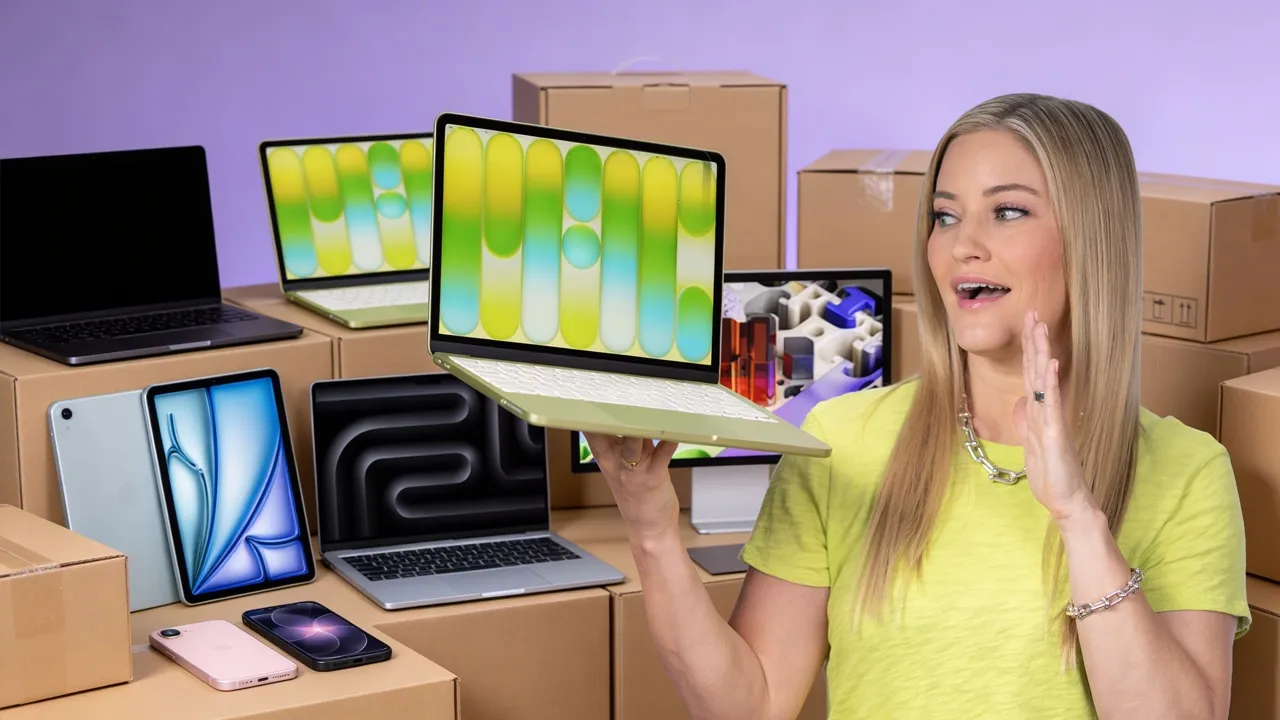
Now, back in the day, every single release of a new product was so significant because the tech advances each year at the time made it enough to upgrade from the previous. We are in an era where everything is so good that if you have a previous gen of the iPad Air, you probably will not need to upgrade to this one. But, let's find out what's new and you can decide for yourself. This now has the M4 chip with an 8 core CPU, a 9 core GPU, and a 16 core neural engine. It's up to 2.3 times faster than the M1 iPad Air.
It comes in two sizes, an 11 in and a 13 in. The display still is liquid retina. You can get up to 600 of brightness, but it doesn't have prootion. So, if you're used to using the iPad Pro screens, this might be a bit of a difference for you. It's got a 12 megapixel front camera in landscape, which is so great for conference calls. As for storage, it starts at 128 and you can upgrade to 256, 512, or 1 TBTE. Now, I decided that I was going to edit this entire video from start to finish on this iPad.
Now, I've used Final Cut for iPad before, but I mostly use it on desktop. They do share a lot of the same hotkeys, but there are some fun things that you can do like live drawing, which adds some fun iPad only tricks in Final Cut Pro for iPad. Now, to edit, I actually put all of this footage onto a USBC drive to copy it over. Now, it's nice because you can use the file browser to transfer this footage over to your iPad, or you can edit directly off the drive. This has up to USB 3.0 speeds, which should be good enough for most people.
You can also connect it to an external display, which is pretty cool if you want to upgrade your workspace screen real estate. The Apple Pencil Pro brings some functionality to the iPad. It really lets you use this as a drawing or note-taking device. It's super low latency and with some of the new Pro features that were released on the last version of the pencil, you can now squeeze that will allow you to open up a tool palette or switch between brushes. There's barrel rule which can let you change brush orientation. It's also got haptic feedback and I love this hover feature.
And the final feature is it has find my support. So if you lose your pencil, you can find it hopefully. Now, if you're coming directly from Final Cut Desktop to Final Cut iPad, even me, who is I'm so fast at the desktop app, this is so different because it is built for touch. Like, they've got the little scroll wheel on the side. So, everything is intuitive when you start thinking with that frame of reference. [music] This is touch. Try not to use the keyboard even though you can still use the keyboard and you can even use the Apple Pencil.
But again, it is it's built for touch. The iPad kids today, they [music] get it. Okay, now this is where it's going to get really fun. I am sure many of you are familiar with Punch the Monkey. I'm absolutely obsessed. Like, I'm at I'm so obsessed. You might have seen him in the background of all of my videos. Okay, this isn't Punch. This is Punch's orangutang toy. So, I told my six-year-old niece about Punch the Monkey. And if you guys aren't familiar, I'm going to tell you the same story that I told her. Punch is a sweet little monkey that was born in a zoo outside of Tokyo.
His mom abandoned him and then they moved Punch to his new sanctuary and everyone was bullying him and being really mean to him. I tell my niece this, she hangs up on the FaceTime call and starts crying. Clearly, I have a way with children. I told her it would be really fun if she drew punch a card [music] and I would take it to Japan and deliver it to him. So, here's the card. It was so cute that I thought it would be so fun to turn these into t-shirts. So, I'm going to show you how I'm going to use the iPad to turn this into an illustration that I can then upload and make some t-shirts.
So, stay tuned to the end so I can show you the final product. The first thing I did is took it into Pixelator Pro and I wanted the image to pop a little bit to make it a little more even. And then I exported it from there and I took it into Procreate. And I wanted to preserve all of her cute little lines that she made. So I sketched over it as close as I could in Procreate. And I also made it a little bit bigger [music] so that when I sent it to print, it would have a much higher quality look to it.
Now we're going to upload it to this website and I'm going to put it on this red hoodie. Super cute. And now I hit order. And now we wait. Gaming is also really nice on this iPad if that's something that you're into. Obviously, Apple Arcade has so many games that you can choose from. You can even sync it up to a controller of your choice to make it even more fun. If you haven't used an iPad for a while or you haven't upgraded your current one, you may notice [music] that the windowing system looks a little bit different.
It kind of feels a little more like a Mac, which I know can be a little bit confusing. You can choose to use your iPad in three [music] different ways. There's the full screen mode, which kind of makes it feel more like the old school version, or you can use it in the windowed mode or in stage manager mode. In stage manager mode, you'll see that all of your apps will be placed off to the side just like this. We made it to Japan and here's the shirt. Oh my goodness, it turned out way better than I even could have imagined.
So, I made it to the end of the video and so did you. I edited everything on the iPad. There is a lot more functionality when you are using Final Cut on desktop. I found myself using the Apple Pencil a lot to scrub the timeline and also mark where I wanted to cut, which was great because the cut was right where my thumb is, which is probably helpful because I'm left-handed. Let me know what you guys think of them. I love how they turned out. I will definitely be wearing it to go visit Punch here in Japan.
[music] Okay, I need to go to bed because I'm jet-lagged. See you later. Bye.
More from iJustine


Get daily recaps from
iJustine
AI-powered summaries delivered to your inbox. Save hours every week while staying fully informed.