A Full Day Working From the iPad

Chapters10
Starts with a tight task list and a goal to finish everything today, including staying on top of Apple product announcements.
A busy day workflow on the iPad from planning and thumbnailing to editing, subtitles, and writing scripts, with practical tips and gear specifics.
Summary
Christopher Lawley takes viewers through a full day of working from the iPad, showing how he stays on task, handles YouTube thumbnails, and keeps production moving. He starts with a strict task-list mindset and a weekly review to prevent anything from carrying over. At the desk, he shoots a vacuum-thumbnail using a Canon 24mm prime and then wrestles with Pixelmator Pro versus Lightroom due to lens-profile issues. He demonstrates a Lightroom-based thumbnail workflow, from subject masking to color corrections and sharpening, before exporting and resizing with a Shortcuts workflow. The video also covers sponsorship integration with Paperlike’s new Paperlike 3 screen protector and its butterfly installation system. Christopher then dives into subtitle workflow using Quick Subtitles (on-device) and Claude for title ideas and keyword tags, followed by a quick relief with finalizing the subtitle SRT in Gemini. Finally, he edits Comfort Zone and Cozy Zone with a multi-track timeline, discusses using an extra iPad as a reference device during long writing sessions, and wraps with a call for viewer feedback on iPad workflows. The day wraps up with a reminder about staying productive amid Apple product launches and a thank-you to Paperlike for sponsorship.
Key Takeaways
- Using Lightroom for photo edits can beat Pixelmator Pro when lens profiles are missing; switching back to Lightroom fixes the fish-eye issue from a Canon 24mm prime (approx. [00:03:45]).
- A consistent thumbnail style can be achieved by preferring natural wood backdrops and clear subject emphasis, plus a quick masking workflow to boost fruit loops’ saturation ([00:07:20]).
- Shortcuts can efficiently convert large image exports to YouTube-friendly thumbnail sizes (from ~11 MB to ~390 KB) in minutes ([00:09:10]).
- Offline, on-device subtitling with Quick Subtitles + Claude prompts provides fast, usable title ideas and tag suggestions, with Gemini-powered cleanup for accuracy ([00:12:50]).
- Multi-track editing with a solid background layer and Magic Timeline helps keep Comfort Zone/Cozy Zone projects organized, especially when syncing guest tracks ([00:16:40]).
- Two iPads can streamline writing and reference work: one stays on the desk for notes, the other serves as a portable reference and B‑roll script board ([00:19:30]).
- The day emphasizes planning ahead for Apple product launches so tasks stay on track and content remains timely ([00:21:15]).
Who Is This For?
Essential viewing for YouTubers and iPad power users who want a real-world, gear-specific day-in-the-life workflow, including thumbnail creation, subtitling, and multi-app productivity. If you’re thinking about using an iPad as a primary editing or reference tool, this video shows practical setups and shortcuts.
Notable Quotes
"I hate the color of our floors, and I’m very particular about product photography."
—Shows the emphasis on consistency and backdrop choice for thumbnails.
"This is a fish-eye look from the 24mm lens, but Lightroom flattens it and Pixelmator Pro doesn’t have lens profiles yet."
—Explains a lens-profile problem and why Lightroom is preferred for this shot.
"Apple, if you’re listening, please add lens profiles to Pixelmator Pro."
—Humorously petitions the app maker to fix a tooling gap discussed in the video.
"Video thumbnail. Convert to thumbnail. It’s going to do its thing, boom, done."
—Demonstrates the Shortcut workflow to resize and optimize thumbnails.
"I’ve got all four scripts written. Too long form, too short form, which means I accomplished everything I needed to today."
—Wraps the day with a clear productivity milestone.
Questions This Video Answers
- How does Christopher Lawley structure a full day of iPad-focused production work?
- What Lightroom techniques are best for YouTube thumbnails with non-Lr templates?
- How do you automate thumbnail resizing and exporting with Shortcuts on iPad?
- What are the benefits of using two iPads for video production and scripting?
- How can I subtitle videos quickly on iPad with Quick Subtitles and Claude?
Apple iPad workflow Lightroom workflow Pixelmator Pro vs Lightroom iPad as a production desk Thumbnail design and photography Subtitle automation Shortcuts for image processing Comfort Zone podcast editing Paperlike sponsorship Claude AI for titles and tags
Full Transcript
I've got a really busy day today and I thought it would be interesting to bring you all along and kind of show you what a typical day working from the iPad looks like. So let's just get right into it. So yeah, I just finished going through my task list and doing my weekly review, and I have a very busy day and I need to get everything on my task list done today. Nothing can carry over to tomorrow. This week Apple is releasing new products. They've teased this already. They're releasing products throughout the new week, and I want to make sure I have the time to cover that stuff when it happens.
And that means I need to be caught up on my work. So we are getting this whole task list done today come hella high water So after that brief interruption from the boss, aka my girlfriend's cat, uh I need to do uh the thumbnail for my next video. It's a it's a vacuum video and, I'm gonna do it here at my filming desk. I hate the color of our floors, and I'm very particular about product photography. I also really like wanna make sure all my thumbnails look very consistent. I want it when somebody goes to YouTube.
com, if they see one of my thumbnails, they know that's a Christopher Lolly video. So I like using like real natural wood in those, like either this desk or my bookshelf or my main des k, like one of those kinds of setups. I like using that as kind of the backdrop or uh the place that I shoot that stuff at. So for this thumbnail, what I'm gonna do is I'm gonna capture the robot picking up some fruit loops. So I'm gonna go ahead and clean off the robot because it's a little dirty, because I've been using it , because I really like it, but that's save that for a different video So I'm still using Photo Mater and Pixel Mater Pro as my Lightroom and Photoshop replacements, and I've been pretty happy with it.
For these thumbnails, we're just gonna throw them in PixelMater Pro. We can do everything that we need to do to the thumbnails in that. I have a few different options for me to play around with uh so let's just jump into it so i shot the thumbnail using this lens right here this is the canon 24mm Prime L series lens. It's a fantastic lens. I love this. This is the lens I use for all my A-roll. And I use this over my normal 24 to 70 because I'm using the 24 to 70 to film this video and I knew I was gonna have to shoot this uh thumbnail wide so I shot it with this 24 millimeter lens anyways because I was like whatever it's gonna be that focal length but what I forgot is this lens when you shoot phot os, because it's so small and compact, it actually shoots it kind of like a fisheye lens.
But normally it's not a big deal because when you load it into something like Lightroom, it uses the l ens profile and it flattens it all out. You the photographer never ever notice the unfish-eyed look like it like that's not really ever typic ally an issue but pixelmado pro doesn't have lens profiles in it. So it's all bubbly, it's all fisheye, it's all distorted. So I am actually gonna have to switch back to Lightroom to fix this photo. I could technically reshoot it, swap lenses, and all that stuff, but it would be easier just to switch back to Lightroom for this one photo and do that.
But this is a bummer. I wanted to show you guys my, uh Pixel Mater Pro workflow and uh guess I'll show you my Lightroom work flow instead. Apple, if you're listening, please add lens profiles to Pixel Mater Pro. Alright, so we got our photos imported and I actually already have some presets that uh I made a long time ago in Lightroom. I have kind of rebuilt them uh over the years but uh it's gonna be this one right here top-down thumb nail and what I like to do is I like to go into masking and I'll do a subject detect.
So I'll select the subject, in this case it's the vacuum, turn up the exposure just a little bit, let 's turn down the highlights, turn up the shadows, turn up the blacks. Sorry, turn down the blacks. Um, turn down the shadows, turn up the contrast. Okay. And then what I do is I'll come in here and I'll do duplicate and invert. So this will basically select everything that's not the subject. So it's the table and the fruit loops in this case. We're gonna turn up the contrast. We're gonna turn up the brightness just a little bit.
We're gonna turn down the blacks so we get that nice look. We're gonna turn down the whites a little bit. Let's go back to the subject. We're gonna turn down the whites there just a little bit too. And okay, so that's what we've got with subject masking. Now we're gonna come back and go into the global settings. Turn up the overall exposure just a little bit, turn up the contrast a little bit we're gonna turn down the vibrance because it's a little too a little too much there what we are gonna do is we're gonna cre ate another mask because I want the fruit loops to pop.
So we're gonna make another mask. We're just gonna select this area. We're going to bring it down just a little bit, make the mask a little better. Okay. There we go. We're gonna come into color and we're gonna turn up the saturation to like 15 20 20. Okay So this way kind of pops a little bit more so you can see them a little bit better. Um okay, so we have that, so then we're gonna go back into the global settings. So we're already there, and we are going to turn up the sharpening just a little bit we're gonna turn up the col noise reduction and color noise reduction because this lens is a little noisy and then we' re just gonna straighten it.
What we could do is we actually could make it a little more dramatic and do something like this Ooh, I like that. That looks good. I like that. A little off-access a little bit. It's not going with the grain of the wood. It's a little more jarring, but you know exactly what this is you know what the subject of the video is gonna be it's not some clickbaity thing um I have these other ones but I kind of just like this I kind of like that it's not super messy with a bunch of fruit loops it just like has like a little bit and then the vacuum's coming for them okay so I like this one we're gonna keep this one so we're gonna go ahead and do export as uh largest dimensions 100 great, export it it,'s gonna bring up the share sheet here in just a second.
Any second now. There we go. Save to files, and we're gonna just save to my video projects folder now because my camera this camera is super high resolution uh the image just right off the bat is gonna be too big for uh youtube youtube is supposed to be upping the thumbnail limit but, they haven't done it yet. So this right here is 11 megabytes. It needs to be under two. So what we're gonna do is uh we're gonna run a shortcut called video thumbnail. If I can spell. Or if thumb or if spotlight would bring it up, which it didn't, so we're just gonna go into shortcuts here.
And come up here. Thumbnail, convert to thumbnail. Oh, it'd probably help if I spelt it correctly. I didn't correctly. Uh okay, so go over to video projects folder, select this one, and run it. It's gonna do its thing, ask me where I wanna save it again, and I'll just save it right to that folder . We'll tap over there. And boom, there we go. It's 390 kilobytes. So I'm gonna go ahead and get this video all set up and scheduled and ready to go. Uh, I'm just gonna release it tomorrow, so Tuesday. Uh yeah, and that should be good.
I think that thumbnail is pretty good. This video is sponsored by Paperlike. This is the Paperlike three screen protector. This is a brand new version of the screen protector for iPad users. This gives you a feel of premium paper when writing or drawing on your iPad. It uses the latest evolution of Paperlike's nano dot technology that they have been refining and test ing for years now. This gives it a matte look, textured feel, and extra friction without compromising screen clarity. A big new feature of the Paperlike 3 is the introduction of the butterfly application system.
This is a completely rethought and redesigned way of applying the screen protector to your iPad so that there is a dust-free application. When applying the paper like to your iPad, there are four layers: the screen protector, a dust catching layer, and two protective folios. When installing the paper like, it comes with a helper tool, an incredibly easy-to-follow step-by-ste p guide. This ensures your screen protector is properly Plus with the addition of the four layer design you won 't get any dust between the paper like and the screen of your iPad. I love this new application process.
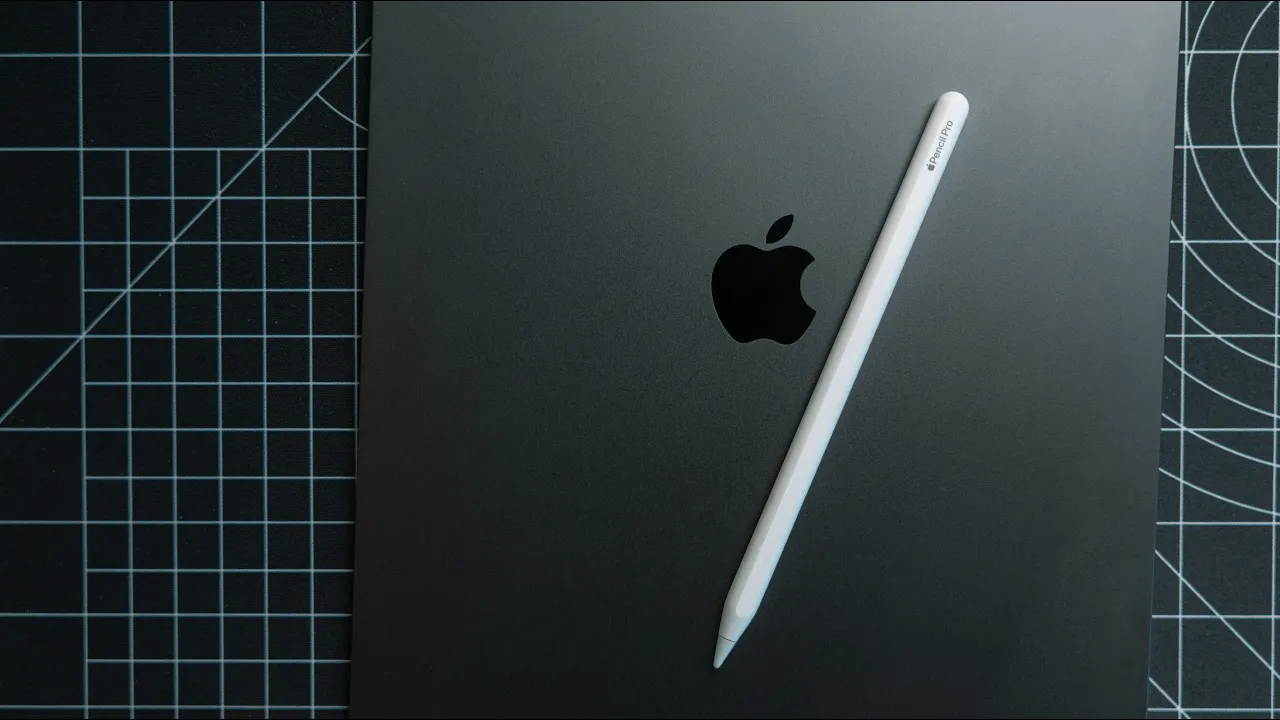
I am the worst at applying screen protectors. I always get at least one bubble. This new installation process was really easy to follow. But if for some reason you do mess up, paper like includes a second screen protector in the box so you can just try again. Unlike a lot of screen protectors the,er Pap Like 3 follows Apple's recommendation of maximum screen prote ctor thickness. The Paper Lake comes in at. 095mm thick. This guarantees the precision of your Apple Pcilen. Paperlake is one of my favorite iPad accessories. I have it on all of my personal iPads I own.
Paperlike provides a 100% satisfaction or money-back guarantee within 100 days of purchase, so there' s really nothing to lose here. Paperlike also has a bunch of other accessories like Apple Pencil grips and covers for your iPads. I'm gonna put some links in the description below so you can go check out the new Paperlike and their other iPad accessories. My thanks to Paperlike for sponsoring this video. Alright, so I'm getting this video configured for release, but one thing I wanted to show you guys is my friend Matt um and also co-host over on Comfort Zone made this app right here called Quick Subtitles .
And this just basically gives you really good subtitles for any video or audio file, like way better than the generic YouTube ones. So I'm just gonna drag and drop the file in and watch how fast this is. Boom, done. That's it. That's literally I have subtitles for the video that are superior to the YouTube one. So I'm just gonna save the SRT file, save it to the video projects folder, and I have that. Now I can come in here to this cleanup feature and it'll actually go over it and clean up anything that it might see uh the subtitles might have got wrong.
Uh it's built in and uses Gemini for that. So I'm gonna let that run in the background. This does take a little while. This is not nearly as fast. That transcription was completely on device. This uh is is using Gemini, so it's not now one thing I do also use the subtitle file for is a Claude project that comes in here and gives me an idea for video titles, thumbnails, and tools. So I can come over here, create a new chat. Add the file. Oops, video projects. And here's the dreamy one. Upload that. And this is also really fast as well.
So this will just use the Sonnet 4. 6. Come up with some title ideas. I already have a good title, I'm not too worried about this one. Okay, so this right here has all of the tags that I can use. I can literally just hit copy, scroll all the way down. Tags are like the least my least favorite part of YouTube because I don't think they actually matter that much, but I don't want to be the one to test that. So here's a bunch of tags. Great. Claude came up with them. It does come up with thumbnail ideas and titles, but I already came up with mine, so I'm not too worr ied about that.
Uh and then we're gonna come over here, we're just gonna mark that as private really quick. End screen subtitles. Uh I just wanna let's check on. Why isn't command tab working? Things are not working very well for me today. For wanting to show this stuff off. Things are not wanting to work. Okay, no corrections needed. Okay, that's great. That's actually the first time I've ever seen that. No corrections needed. So our subtitle file is good to go. So we can just come in here. We can upload file with timing, choose file, video projects, select the SRT file, and you can see boom , it comes in.
Let's just do one watch through. Subtitles look good. Okay, all right. I'm I'm good with this. Okay, so that looks good. And so uh title thumbnail. I'm just gonna check a few things, but I think we should be good to go here. Alright, so that video is good to go. One more thing off the checklist. We're making pretty good time. It's 10. 20 in the morning, and considering I'm both filming everything I'm doing, I'm pretty happy with the pa ce that I'm going at. Next up though, I need to edit this week's comfort zone and cozy zone.
The comfort zone, if you don't know, is my podcast I host with Matt Birchler and Neilon, and every we ek we talk about uh new tech things that we either have or we're trying out or apps or whatever. So link in the description if you want to check it out. So for comfort zone, what I do is I have separate audio and video tracks. And what I do is I run the audio tracks through an application called Hush to kind of clean up backgro und noises. And then when I bring them into Final Cut, I'll just combine the video and audio tracks into one.
So right here, I know this is my video track. And then it takes a second to sync everything. But what's really cool is it does this based on the audio. So I don't have to sit here and manually line up the two tracks. It just syncs it up based on the audio and I can combine it and then move on into the next stuff. Okay, so now I have my track. This is our multi-track. Okay, so this is going to be the track that broke when Matt was going. We had a bit of an issue and for some reason his connection cut out.
So I have two tracks for Matt. So this is gonna be Matt 1. So I'll label this. And then we're gonna have this will be Neilon's. This is Neilion's track, yeah, Neilion's track right down here. Now for some reason sometimes I have an issue with Nealion's files from Riverside and it tries to do it at 23. 9 frames per second, but this time it didn't. So I'm gonna go ahead and click okay. Okay, all right, so we have all of our tracks now. So one thing I do when I edit comfort zone unlike any uh unlike other videos is I do add a solid back ground down here.
Uh let's change that clip heights to be a little smaller. And then I add all of our tracks on top of it. It makes editing and keeping all of this stuff in line a little bit easier with the magic timeline. I don't do this for any other video because I actually like the magic timeline quite a bit but I do do this for um I do do this for comfort zone and then crans And then our main track, okay. Alright, so the comfort zone edit is going good, uh, but I have a meeting in five minutes, so I'm gonna go ahead and do that meeting and then I'll come back to the comfort zone edit and finish that off.
Uh but yeah, gotta jump on this call Alright, I got the edit done for both Comfort Zone and Cozy Zone and got them uploaded to our shared folders so Matt could take care of all the processing. Uh both pretty easy edits this week. Uh cozy zone I do a much lighter edit to it, uh but comfort zone pretty pretty straightforward edit this week. So it didn't actually take me that much time. Uh I'm gonna take a break for lunch right now, probably go watch an episode of Stargate and then I will come back after that.
But so far I'm making great time. Uh I've got a ton of stuff checked off the task list for the day and after lunch I really only need to focus on writing the script. Alright, I've had my lunch, good lunch, decent lunch, no complaints, uh, but it's time to get back to work. Like I said, I have a few scripts I wanna write today. Uh if I can get all of those taken care of today, that would be huge for my week. Uh we've already knocked a lot off the task list today. But if I can get these four scripts written, that would be a huge relief off my shoulders and would set a a great start for the rest of the week So I've been trying to spend at least an hour or two every da y using my standing desk.
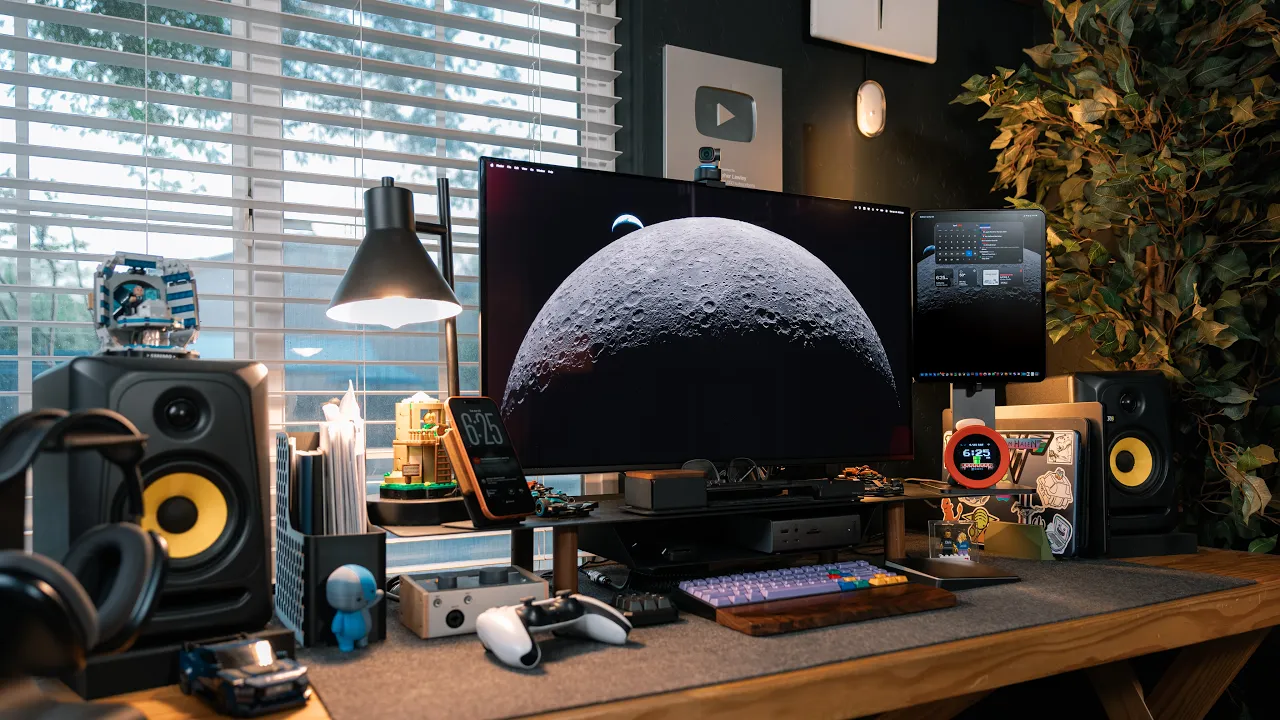
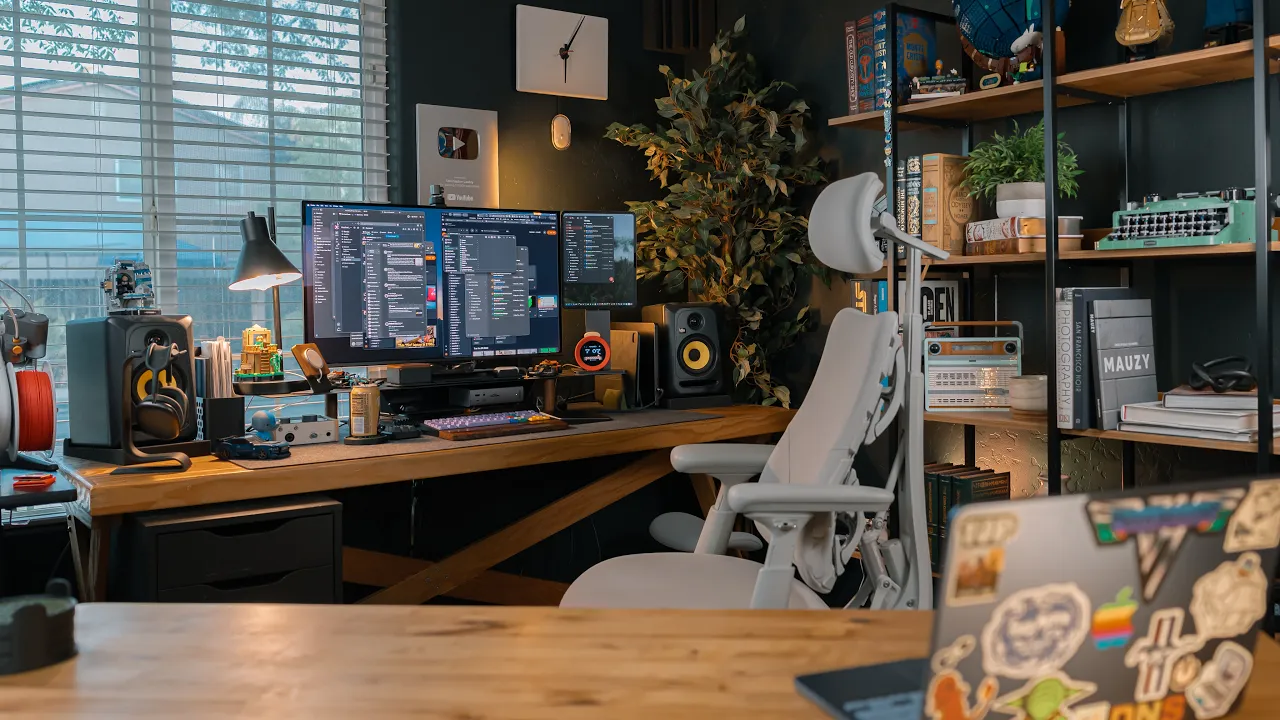
Sometimes that's easier said than done. Uh but I, especially when I'm writing, I can be really uh, I can get stuck sitting for a long time, so I'm just gonna move to the standing disc. I'm gonna be that obnoxious guy for a little bit Now something I do miss when using my standing desk is my big studio display. It makes it really nice to have you know my obsidian document open that I'm writing in and a reference document or another app that I might be writing about open so I can like double check and make sure I 'm getting the right settings or the steps right or something like that.
So what I've been doing a lot lately when I've been here is I've been using my other iPad. Now this is my M4 11 inch iPad Pro, uh, that some of you have asked about what's going on with it, because I've been using the 13-inch iPad Pro again. Uh, and this right here is the iPad I use kind of more as a tablet. This one usually ends up sticking in the magic keyboard or being used at my desk, but this is the iPad I use as my tablet a lot. This is also the device I put like my scripts on as when I'm shooting B-roll and put use it as my shot list.
But also when I'm writing here I use this as my reference device. Any apps I'm writing about any documents I need, anything that I uh I need a reference while writing that script, I pull up on this iPad. So that way I'm not having to tab over. Yes, having two iPad pros is obnoxious and absurd and nobody needs it, but I talk about the iPad a lot and I found it is really handy, especially when it comes to iPad OS beta season, to have a device on the stable build and the beta build. It's not something I would recommend for most people, but if you did want a second iPad, you could get like the base iPad or an iPad Air or something like that, or a refurbished iPad.
For me, yes, this is obnoxious, and I fully understand it's ridiculous to have two iPad Pros, but I have them so, I'm gonna use them. All right, I think I did it. I got all four scripts written. Uh, too long form, too short form, which means I accomplished everything I needed to today. I got it all done right from my iPad. Pretty good day overall. It set me up pretty pretty strong for the rest of the week, which uh it's gonna be a crazy week uh with Apple announcing some products and stuff like that. But uh yeah, uh I want to hear about your guys' iPad workflows.
Let me know in the comments below. My thanks to Paper Like for sponsoring this video. If you liked the video, hit the thumbs up button, subscribe if you haven't already, and have a great da y.
More from Christopher Lawley
Get daily recaps from
Christopher Lawley
AI-powered summaries delivered to your inbox. Save hours every week while staying fully informed.