My MacBook Neo Setup: Apps, Tweaks & Mods

Chapters10
The video discusses the MacBook Neo as a portable, couch-friendly computer used outside the office, and how the creator balances it with power apps and a Surfshark sponsorship to keep the system lean.
Tiny Start, HyperKey, and a handful of lightweight tools turn the MacBook Neo into a fast, couch-friendly setup you can customize without bloating.
Summary
Christopher Lawley walks through his lean MacBook Neo setup, prioritizing speed and battery while keeping the system responsive for on-the-go work. He replaces Spotlight with Tiny Start, a fast launcher focused on shortcuts to folders, web links, and recent apps, plus emoji picking and Claude query support. He embraces HyperKey to drive global shortcuts and pairs it with Mackey (clipboard manager) for quick history access and pinned items. For window management, Better Snap Tool offers precise keyboard-driven layouts, while Supercharge surfaces a suite of tweaks you can flip on/off with a friendly UI. Text Sniper is used to copy unselectable text while preserving formatting. Lawley also tops the hardware tweak list with a thermal pad to improve thermals, documented in a follow-up video. He’s careful about background apps and keeps the footprint light, avoiding a full Mac Pro-like clone of his main setup. Finally, he refines macOS defaults (auto-hide dock, iCloud Desktop/Documents, Tahoe menu cleanup) to squeeze more screen real estate and focus out of the 13-inch Neo. The sponsorship block with Surfshark appears, underscoring the security angle of working from coffee shops and hotels. If you’re after a fast, customizable, and minimally bloated MacBook experience, Lawley lays out a concrete, repeatable workflow to replicate.
Key Takeaways
- Tiny Start replaces Spotlight for a fast launcher, indexing only chosen folders and website shortcuts to deliver instant access.
- HyperKey consolidates modifiers into a single key, enabling global shortcuts like HyperKey V for clipboard history in Mackey and HyperKey F to launch Finder.
- Better Snap Tool provides customizable window positions and sizes (e.g., left half, right half, one-third) via keyboard shortcuts tied to HyperKey.
- Text Sniper enables copying non-selectable text while preserving formatting, usable with Command-Shift-2 for quick access near screenshot tools.
- Text and clipboard power come from Mackey (clipboard manager) with nine-item quick-paste via Command 1–9 and pins via Option-P.
- Supercharge offers a UI for a wide range of macOS tweaks (unminimize on active, Mission Control actions, auto-DMG install handling, keep-awake), reducing need to remember terminal commands.
- Thermal pad mod on the MacBook Neo improves thermals and reduces throttling, with a documented 20–30% performance boost in some benchmarks (per referenced video).
Who Is This For?
Essential viewing for power users who want a fast, minimal MacBook Neo setup with quick-launchers, keyboard-centric window management, and practical hardware tweaks. Great for anyone curious about lightweight macOS customization without bloating the system.
Notable Quotes
"Tiny Start, just like Spotlight, will index all of your applications so you can quickly launch them."
—Lawley explains why Tiny Start replaces Spotlight for speed.
"I set this up with the command space shortcut and turned off Spotlight."
—Shows his workflow preference to switch launchers.
"HyperKey seems to be the fastest way to do it. Plus, it's free."
—Describes HyperKey as a core, cost-free tool.
"Macy is a clipboard manager that is incredibly well thought out."
—Praise for Mackey as a lightweight, effective clipboard history tool.
"Text Sniper allows you to copy uncopyable text."
—Highlights a key capability of the clipboard/ OCR-like tool.
Questions This Video Answers
- How do I replace Spotlight with Tiny Start on macOS for faster launching?
- What is HyperKey and how can I use it to create system-wide shortcuts on a Mac?
- Which window managers work well on macOS for keyboard-driven layouts?
- What is Text Sniper and how does it preserve formatting when copying text from apps?
- Is adding a thermal pad to a MacBook Neo worth it for better thermals and performance?
MacBook NeoTiny StartHyperKeyMackeyBetter Snap ToolSuperchargeText SniperClipboard managersWindow managementmacOS customization with Tahoe
Full Transcript
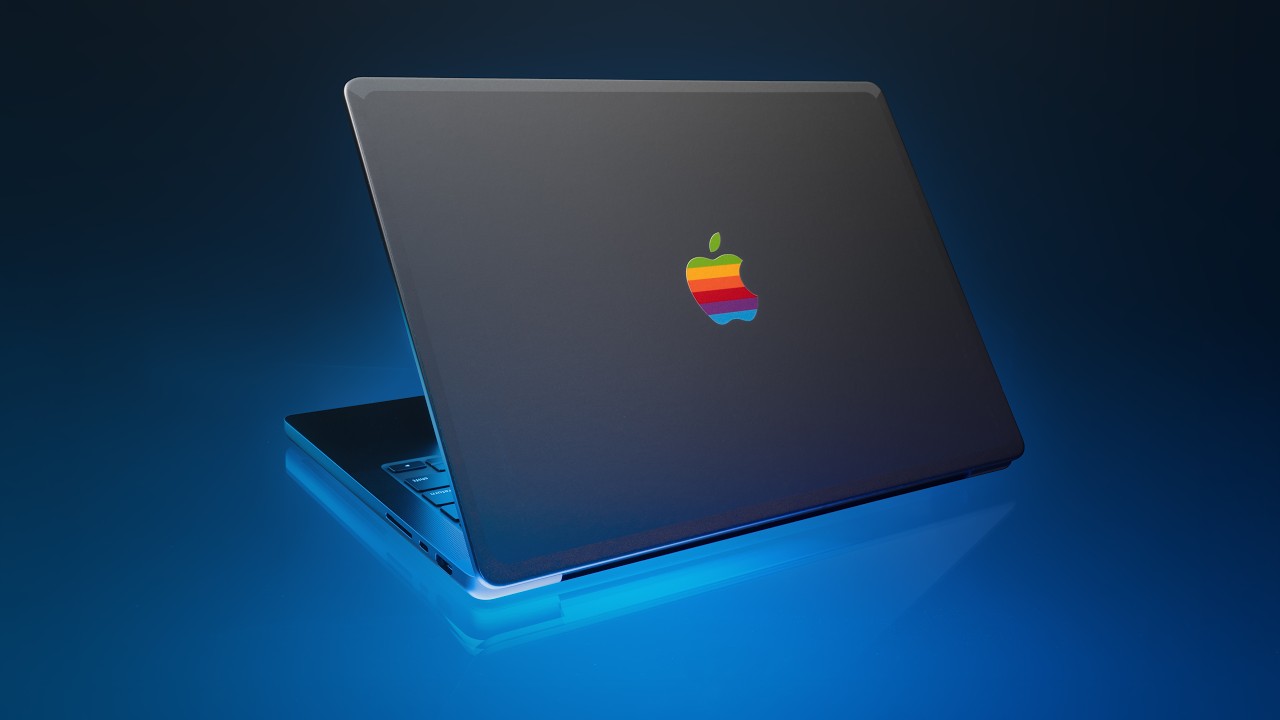
The MacBook Neo is one of the most fascinating computers Apple has released in a while. Despite the fact that I own both an iPad Pro and a MacBook Pro, I find myself using the MacBook Neo all the time. But it's always in context outside of my office. I've been using this as my couch computer, the computer I take to coffee shops and even work in bed at . But it's still running a generation old iPhone chip, so I was careful what I installed on it. I didn't make it a clone of my MacBook Pro. This video is sponsored by Surfshark.
For a while, I was running it very stock macOS with just a few core productivity apps, but there were some apps that I found that I needed in order to run mac OS to its fullest. And I didn't want a bunch of apps running in the background eating up system resources. So the apps that I did install were very minimal and lightweight. First up is my launcher. I tried to use Spotlight. Spotlight is the native built-in launcher with Mac OS. But man, Spotlight, even with the Tahoe update, Spotlight is still slow and it doesn't always find the stuff I'm searching for.
Now, my friend and fellow co-host over on Comfort Zone, Neon, she just made a new app called Tiny Start , and this is a launcher all about being lightweight and fast. I set this up with the command space shortcut and turned off Spotlight. Tiny Start, just like Spotlight, will index all of your applications so you can quickly launch them. But here's where TinyStart gets interesting. Instead of indexing all of your files and folders on your Mac, you set up specific shortcuts to folders in TinyStart. So I added just the folders that I work out of.
I trigger Tiny Start and just type the folder name that I want. And because it isn't just constantly indexing everything, and you set up these shortcuts just for the stuff that you want, it's instant. Another thing that I really like about TinyStar is when you launch it, it shows a list of the recent app lications that you launched. So you if you're just reopening something that you recently opened, you don't actually have to type the name again. You can just launch it and hit enter. Tiny Start does index all of your shortcuts, so you can run your shortcuts right from Tiny Start just like you could with Spotlight or even Raycast.
But Tiny Start isn't just for stuff locally on your Mac. You can create shortcuts to quickly jump onto web stuff as well. This includes things like links you want to launch quickly. You can go into the settings and just add a link and the name of the site. Then you can quickly open it right from the tiny start command bar by just typing the name. I use this for all of my frequently visited sites, and it's essentially replaced the favorite bar in S afari for me. Tiny Start also works with search fields, so you can type the letter G and then you can search for somet hing to Google it.
Or my favorite, you can type YT and search for something on YouTube. I even added support for Claude queries. And last but not least, TinyStart has an emoji picker as well. Just like with everything else in this app, TinyStart is a lot faster than the system version. Once you have TinyStart installed, you can use the keyboard shortcuts control command space, same as the system one, and it'll launch the tiny start emoji picker. You can just quickly type which emoji you're looking for and hit enter. Overall, I really like tiny start as a spotlight replacement it works so much faster than spotlight and if you've been using something like raycast and maybe you don't use the extensions or you want something a little bit more lightweight a little faster this, is for you.
It's just a one-time purchase of five euros. Setting up hyper key is a must for me on any Mac. I have to have hyper key. My Macs feel broken and when I go back to my iPad now to work there I, feel lost without hyperkey. I did a whole video on what hyperkey is and how I use it. I'll link to it in the description below. Basically, the TLDR is it takes control, option, command, shift, and binds them into one key. So it gives you the flexibility of creating more system-wide keyboard shortcuts without having to hit a bunch of modifier keys.
You only have to hit one. Keeping on the theme of being lightweight and fast for the MacBook Neo. I just went with the regular hyper key app. There's a ton of different applications out there that you can do hyper key through, but the app just called HyperKey seems to be the fastest way to do it. Plus, it's free. I use hyperkey for a bunch of different stuff. Setting up global keyboard shortcuts for stuff like in to doist. I can hit hyperkey T and it'll bring up that new task window globally anywhere in Mac OS. I can hit HyperKey A to bring up the Claude Bar, HyperKey V to bring up my clipboard manager, which I will talk about that in just a minute.
Hyperkey C brings up the Fantastical menu bar calendar. You can use HyperKey for anything that lets you input a custom keyboard shortcut with a modifier key. So something like a command, control, option, or shift. You can use hyper key for anything like that. So it's endlessly flexible. Like I mentioned, I did a whole video on my hyper key setup that I will link to in the description bel ow, along with all the apps and everything else I mentioned in this video. This video is sponsored by Surfshark. I've been working outside of the house a lot more lately, whether it's going to a coffee shop to do some writing or I've been traveling and working out of a hotel.
And whenever I use any of my devices in these places, I always have Surfshark enabled. Surfshark is a VPN service that keeps you and your data safe, and it's not a well, I have nothing to h ide, so I have nothing to lose kind of thing. At places like coffee shops and hotels, they can see your internet traffic. And if their network is ever compromised, and trust me, they do get compromised, when their networks get compromised, whoever gets into their network can see that traffic as well. And this isn't some marketing line. This was actually something I tested back in my IT days.
We set up kind of a lab experiment to see if this was actually true, and we definitely saw this. So while I don't think that mom and pop coffee house is gonna do anything malicious with your traffic , they're probably not network security experts. So I would take that extra precaution, and in those instances, that's where I use Surfshark. With Surfshark, your traffic is routed to secure memory-only servers. So that means if something were to even happen to a Surfshark server, which I highly doubt it would. They're security experts, but even if it was, the your traffic can't be captured.
They're memory only. They can't keep logs on that data. But having a VPN service isn't just about security. It can be a handy tool for browsing the web. You can see what other streaming services have in their catalogs in different countries. You can also check price discriminations based on regions. There's a lot you can do with a VPN. Like I said, I use Surfshark whenever I'm outside of the house. I use it on all of my devices. Start your seven-day free trial and get an extra four months of Surfshark VPN by going to the link sur fshark.
com forward slash lolly or use code LOLI at checkout. My thanks to Surfshark for sponsoring this video. Mackey is an app that I am using for a clipboard manager. Again, I tried to make Spotlight work. Spotlight has a clipboard manager built into it now, but it's just so slow. I just I couldn't. The spotlight clipboard manager requires multiple key presses in order to get to it, and it's just I just want to hit one keyboard shortcut and have my clipboard manager open. The spotlight one, it's just too cumbersome. So, like I mentioned, I'm using the app Macy, and again, this is another lightweight and fast application that works perfect on the MacBook Neo.
It's a clipboard manager that is incredibly well thought out. You can assign a keyboard shortcut to it so you can just quickly bring up your history. Like I mentioned earlier, I'm using HyperKey V for this. One of my favorite features about Mackie is once you have your clipboard history open, keyboard short cuts are assigned to the last nine items, so you can just hit command one through nine and immediately paste that item. You can also pin items by highlighting them and hitting option P. This will keep that clipboard item at the top, handy for email addresses, text snippets, anything you need often.
Going into the settings for Macy, there is a lot of options like changing the default to paste without any formatting, manage pins, ignore specific stuff like apps. That's important for password managers and any financial apps. Overall, I really like Mackey as a clipboard manager. There's a lot of different clipboard managers out there for the Mac, but what I like about this one is it doesn't add any extra fluff. There's no there's no bulk to it, it does exactly what it needs to do, no more, no less, and it's fast . Plus, it's just a one-time purchase of five dollars from the developer's website.
I think the Mac App Store version might be a little bit more, so go buy it from the developer's website . When setting up the MacBook Neo, I said I wasn't gonna install a window manager. Mac OS got the snapping window support a few updates ago, and I was like, okay, I'm just gonna use that . But wow, is the macOS window manager really limited? I I tried again, I really tried with it, just like spotlight. I tried to make it work, but it's slow and limited. I'd wanted a bit more control, especially the ability to set custom keyboard shortcuts and set custom ratios for window sizes.
So I installed Better Snap Tool. It's a two dollar application from the app store and it gives you full control over your windows. Now there are a bunch of different applications out there for the Mac to control your windows. There's ones like Moom that just give you a ton of options, but what I found is better snap tool kind of has all the options that I want to do without a bunch of extra fluff like it doesn't add extra like UI overlays or anything like that. What I really want out of a window manager is to be able to set custom keyboard shortcuts for different window ratios and positions.
For example, I set up a bunch of keyboard shortcuts using the hyper key to move windows to certain pos itions and sizes. So I use hyperkey left arrow that makes a window 50% of the screen size and moves it to the left. Hyperkey right arrow does the same thing but moves it to the right. Hyperkey down arrow moves the window to the center. Hyperkey up arrow maximizes the window. Hyperkey comma makes a window one-third the screen size and moves it to the left. Hyperkey period does the same thing but moves it to the right. Hyperkey semicolon makes a window two-thirds the screen size and moves it to the left.
And hyperkey quote makes it two-thirds view but moves it to the right. Now there's a bunch of other stuff better Snap Tool can do, but I really just wanted those keyboard sh ortcuts so I can just quickly move Windows into the positions that I wanted. Now if I was using my MacBook Neo with an external monitor, I'd probably set up like quarter views and things like that, but I don't do that, so I just the halves and two thirds and one thirds are perfect for me. Supercharge is an app I will always install on any Mac going forward.
In fact, my MacBook Neo felt broken without Supercharge installed. The whole purpose of this app is to give you the ability to tweak things in Mac OS. Now, most of the stuff that you're tweaking in Supercharge, you could probably do this with terminal com mands, but this gives you a UI to turn these things on and off. So you're not having to remember terminal commands, how you did something in the past or in the future . So a lot of this stuff you probably could just do for free, but this makes it a lot easier.
Now, there are a ton of tweaks and keyboard shortcuts that you can set up and supercharge. I'm just gonna go through a few of my favorite, but I highly encourage you to download the app and just go through the list yourself because there's a lot here. So a few of my favorites under the tweaks tab are the ability to unminimize all windows when an app be comes active. Enabling Windows Actions and Shortcuts in Mission Control. This gives you the ability to use Command Q, Command W, and Command M or H on a window. Then there are a few finder tweaks like the ability to use command X to cut a file, move files to tras h with the delete key, create a new file with option n.
Then there's some system stuff like auto dismiss the shortcuts notification that says running your autom ations, offer to install apps from mounted DMG files, then move that DMG to the trash after installation . For the keyboard shortcuts tab, I have some of my favorites and, this is where hyperkey really comes in handy. Keep awake is assigned to hyperkey W. This does what the old caffeine app does, just prevents your Mac from going to sleep. Then if you use the passwords app, you could actually enable a mini menu bar app in the settings of it .
With supercharge, you can assign a keyboard shortcut to open that menu bar app. I use hyperkey P. Then there is the ability to quickly launch Finder. I have this set to hyperkey F. Mac OS Notification Center is kind of still a mess, and for some reason it has two buttons to clear noti fications, and they do two different things, and I can never remember which one does which. So in Supercharge, I set up Hyperkey backslash to dismiss all notifications out of notification center . HyperKey E will eject all external drives connected to my MacBook. What I love about this is it leaves network storage alone.
So if you have a NAS and external drives plugged into your computer and you hit this combo, it only e jects the external drives, not the NAS. Like I said, that is just a few of the tweaks that I use in Supercharge. There are so many more. I highly encourage you to go check out the app. There is a lot you can do with it. Then the last app that is a must-have for me is Text Sniper. Text Sniper allows you to copy uncopyable text. Now what, I like about this is it's fast and it keeps the formatting of the text, which is important if I'm taking something.
For example, I do this a lot in Final Cut with the chat with the markers. I copy these out and make them chapter markers in YouTube. A lot of other tools that I've tried that do a similar thing, they break the formatting of the stuff that they're copying. Even if they have options to preserve the formatting, they'll still break the formatting in certain wa ys. I set up Tech Sniper to Command Shift 2, so it's right next to these system screenshot tools. I often have to copy text out of apps that isn't selectable, and this is just really handy for that.
If you get PDFs that aren't OCR'd or you don't have OCR software, this is a great way to get the text out of that. It's fast and it gets the job done. So those are the apps that I have running on the MacBook Neo, but I've actually done a physical modific ation to my MacBook Neo. Well two actually. First one, I put a bunch of stickers on it because it's a fun computer. It's fun to cover it with stickers. I like it. And the second is I added a thermal pad to the board. It's actually really easy to do.
The MacBook Neo is very repairable and very easy to open up and modify. Now, I'm gonna put a link to a video that I followed in the description below that walked through this . It also walks through some of the benchmark changes and the performance gains you get by adding a ther mal pad to the MacBook Neo. And what this basically is doing is it's taking the heat from the chip and it's using the aluminum body of the MacBook Neo to disperse that heat. Now, what this does mean is the bottom of your MacBook Neo is gonna get a lot warmer than what it did before, but I've never got it to the point where it's hot or uncomfortable, and it's definitely never burned me or anything like that.
It's just I can tell it's a little bit warmer than what it used to be. Now I did this for me, but do this at your own risk. If you're comfortable with computers and electronics and you understand the basics of how they work, this is a really easy and cheap modification. It was like under 10 bucks in order to do this. In fact, it was more expensive to get the screwdriver bit than it was to get the thermal pad. I just I didn't have the screwdriver bit for this MacBook Neo. But based on the video, I will link to in the description below, along with some other stuff that I've seen you get anywhere from 20 to 30 percent performance improvements with the MacBook Neo which is pr etty good that's pretty good but I can also see why Apple didn't do this by using that aluminum like I , said, it's going to disperse the heat at the bottom, which could potentially make it uncomfortable to use in your lap.
But if you've been experiencing any thermal throttling or anything like that, this will help with that . It won't get rid of it completely, but it'll help with it. Now there are a few macOS settings that I changed to kind of optimize for the MacBook Neo. First is I set the dock to auto hide. This is a 13-inch laptop, screen real estate is at a premium. Auto hiding the dock is a must. Uh I have my dock on the left side. I've just always put it on the left side. I think that's where the dock should go.
That's my hot take. But no matter what, auto-hiding the dock is gonna give you a little bit more screen real estate. I also found auto-hiding the dock just helps with my focus. I do do this even on my MacBook Pro, even when it's plugged into an external display. I just find it helps with my focus because I'm not going, ooh, other app. Let's see what's happening over in Reader or Messages or Slack or something like that. It helps me just stay focused on what's in front of me. I also turn off the feature that shows recent apps in the dock.
I just I don't like that. I just want the stuff that I'm putting in the dock to be in the dock. I don't want recent stuff that's not open. I don't need that there. I've turned on the feature to minimize Windows into app icons. These two things are just really, really nice for managing your dock especially when you have a small screen i've also been trying the more space display settings so if you go into settings display there are a few different options screen real resolution options that you can pick from. I've been trying the more space one.
Now, this makes everything a bit smaller on your screen by running uh your MacBook at a higher resolu tion. It could be a bit on the small side. I definitely am reaching for my reading glasses when I'm using my MacBook Neo now, but I'm I'm getting close to 40. I also turned on the ability to have my documents and desktop folder in iCloud. This is a must for me. I have the 256 gig MacBook Neo. I have like a terabyte of data in iCloud. Terabyte does not fit on 256 gigs. So this dynamically decides what I need, what I don't need.
And it's pretty fast. It it actually works really well. I haven't had any issues with it in the month of owning the MacBook Neo so far. I've been pretty happy with it. So um that this gets a solid thumbs up for me. Now if there is a specific folder or file that you really just always need on your computer, you can right -click on it and select keep downloaded and it'll always keep that folder and the contents of that fol der downloaded or that file downloaded on your computer. Everything else will dynamically get removed and then downloaded as you need it.
I also use the new Mac OS Tahoe menu bar cleanup features and removed a bunch of stuff that I don't need up there. It's just core stuff that I need. I, you know, I took out stuff like Wi-Fi, focus modes, and spotlight. Those all live in control center. I added time machine and turned on battery percentage though, because those are a must-have. So that's it. That's how I set up the MacBook Neo. I want to hear from you all. How do you set up your Mac? What apps? What setting tweaks? Do you do any modifications?
Let me know in the comments below. My thanks to Surfshark for sponsoring this video. If you like the video, hit the thumbs up button, subscribe if you haven't already, and have a great da y.
More from Christopher Lawley




Get daily recaps from
Christopher Lawley
AI-powered summaries delivered to your inbox. Save hours every week while staying fully informed.