My Functional and Dream Desk Setup

Chapters12
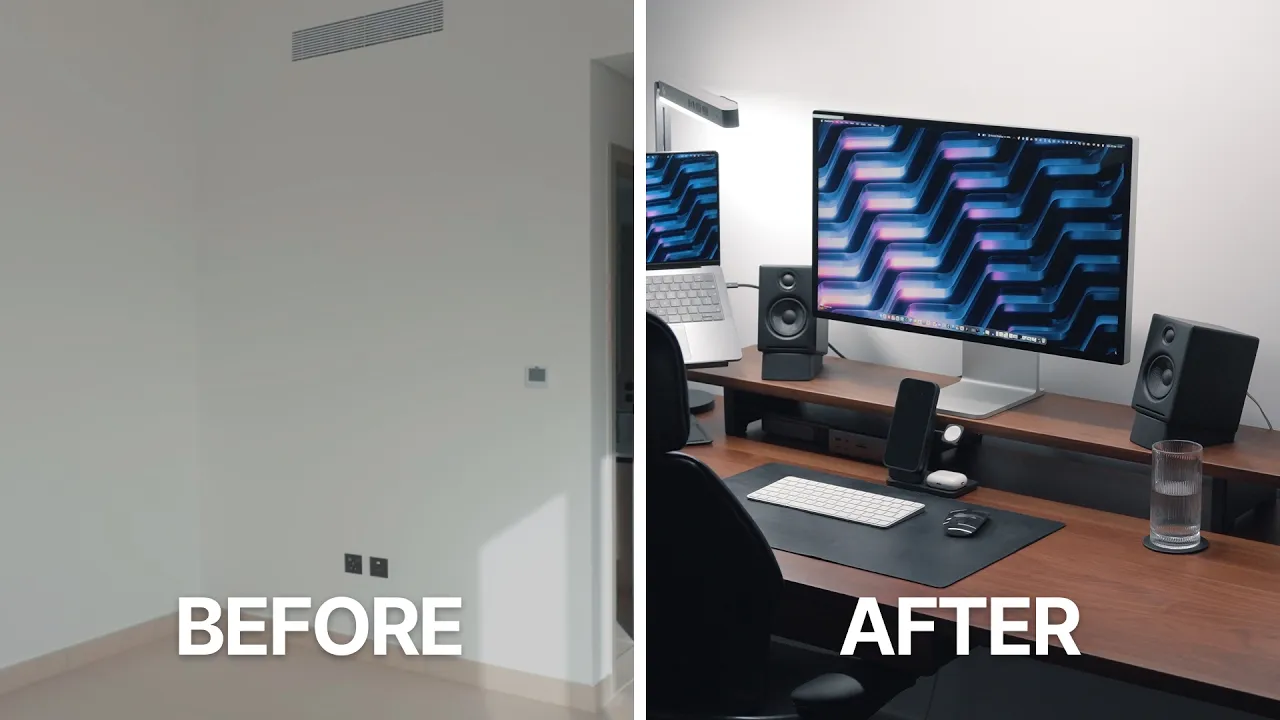
The creator reflects on past desk setups, explains why the current space evolved into a studio, and describes the process of reconfiguring and tidying the desk setup, especially cable management.
Christopher Lawley showcases a refined, functional 32-inch OLED desk setup with HDMI-friendly rigging, a CalDigit hub, and sleek UgMon Gather accents for a clutter-free creative workspace.
Summary
Christopher Lawley dives into his updated 2026 desk, revealing how he migrated from a hallway setup to a dedicated studio space with meticulous cable management. He explains upgrading to an Asus ROG Swift 32‑inch OLED monitor, highlighting its 4K resolution, 240 Hz capability on macOS, and stellar contrast compared with the Studio Display lineup. The video covers his ambient clutter-reducing gear choices, including a VESA stand, the UgMon Gather shelf, and a Grove Made desk mat to protect his custom desk built by his dad. Lawley also details his hub setup with the CalDigit TS5 Plus, which powers and connects multiple devices via Thunderbolt and DisplayPort, and how the built‑in KVM keeps transitions seamless between MacBook Pro and iPad Pro. He showcases the OBSBot Tiny 3 webcam for AI tracking and top-tier audio pickup, tying it together with five audio modes and a clean desk mic setup. Throughout, he compares panel tech (OLED vs. mini-LED) and discusses practical compromises like HDMI input and cost, concluding with personal touches like a MagSafe desk puck, a Nintendo Alarm Clock, and a 3D‑printed paper tray. The overall vibe is practical luxury: powerful displays, robust hubs, and tasteful accessories that support a fast, productive workflow. Lawley also hints at future upgrade paths and emphasizes that his arrangement is kept flexible to accommodate multiple devices and games, including a PS5 in the office for off-hours play.
Key Takeaways
- The Asus ROG Swift 32-inch OLED monitor delivers true blacks and a 4K, 240 Hz experience when used with macOS, providing unusually smooth scrolling and space switching.
- CalDigit TS5 Plus hub is central to Lawley’s setup, enabling a single connection for MacBook Pro, iPad Pro, and other devices, plus 10 Gbps Ethernet and expansion ports.
- OLED panel advantages (contrast, blacks) are weighed against typical brightness and retina-like sharpness; 32-inch OLED offers a compelling alternative to Apple Studio Displays at a lower price.
- The display’s built-in KVM switch and a DP cable path via CalDigit hub simplify switching between devices without fiddling with displays or adapters.
- OBSBot Tiny 3 webcam adds AI tracking, an immersive five-mode audio suite, and a built‑in mic, reducing the need for separate microphones while staying portable for calls and presentations.
- UgMon Gather shelf and a bespoke desk mat help hide cables and protect the custom desk surface, keeping the setup clean and visually cohesive.
- Lawley values modularity and future-proofing (e.g., open TB ports on the CalDigit hub, PS5 HDMI input) over chasing the latest single-device solution, emphasizing practical balance between performance and cost.
Who Is This For?
Essential viewing for creators and power users who want a high-performance, upgrade‑friendly desk that gracefully handles multiple devices (Mac, iPad, PS5) with strong cable management, while favoring OLED/fast-refresh displays and versatile peripherals.
Notable Quotes
"This is a 4K 32-inch 240Hz monitor and 240 hertz on macOS is wild."
—Highlights the OLED monitor’s high refresh rate and platform behavior.
"With my MacBook Pro, I can use it at 240 hertz. With my M5 iPad Pro, I can use it at 120 Hertz."
—Shows multi-device compatibility and high-refresh workflow.
"This monitor is OLED, so the blacks are true blacks."
—Explains OLED contrast benefits.
"The built-in KVM switch just automatically kicks over when I switch devices."
—Emphasizes convenience of CalDigit hub with display switching.
"I absolutely love the OBSBot Tiny 3 for tracking, image, and audio quality."
—Summarizes why the sponsor product fits his setup.
Questions This Video Answers
- How does an OLED 32-inch monitor compare to the Apple Studio Display for color and brightness in a creative workflow?
- What are the benefits of using a CalDigit TS5 Plus hub in a multi-device Mac setup?
- Can an HDMI‑less Apple monitor be practical for gaming with a PS5 and MacBook Pro?
- What makes OBSBot Tiny 3 a good webcam choice for presenters and streamers?
- How can I hide cables effectively using UgMon Gather and a minimalist desk setup?
OLED monitorAsus ROG Swift monitorCalDigit TS5 PlusCalDigit hubOBSBot Tiny 3MacBook Pro peripheral setupUgMon Gather shelfHDMI alternatives on Apple displaysCable managementKVM switch
Full Transcript
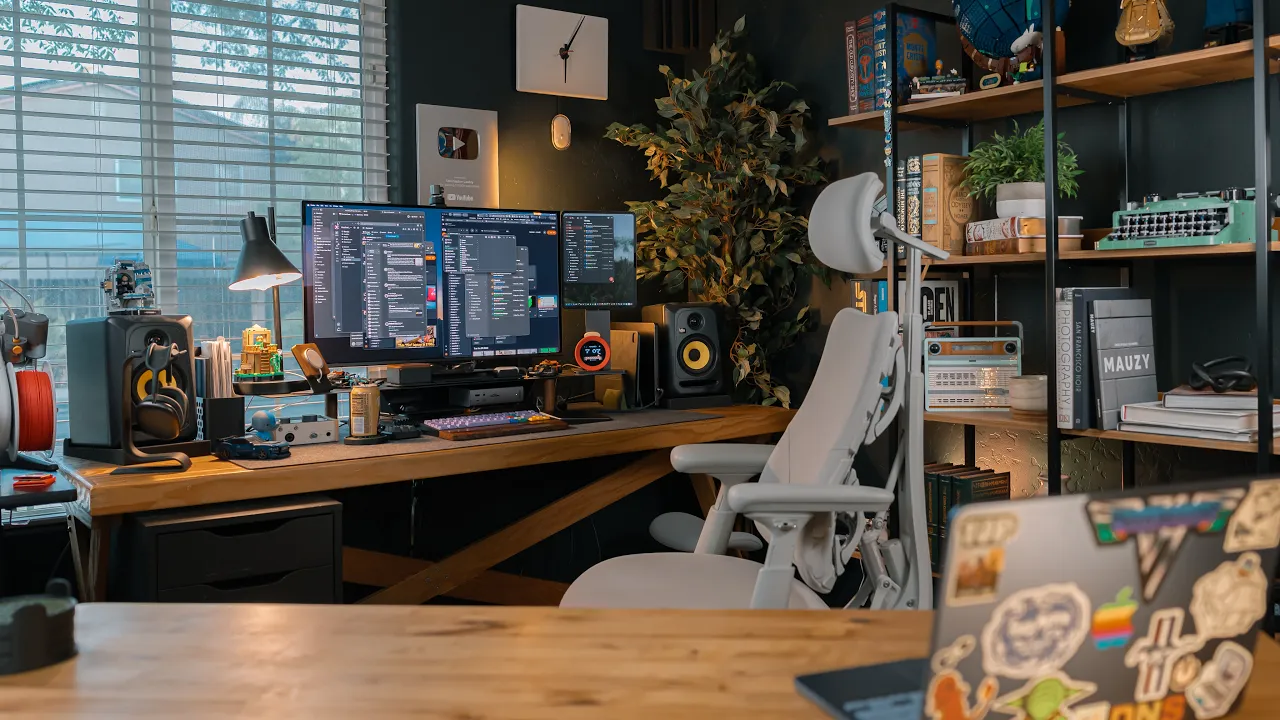
Last time I did a video like this, my desk was actually in the hallway of our house. Uh, cause we have this really weird alcove and stuff like that. And I tried using that as my office area for a little while, and it just never worked out. I always ended up working in this room here which I was calling my studio. When I moved everything into this room I kind of did it in a hurry. I had a lot of stuff happening at that time and I kind of just moved everything and just got it all p lugged in and it was kind of a mess.
Like underneath the desk, it was a disaster. The cable management was not good and it's always bugged me. And recently I got a new monitor. So I took this as an opportunity to take everything off my desk, redo it, redo the cable management, re do the setup, and get everything exactly the way I wanted it. Just down to the cable position. This video is sponsored by Obspot. Apple recently announced the new studio display XDR. And it's mostly what I've been asking for: a better panel, it's now mini LED instead of LCD. It has a higher refresh rate, up to 120 Hz, and it has a better webcam.
That's a lot of the stuff that I was asking for on my checklist, but it's not everything. And it's $3,200. And I just can't justify spending $3,200 on a monitor. So I ended up doing something completely different. I have here the Asus ROG Swift 32-inch OLED monitor. This is a 4K 32-inch 240z hert monitor and 240 hertz on mac OS is wild. I film my videos at 24 frames per second, so there's no way for me to convey like how 240 hertz looks with mac os, but all I can say is just everything is smooth.
Scrolling smooth, switching between spaces, smooth. So with my MacBook Pro, I can use it at 240 hertz. With my M5 iPad Pro, I can use it at 120 Hertz. Like I mentioned, this monitor is OLED, so the blacks are true blacks. I'm using a wallpaper right now from NASA from the Artemis 2 mission, and it's it's space with the mo on and the earth on there. And it just looks absolutely gorgeous. But when I'm color grading, editing photos, anything like that, it looks really good. It's a million and a half to one contrast ratio for some perspective the original studio display and and the current Apple studio display not the XDR just the regular studio display is a 12,000 to one contr ast ratio so a million and a half to one versus twelve thousand to one.
The contrast ratio is quite different. Now, the studio display XDR with the mini LED panel one that is a million to one contrast ratio, so it 's much closer to this OLED display, but this OLED display has a much higher contrast ratio. Now it doesn't get nearly as bright as those studio displays, but I'm in a room, the window is behind me, so I don't have bright shining light on my monitor, so I don't need the brightest monitor in the wor ld. This monitor is plenty bright enough for what I use it for. In fact, when I was using the studio display, I didn't even use that at a 100% brightness.
I was usually around like 70% brightness. I mentioned earlier my needs have changed. And what do I mean by that? Well, I need HDMI in. Uh, and Apple, frankly, is never gonna put HDMI in on their monitors. Apple refuses to acknowledge that there are other devices you might want to plug into your monitor that aren't just Apple devices. Despite the fact if you get a MacBook Pro or a Mac Studio, they have HDMI on them. The reason why I need HDMI is I have brought my PlayStation 5 into my office here. I've mentioned quite a bit, my girlfriend and I live together now, uh, and I just I don't feel right h ogging up the TV when I want to play a video game.
So I've actually brought my PS5 into my office here so in my off hours I can come in here, play a game , and you know just do whatever I want. The quality of this panel is really good. Like I'm really happy with it, especially the fact that it's OLED, video games look good on it, Mac O S looks good on it, iPad OS looks good on it. This video is sponsored by OBSBot. This is the OBSBot Tiny 3 webcam. Like I mentioned, my new monitor doesn't have a webcam built into it, but this thing has me covered.
This is a 4K webcam that tracks your movements by physically rotating and panning the camera. With the OBSPot Tiny3 webcam, the camera is on a gimbal and it uses AI to track you. It will then rotate or pan the camera to keep you in frame. This means it uses the full CMOS sensor and not cropping to use a portion of it. It does a great job at tracking you. And in the software, there's a bunch of options to change how it's tracking and what it should focus on . These tracking options are great if you're giving a presentation, have multiple people on a call, or just shift around a lot in your chair.
There's also voice controls like hi tiny, track me. Or hey tiny, sleep. There's an immersive stereo microphone system built right into the webcam. In fact, that's where you're hearing me talk into right now. I'm not using any of my fancy mics or anything like that to film this sponsor spot. It's all on the webcam using the camera and the microphone built into it. I'm really happy with how this sounds and I don't think I need to throw in airpods to have a call anym ore. Now there are five different audio modes for you to choose from.
There is a pure audio mode to capture just pure audio with zero processing. That is what I'm using right now. Then there's a spatial audio mode, which is an immersive stereo sound with enhanced left and right se paration. Then there is the smart omni mode. This is an AI-powered 360-degree audio mode. This will pick up an intelligently balanced vocals and ambient sounds, delivering consistent clarity for business meetings, group discussions, family gatherings, and multi-speaker live streams. Then there is the dual directional mode. This will capture both the front and the rear voices clearly while rejecting side noises.
I'm really impressed with the OBSBot Tiny 3. The three big things that I really like about this are the tracking, the image, and audio quality. I'm gonna put some links in the description below so you can go check out the OBSBot Tiny 3. My thanks to ObSbot for sponsoring this video. Now I also wanted a bigger display. 27 inches is nice, but I I I've been at this 27 inch mark for years now and I just I wanted to go a little bit bigger. I have this space on my desk. Now it's definitely not Apple retina PPI or pixels per inch.
So it's not as sharp as the studio display, and that did take some getting used to. But I've been using this for almost two weeks now, and I am completely fine with it. What I did is I went into the display settings, I set it to the middle option. The default option, if you do get this monitor, the default option is everything is massive. Like everything is way too big on the display because Mac OS is trying to force it to be a retina uh more retina PPI or more of a retina resolution. So if you go in, you set it to the middle resolution, there's five options, set it to the third one.
Everything is scaled to be more typical of Mac OS if like you were to use like your MacBook Pros displa y or MacBooks display or a studio display or something like that. Everything is sized to be more like that. Now this means things aren't nearly as sharp, but it's not like I'm seeing uh the pixels in like the pre -retina days. It's not like that at all. So it does take some getting used to. I do wish this was a 6k monitor and it was a proper retina ppi but then it would be a heck of a lot more speaking of the price this monitor is i'm not gonna say cheap but it's relatively cheap versus the stud io displays, even the regular studio display.
This monitor goes on sale all the time and I was just kind of waiting for it to go on sale. I got it for I think it was like three or four hundred dollars off. It was it was uh uh just under $900 and it's regularly twelve hundred dollars. That means it's cheaper than the regular studio display and you could buy three of these for the same price as a studio display XDR. The non-XDR studio display is using a panel from the original Retina iMac in 2014. The panel's over a decade old now. It really needs to be replaced.
LCD is not acceptable at a $1,500 price point. And if you're somebody that has been using that original studio display, all I can say to you is panel technology has evolved a lot over the years. Third-party non-Apple monitors have come a long way. Yes, I do wish they were proper retina display. That is the biggest knock for me against this monitor. But like I said, I moved past it pretty quickly and I'm doing some pretty intensive stuff monitor-wise . What's really nice about this monitor, it has a built-in KVM switch. So I am using a display port out to my CalDigit Hub, which I will talk about more in a little bit in this video.
And that Cal Digit Hub will plug into whatever computer I'm wanting to use, MacBook or iPad or whatever . But I also have HDMI plugged into this monitor for the PS5. So whatever device becomes active, it just automatically kicks over. It automatically uses that KVM switch to kick over to that. Now the stand that comes with this display is absolutely ridiculous. Actually hold on one second. Let me let me grab it. Look at this thing. , Lo lookok, this thing's massive. This thing is huge. And it's kind of heavy too. Like it's it's made out of metal.
And I'm pretty sure there's more RGB in this thing as well. Like this this this is a gamery monitor stand, if there's ever been a gamer mon gamery monitor stand. And it's it's massive. Like look at the legs on this thing. That's that's huge. This takes up way too much space. So I refuse to put this on my desk. So I am not using this. I've literally just saved this so I can show it off in the video. So what I did instead was I just got a VESA monitor stand pole that mounts to the desk.
And it's just a straight pole, it clamps right into the desk, and it is solid. Like this monitor isn't a light monitor, and it's it's holding it no problem. It sits on the center of my desk, and there's a bunch of different like points you can use to adjust like the tilt, the height, uh, the the angle and things like that. You can even rotate it, whatever you want to do. You can do all that stuff with it. Uh I I don't remember the name of it, but I'm gonna link to everything I talk about in this video in the description below.
But I really like this monitor stand because it's not over the top. It doesn't have some big swinging arm or something like that. It's very minimal in design and look. Now I am using a monitor shelf. This is from the Ug Monk Gather collection. Now, full disclosure, they sent me this to review it years ago. Like absolutely years. They're not asking me to talk about it or anything like that, but it's just something I've really lik ed and I've just kept it on my desk. I I really like it. Now it is incredibly pricey, but it is extremely well made.
It's full metal, real wood, and it's just kind of a nice piece I like to use. I don't have a monitor sitting on it, but what I do do is I put it in front of that vasa stand so it g ives my monitor kind of a floating look when I'm sitting at my desk from my perspective at the desk it just looks like that monitor floating because I don't see that vasa arm I, don't see the pole, I don' t see any of that stuff. This monitor stand also is really handy for hiding cables as well.
So if you have like wired keyboard and mouse or uh you know a thunderbolt hub or just USB hub or somet hing like that. This is really good way of hiding uh cables. Now there are a ton of different monitor stands out there. You don't need this specific one in order to get any of those things, but I've had this one here and I 'm just gonna use it because I really like it. Now there are a few like desk accessories that are also in that Ugmon Gather collection. I have a couple here on my desk.
Uh one is a box that I use for putting like media cards and stuff in. These cards have footage on them. I don't want to format these cards right now. That's where these cards go. Then there's also a tray for pens. Also put my reading glasses on here because that way I just have them right there in front of my monitor . I can grab them and put them on. And then there's a post-it note tray. I don't really use post-it notes, but you know what this is the perfect size for? Just kind of a place to keep my AirPods.
Then for the desk mat, I have been using the Grove made extra large wool desk mat for a few years now . And when I was putting back together my desk, I was trying a couple of other desk mats, but I ended up going back to this guy. What I like about it is it's the same depth as my desk, so it goes all the way back. So it's protecting the wood of my desk with the the Ug Monk monitor stand, which I it's not gonna scrat ch my desk, but you know, if something was to move, I uh for those that don't know, I've talked about this desk a lot in the past.
My dad built it. That's why there's no link to it in the description, because it's custom-made for me by my dad. So, one, I take a lot of pride in it and I love it, so I I do everything I possibly can to protect it . But with this desk mat, it did cover the holes to my cable management. So I wasn't able to use the holes that my dad built into the desk to run cables through. So what I did is I cut a T into the mat right above the cable management hole. So this way I can just push cables down and it's held up over the years.
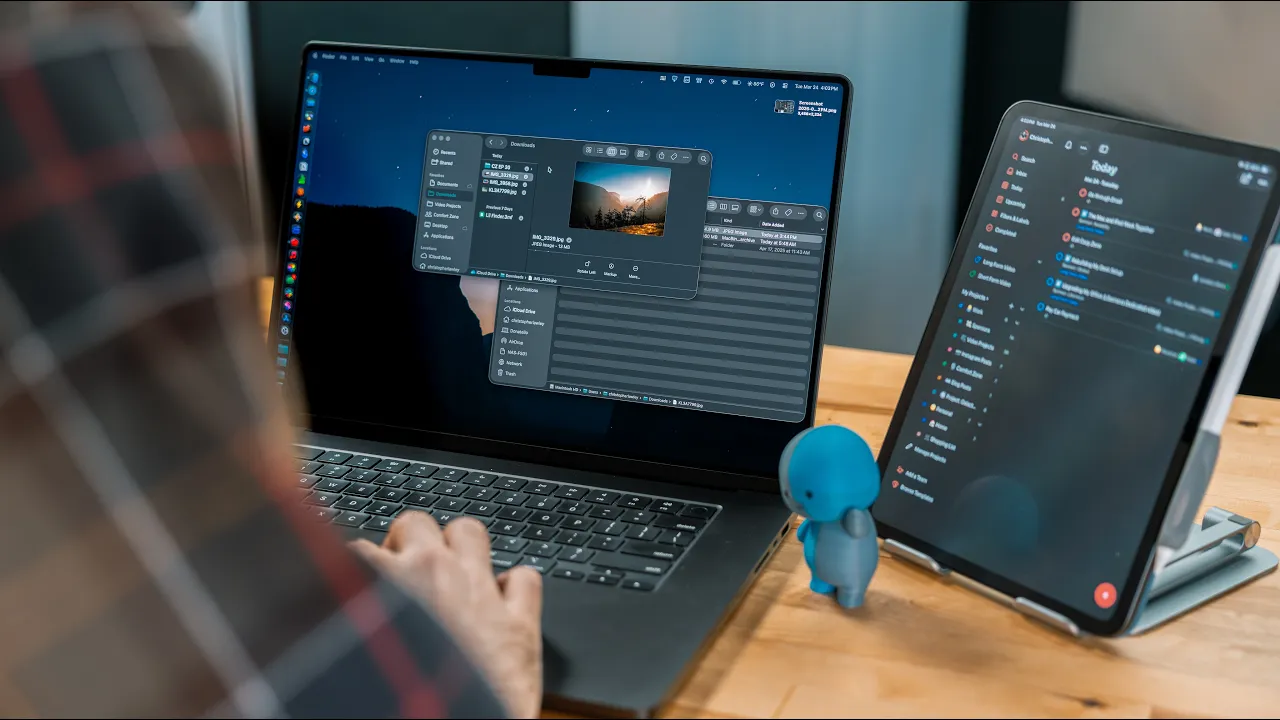
I thought, okay, maybe this thing might fall apart because I'm cutting into it, but I've had this for years now and it's just held up. Another new piece to my desk is the Cal Digit T S5 Plus hub. Everything on my desk gets plugged into this hub. And then there's one cable that goes out, one thunderbolt cable that comes out of it, and I can plug it into my MacBook Pro, my iPad Pro. Technically, I guess I could plug it into the MacBook Neo, but I I've never done that. The MacBook Neo isn't I I don't use the MacBook Neo at this desk.
Um, but I I can plug it into any one of my computers and then all of those accessories are now connec ted to that computer. And because I like to jump between different computers, this just makes that process a lot easier. And a perfect example of why you might want to do something like that is the magic trackpad. The magic trackpad is a Bluetooth device that compared to one computer. In 2026, it can only compare to one computer. Whatever, moving on. But if you use it in wired mode, whatever computer it's plugged into is now the computer it's paired with .
So what I do is I take that magic trackpad and plug it into that Caldigit hub. So whenever I move over the Thunderbolt cable between my two computers, that magic trackpad is now pai red with whatever computer I'm using with the Cal Digit Hub. So this way I don't have to have two different magic trackpads for my iPad and MacBook Pro. It's just one trackpad and it's active for whatever computer I'm using at that time. I'm now using the display port option on the Cal Digit Hub instead of the Thunderbolt option. Display port gives me 4K 240 hertz so it works perfect with the monitor so I don't need to worry about any of that stuff.
And because I'm no longer using the studio display, there's now an extra Thunderbolt port on the Caldig it Hub. So if I do get another Thunderbolt accessory in the future, I now have an open port to plug it into. On the front. Th'eres an SD card reader. I use this all the time with my camera stuff. I do have a CF Express card reader for plugging in to the hub as well. That I use for video stuff. SD cards I use for photo and audio. Another really nice feature about this Caldigit hub that the reason why I won't upgraded to the TS5 one is it can fully power the M4 Max MacBook Pro, the 16-inch model, uh which uses I don't remember what the wattages off the top of my head, but uses more watts than what my old hub would do.
So if I was really maxing out the power on the MacBook Pro with my old hub, the battery would actually go down. Uh or it wouldn't work right. I I I had a bunch of weird issues. That's why I upgraded. And the reason why I got the plus model, turns out I actually didn't need to get the plus model. I could have just got the regular one, but I did end up getting the plus model. The nice thing is it matches the MacBook Pro because that one's face gray. Anyways, whatever. The reason why I bought the plus one was because it has 10 gigabit Ethernet.
I was gonna plug my NAS directly into the 10 gigabit port and do like this local thing but I just I end ed up not do it dealing with it because the NAS has uh one gigabit ports four one gigabit ports bonded together which gives me a f essentially a four gigabit per second connection, which is more than enough for what I need. The last thing that had me picking the Cal Digit hub over all the other hubs that I have used in the past is it fits perfectly in the Ugmont Gather shelf. Like it's like literally designed for that.
I know it's not, but it just fits perfectly right in there. It's not another thing taking up space on top of the desk. It goes right into that shelf space. Now I've kind of already talked about the computers I use, but I 3D printed a three-slot laptop stand for this. So I have a place to put all of my computers when they're being used or when they're not being used. So I have here the 16-inch MacBook Pro, the MacBook Neo, and I will either keep the iPad Pro here, or I will just keep the Magic Keyboard here if I'm using the iPad at my desk.
Now if I am using the iPad at my desk, it sits in the Magflow Pro stand. I've talked about this a bunch. Sorry if you all heard me talk about this, but I literally get asked about it every single time I post a picture of my desk or a video of my desk or anything like that, I get asked about this. So I'm gonna I'm gonna mention it again. This is a tilt and height adjustable iPad stand, and it's magnetic, so it'll work with any of the like modern iPads. Uh there's a few different versions out there for this thing.
But uh this one right here is for the 13-inch M4 and M5 iPad Pros. And what's nice about this is you can either use it in portrait or vertical orientation. So I like to use it in vertical orientation because what I will use my iPads display for at my desk is displaying documents, task lists, messages, things that work best in a vertical view. And it just takes up a little bit less space as well than it being horizontal. It's also height adjustable so I can get it to match my monitor height as well so it's a bit more erg onomic that way.
I'm not sure if they still do this. When I ordered this originally, uh they, did this. I don't so I don't know if they they still do this or not, but the company charge in, when you order one of these, you also get this like U-shaped right-angled uh USB-C cable. So it works perfectly with their stand. So you can just plug it into the bottom, it'll charge up the iPad and you can go to you know whatever power brick you want. I know some people out there are upset that they didn't do some kind of like smart connector, but I'm actually glad they didn't because if I'm using my iPad with my monitor, I don't want the smart connec tor connection because I'm gonna be plugging in a thunderbolt cable.
So I'm fine with the USB-C. It's also gonna help keep the price down by not including all that smart connector stuff because they would have to reverse engineer all that it cause I don't believe that's an open thing that Apple has ever been like, hey, third party accessories, go make this thing. Uh so that's probably the big reason why that's not there. The keyboard I'm using at this desk right now is the mode envoy. Uh you might remember from a few desk setups ago, I used to have like this pegboard thing behind my mon itors with all my keyboards on it.
Uh a lot of those keyboards have now gone into storage. I'm considering selling some of those and just keeping like a few of my favorites. Uh that was just a hobby of mine, and uh keyboard stuff has kind of gotten really pricey, and I've fin ally come to accept I don't need 20 keyboards anymore. I probably just need one, but I'll keep like three or four. But I'm using the mode envoy here. These have the BC Keys uh HMX Golf Switches and the PBT fans atomic purple keycaps. These are just legally distinct enough from Nintendo's Game Boy Color Atomic Purple.
I love these keycaps. I'm I love the Nintendo nostalgia on them. Probably will slow down with building keyboards, but I I can see myself just switching out keycaps ever y once in a while. Uh and these are the ones that I'm just currently using. I also have a macro pad next to my keyboard. Unfortunately, this macro pad is not produced anymore, which is a bummer because it's it's perfect. I've tried a bunch of other macro pads and had weird issues with them. This is the one that has been the most solid for me. Uh, I use it for media keys because my keyboard doesn't have a function row.
So playback control, skip, uh, volume, and then they I have four function buttons as well that I use ke yboard maestro with that change depending on what application is present. It's it's a whole thing I could probably make a video about. Now as far as audio setup goes, my audio interface is the universal audio Volt 176 USB Audio Interface . I don't plug in microphones often at this desk, like I'm not podcasting from this desk, but I have my big KRK 5-inch studio monitors plugged into this, and this is where I manage those. In order to use these, they have to be plugged into an audio interface, and then the audio interface g ets plugged into your computer.
What I do really like about this setup is that means I get a really big volume knob to control the vol ume. I'm not sitting there messing with Mac OS or anything like that. I use these a lot for editing, uh, listening to music, playing podcasts, especially when I'm filming B -roll in here. But when I do like really focused audio work, like I'm editing the podcast, I'm editing the audio for the video and stuff like that, I use headphones for that. That's where the media control keys come in handy for on the macro pad.
And the headphones that I've been using are the AirPods Max 2. And yes, it does say sucker right here on my forehead. You are reading that correctly. I did buy the AirPods Max 2. Mostly for better noise canceling, I told the story a little bit, but we just got a new roof on the ho use. It was the loudest thing ever. The only reason why I was able to get work done that week was because of the original AirPods Max and how good the noise canceling was. So when these were announced with better noise canceling, I was like, sure, I'll jump on that right a way.
It's also nice that uh I have a refresh battery and a refresh headband because the headband does not h old up after years and years of work. Uh my original AirPods Macs are were those were day one devices and the headband is just trashed on th ose. I probably shouldn't have bought these, but I did. Um you can yell at me in the comments for it. It's fine. I did 3D print a headphone stand that I really like. It kind of has this nice designy thing. It's in matte black. It just matches the desk really nice.
Alright, so a few accessories on my desk. I have the Nintendo Alarmo. I get asked about this one all the time as well. This is Nintendo's alarm clock. Again, completely overpriced, and it does say sucker right here. Yes, it it does. Um I'm not nostalgic about a lot of things, but Nintendo produces something that is like a functional household item with a Nintendo character spin on it I,' Im I'm gonna buy it. So I I bought it. It sits here. I don't even use the alarm functionality. It's just a big clock on my desk, and I like having a big clock.
The clock in Mac OS and especially iPad OS is really small. I just like having a big clock on my desk. It's nice, especially when you you I'm trying to stick to a strict schedule. I do have a MagSafe puck on my desk. Uh this is also part of the Ug Monk collection. Uh you, can buy all the Ug Monk stuff individually, I believe. You don't have to buy like the whole set. What's nice about this magsafe stand as of opposed to just about every other magsafe stand that I've tr ied is it's magnetic on the bottom.
So what this means is when your phone or airpods are attached to the mag safe stand and you go to pull them off, you don't have to put your hand on the stand to pull it off. You don't have you can just grab your device with one hand. You don't have to use two hands to pull it apart. The puck and the stand don't come with the device if you try and do it. There's a nice clean separation. I really love that about this, and I don't understand why all MagSafe stands don't have some sort of fun ctionality of like it's gonna stick to whatever you set it on and you can just pull your device off with one hand.
I have a desk lamp as well on my desk, just a nice little accent light, practical light, if you will. Um, it's also just shines light on the keyboard and anything that I'm working on down here. It's it's very much a practical thing. And then I also 3D printed a paper tray. It may be 2026, but I still get paper stuff sent to me most recently, all my tax forms and stuff like that. Uh my taxes are so ridiculously annoying. Like I it took months and months to get all the papers and stuff that I needed.
Like I I literally finished my taxes a couple of days before they were due because I've been waiting on documents. So I printed this paper tray as just kind of a nice place to put all the important papers that I still need here. And then once I'm done with them, we have a shredder. I can go shred them. So that's it. That's my desk setup in 2026. Let me know what you guys think about it in the comments below. And I also want to hear what is your favorite desk accessory that you have right now?
Let me know. I love hearing about desk accessories and I want to check stuff out. So let me know in the comments below. My thanks to ObSpot for sponsoring this video. If you liked the video, hit the thumbs up button, subscribe if you haven't already, and have a great da y.
More from Christopher Lawley



Get daily recaps from
Christopher Lawley
AI-powered summaries delivered to your inbox. Save hours every week while staying fully informed.