How My iPad and Mac Work Together

Chapters9
Describes how the iPad and Mac can share keyboard and mouse, with setup tips and tips for arrangement.
Christopher Lawley shows how to make Mac and iPad work together seamlessly with Universal Control, Sidecar, Handoff, and more.
Summary
Christopher Lawley walks through a cohesive set of workflows that blend Mac and iPad usage. He notes that Apple has added features over the years to make these devices work in harmony, and he consolidates them in one place for easy reference. The video emphasizes that many features require both devices to be signed into the same Apple ID. Lawley’s personal favorite is Universal Control, which lets him move the cursor and keyboard between his Mac and iPad as if they were one workspace. He demonstrates configuring Universal Control in System Settings > Display and explains how to arrange devices on the screen. When not actively working on the iPad, he uses it as a secondary reference display, often in portrait mode with a MagFlow Pro stand beside a studio display. He also covers Sidecar for a true wireless second display, cautions about orientation, and compares it to Universal Control for different use cases. The clip also covers Handoff and the universal clipboard, plus practical notes on iCloud Tabs, Safari profiles, and AirDrop to move files quickly. Notability is highlighted as a sponsor that enhances note-taking, document markup, transcription, and collaboration across devices, tying the whole ecosystem together. Lawley wraps by inviting comments on what other integrations viewers use and thanks Notability for sponsoring the video.
Key Takeaways
- Universal Control lets you use the keyboard and mouse from either Mac or iPad to control both devices when they are nearby, with the iPad appearing as a connected display.
- To enable Universal Control troubleshooting tips include going to System Settings > Display and adding the iPad, plus adjusting its relative position (left/right over the Mac).
- Sidecar can turn the iPad into a true second display for the Mac, best used in landscape mode and works wirelessly with potential latency depending on the network.
- The universal clipboard preserves copy-paste across iPad, iPhone, and Mac using Command-C and Command-V, streamlining cross-device text transfer and even 2FA codes.
- Safari features like iCloud Tabs and Safari Profiles sync tabs and account contexts across devices, while you can select a device in Safari’s sidebar to view its open tabs.
- Notability expands workflow with handwriting-to-text, PDF markup, audio transcription, AI-assisted summaries, and real-time collaboration synced across iPad, iPhone, and Mac.
- AirDrop provides fast, device-to-device file transfers without going through the cloud, best for under-a-gig transfers and suitable for quick shared files.
Who Is This For?
Essential viewing for Mac and iPad users who want a tighter, more productive cross-device setup, especially those who rely on Notability, Safari, and quick file sharing.
Notable Quotes
"When your iPad and Mac are nearby, they connect automatically."
—Intro to the core feature of Universal Control and how devices pair.
"You can use the keyboard and mouse from either of those devices to control both of them."
—Explains the seamless control across devices with Universal Control.
"Universal clipboard... you can then paste it on any of those other devices."
—Highlights cross-device clipboard convenience.
"Notability is an excellent note-taking and productivity app."
—Sponsor integration and Notability’s role in the workflow.
"To use this, just in any file, photo, video, whatever, just go through the share sheet, you’ll see an airdrop section select that and then select the device that you want to send it to."
—How AirDrop is used to move files between devices.
Questions This Video Answers
- How does Universal Control help me work with an iPad as a secondary display?
- Can I use Sidecar to wirelessly extend my Mac screen to an iPad, and what are the limitations?
- What makes Notability a good companion app for Mac and iPad workflows?
- What is the difference between Universal Control and Sidecar for multi-device setups?
- How can I use Safari profiles and iCloud Tabs to keep my devices in sync?
Universal ControlSidecarHandoffUniversal ClipboardAirDropSafari TabsSafari ProfilesNotabilityMacOSiPadOS
Full Transcript
My workflow is becoming a lot more blended these days between the Mac and the iPad, and Apple has add ed a bunch of tools over the years for these devices to work seamlessly together. I've talked about some of these features in various videos, and some of these features I haven't mention ed at all, but I wanted to put all of these controls in one place. So if you're like me and work for both devices, you can take advantage of them. This video is sponsored by Notability. Now, a quick note: most of these features require your devices to be on the same Apple ID.
So your iPad and your Mac have to be signed into the same Apple ID account. You can't just use like a family member's iPad in your Mac. It has to be the same Apple ID on both devices. I want to start off the list with my personal favorite feature, and that is universal control. When your iPad and Mac are nearby, they connect automatically. You can use the keyboard and mouse from either of those devices to control both of them. So I can move the cursor from my Mac over to my iPad and click on anything as if it was the trackpad p aired with the iPad.
Then I can start using the keyboard on the Mac to type on the iPad. This works the other way around as well. If you have something like the magic keyboard for the iPad or any external keyboard and trackpad. If you have trouble getting this to work, go into system settings on the Mac, then display. There will be a plus button at the bottom. You should see your iPad in this menu, just select that. In here, you can also change the position of the iPad as it relates to the Mac. So if it shows that it's on the left side but you want it to be on the right, you can just drag it over .
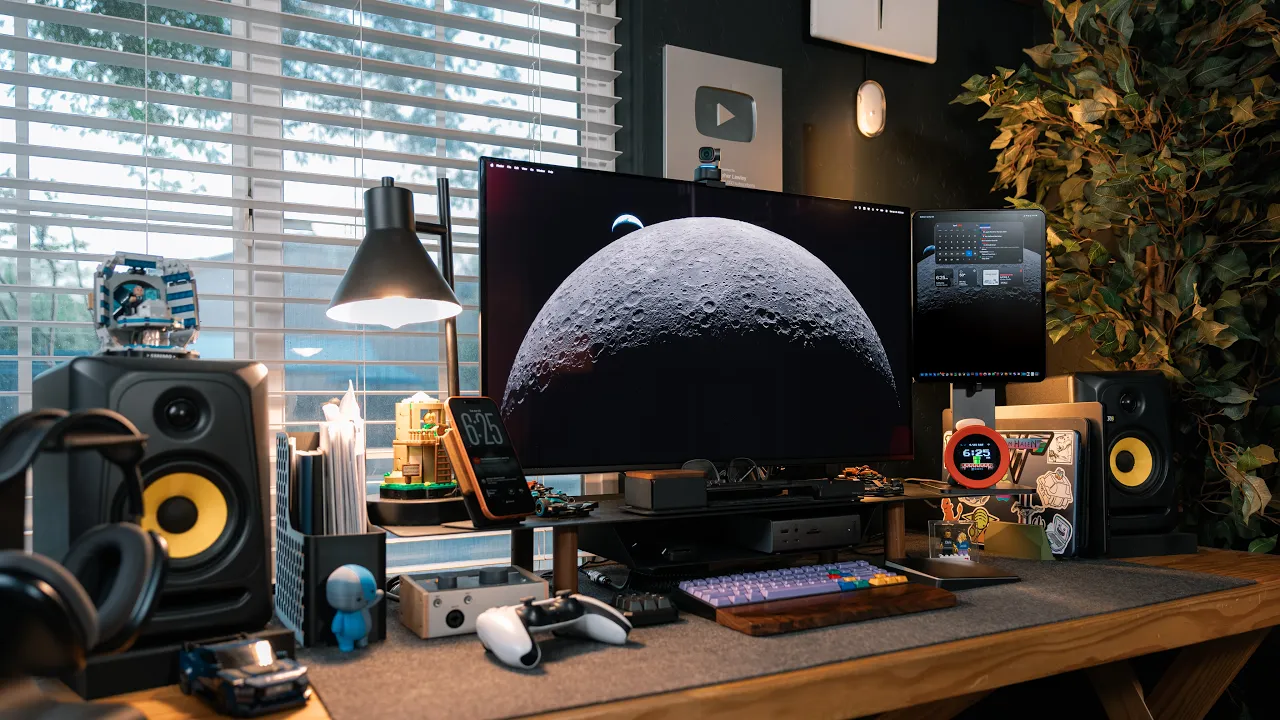
I use this every single day when I'm working at my desk. I'll put reference documents, my task list, calendar, the music app, podcast app, the Nintendo Music app , whatever on my iPad. I kind of treat it as my secondary display, like things I want to reference, not necessarily things I 'm working on, go here. I use the Magflow Pro stand and just put it right next to my studio display. Now I do keep this stand in the portrait orientation. I just find the compliments working on a big external monitor really nice, especially if you're putting things like documents or task lists up that really works best in a portrait orientation now universal control also works between multiple Macs so say you have like a Mac mini and a MacBook Pro or something like that.
You can jump between the two with universal control. Unfortunately, it doesn't work between multiple iPads. There must be a Mac in the middle someplace. Now, if you want a proper second display to use with your Mac, this is where Sidecar comes in. Sidecar gives you the ability to turn your iPad into a second display for your Mac. Go into Control Center and pick the screen mirroring option. You'll see your iPad in the list here and select it. Now, this doesn't work well if you keep your iPad in a portrait orientation on like a magnetic stand or something like that.
It really wants you to use your iPad in landscape mode. But this will give you a proper second display with your Mac without requiring any cables. So this can make for a really good travel setup if you travel with a MacBook and an iPad. Now for me it works really well wirelessly. Now this is gonna depend on your wireless network and a bunch of you know settings and what wi-fi type it's using and all that stuff but I'm able to watch video with no noticeable latency. I've used this in the past when I was traveling to get a little bit more space when editing off of a la ptop display.
Final cut on a you know 13, 14-inch, even a 16-inch laptop can feel a bit cramped. And this just gave me a little bit extra room to spread out. Mostly though, I prefer universal control. I like having what I'm working on on one monitor and then reference stuff off to the side. This video is sponsored by Notability. Notability is an excellent note-taking and productivity app. I'm sure a lot of you know Notability as a place to take handwritten notes. And it's excellent at that. You can turn handwritten notes into searchable databases, plus any PDF document can also be searchable as well.
I've been using it to mark up PDF documents like my scripts and contracts. And of course, I can annotate and sign those contracts right here in the app. I also set up my old journaling template in here. My template may need some updates, but it works perfectly in notability. Notability isn't just for handwritten text, it also has a built-in audio recording feature that uses A I to turn spoken words into a transcript. I used this the other day just to riff some ideas. It did a great job at handling the transcription. I just leaned back and said what was ever on my mind.
After I was done with it, it gave me a summary of what the transcript was about as well. Notability has other AI features like the ability to summarize any slide deck or PDF document, an AI po wered chat so you can ask it questions about your notes or text. That can be super handy if you have a lot of notes and you have a hard time finding something specific . Plus, notability has ventured into collaboration features so you can work with your team in real time . And of course, all of your documents sync across all of your devices, the iPhone, the iPad, and the Mac .
Notability has individual pricing if you're a solo person like myself, but they just rolled out a sub scription for business teams as well. Go check out Notability today. I've been using it on both my iPad and my Mac as a place to work with PDF documents, and I've really been enjoying it. My thanks to Notability for sponsoring this video. Handoff is an interesting feature that I wish more third party apps would support. Now, if you use the built-in Apple apps like Safari or Notes, this is gonna work perfect for you. Not all third party apps support it, but some do.
The way this works is say you have a Safari web page open on your iPad and you're browsing away, but you sit down at your Mac and you now want that page on your Mac. You want it on a bigger screen. You will see a Safari icon in your dock with an iPad logo on it. It's kind of near the trash can. If you click on that, it will take you to Safari and open that web page that you had opened on your i Pad now on your Mac. Now this works the other way around as well.
Say you have an Apple Note open on your Mac and you're like, okay, I want to walk away from my desk. You can just go down to the dock on your iPad and you should see the Apple Note's logo down there with a Mac icon. Just tap on that and it'll open it right to that note that you had open on your Mac. Now, like I said, this does work with third party apps, but not every third party app has adopted it. The one I use a lot with this is drafts I will start writing something on my iPhone or iPad and then I 'll bring it over to my Mac to finish it off.
So the feature I probably use the most on this list even more than Universal Control is the universal clipboard. If you copy something on one device, doesn't matter which device it is, iPad, iPhone, or Mac, you can then paste it on any of those other devices. This of course works with the Command-C and Command V keyboard shortcuts. This is a feature I use all day long just to move text around. Whether I, you know, started working on something in one place and it hasn't synced over or it's in a place that doesn't sync, it's just a handy feature to have.
Especially if you get like two FA codes or something on your phone and you don't have them on your Mac , that's a handy way of passing them across. With the continuity and markup and sketch feature, you can take screenshots from your Mac and mark them up on your iPad. Once you've taken a screenshot on your Mac, go into the editor and look for the iPad icon at the top. Click this button and it'll send it to your iPad. On your iPad, the screenshot will take up the whole screen. You can then use the Apple Pencil to mark up the screenshot.
You will see any changes you are making to that screenshot live on your Macs display as well. This is super handy if you need to do something precise that requires more than just a mouse or track pad. I'm a big Safari user, and a big reason I keep coming back to Safari is because there's a bunch of fe atures that sync your browsing information between your devices. My personal favorite is iCloud tabs. If you use the start page, you'll see right there a heading called iCloud tabs. This shows all the tabs that are on your other devices so you can just pull them up on whatever device you're on.
You can also go into the sidebar for Safari and you'll see a list of all of your devices here. You can click on one of those devices and then see all the tabs it has open. I'm also a big safari profile user. I have multiple accounts with the same service and I use safari profiles to keep me signed into those various accounts associated with that profile. For example, I have my YouTube channel that you're watching now, but I also upload our podcast to the Mac Stories YouTube channel. So I have a whole nother profile that's signed into the Mac Stories YouTube stuff.
Now, Safari profiles do sync between devices, and this is really handy. If you're somebody that wants to separate out your personal accounts and your work accounts but uses the same iCloud account to work from both, this is you you need to be using this. It's super great. One last safari feature people may not know about. If you use that start page, you can actually set a custom background, and those custom backgrounds will sync to your devices. This next feature, I expect a majority of people to know about, but since I'm making a complete list of how your iPad and your Mac can work together, I want to include it.
And that is Airdrop. Airdrop allows you to send files wirelessly between your devices. What I like about Airdrop versus something like iCloud or Dropbox or something like that is those serv ices can be slow to upload and then download to your other devices. Airdrop is sending it via ad hoc wireless network to your other device directly. It's not going up to some server and then coming back down. Unless it's a large file, but that's a whole separate thing. To use this, just in any file, photo, video, whatever, just go through the share sheet, you'll see an airdrop section select that and then select the device that you want to send it to but if you're on the Mac and in the finder just right click on a file select share and then select airdrop and do the same process in my experience airdrop works best when a file is under a gig.
If it's over a gig, I would probably just sync it with something like iCloud or Dropbox and just wait for that time period. But again, this is another feature I use all the time to move files around so I'm not waiting for iClo ud or Dropbox or Google Drive or any of those services. So those are the features I use when I'm working on both my Mac and my iPad at the same time. I want to hear from you all is there anything I left out? Is there something you use, a service, an app? Let me know in the comments below.
My thanks to Notability for sponsoring this video. If you like the video, hit the thumbs up button, subscribe if you haven't already, and have a great da y.
More from Christopher Lawley









Get daily recaps from
Christopher Lawley
AI-powered summaries delivered to your inbox. Save hours every week while staying fully informed.